New NetApp Releases: OnCommand System Manager 3.1, Virtual Storage Console 5.0 for vSphere, VASA Provider 5.0 for Clustered Data ONTAP, 7-Mode Transition Tool 1.2, SnapManager 3.3.1 for Oracle

Tags

OnCommand System Manager 3.1 for Windows and Linux
New Features, Enhancements, and Changes in System Manager 3.1:
1) Support for storage Quality of Service (QoS)
2) For Data ONTAP 8.2 and later, you can manage storage QoS for FlexVol volumes and LUNs.
3) You can create QoS policy groups and assign FlexVol volumes or LUNs to new or existing policy groups. The maximum throughput specified for the policy group enables you manage the workload (input/output operations) of storage objects.
4) Support for managing HA pairs
5) For Data ONTAP 8.2.1, you can manage HA pairs in a cluster by manually initiating a takeover or giveback operation. You can also enable or disable automatic giveback for a node.
6) Support for SVMs with Infinite Volume
7) For Data ONTAP 8.2 and later, you can use System Manager to manage SVMs with Infinite Volume in a cluster. System Manager enables you to create, resize, mount, unmount, protect, and edit Infinite Volumes.
8) Infinite Volumes and FlexVol volumes can coexist in the same cluster.
9) User interface enhancements
a) Array LUNs: For Data ONTAP 8.2.1, you can install the V_StorageAttach license to add array LUNs to non-root aggregates.
b) Note: This enhancement is also available for storage systems running Data ONTAP operating in 7-Mode.
c) Network interfaces: For Data ONTAP 8.2.1, you can use the Network Interfaces window to migrate a data LIF to a different port on the same node or a different node within the cluster.
d) Shares: For Data ONTAP 8.2.1, you can use the Edit Shares window to enable or disable access-based enumeration for a share.
e) Terminology changes: To avoid confusion, it is important that you understand that starting with clustered Data ONTAP 8.2.1, Storage Virtual Machine (SVM) is the new descriptive name for Vserver. In the documentation, the term SVM refers to Vserver. The Data ONTAP command-line interface (CLI) continues to use the term Vserver in the output, and Vserver as a command or parameter name has not changed.

http://support.netapp.com/NOW/download/software/systemmgr_win/3.1/

Virtual Storage Console 5.0 for VMware vSphereVirtual Storage Console 5.0 for VMware vSphere
VSC 5.0 is a major change that includes a new look and seamless integration with the VMware vSphere Web Client. New features in this release include support for the following:
1) The VMware vSphere Web Client
2) VASA Provider for clustered Data ONTAP
3) SnapVault integration as a backup job option for clustered Data ONTAP
4) Adding a virtual machine or datastore to an existing backup job
5) Numerous bug fixes

VSC 5.0 discontinues support for the following:
1) vCenter 5.1 and earlier
2) VMware Desktop client
3) 32-bit Windows installations
4) mbralign
5) Single File Restore
6) Datastore Remote Replication
7) Flash Accel

http://support.netapp.com/NOW/download/software/vsc_win/5.0/

VASA Provider 5.0 for Clustered Data ONTAP
VASA Provider for clustered Data ONTAP is a virtual appliance that supports the VMware VASA (vStorage APIs for Storage Awareness) framework. It uses Virtual Storage Console for VMware vSphere as its management console. VASA Provider acts as an information pipeline that provides information to the vCenter Server about NetApp storage systems associated with VSC. Sharing this information with vCenter Server enables you to make more intelligent virtual machine provisioning decisions and be notified when certain storage conditions might affect your VMware environment.

http://support.netapp.com/NOW/download/software/vasa_cdot/5.0/

7-Mode Transition Tool
The 7-Mode Transition Tool enables copy-based transitions of Data ONTAP® 7G and 7-Mode FlexVol® volumes and configurations to new hardware that is running either clustered Data ONTAP 8.2 or 8.2.1, with minimum client disruption and retention of storage efficiency options.
Attention: You can transition only network-attached storage (NAS) environments to clustered Data ONTAP by using the 7-Mode Transition Tool.
New Features
1) Transition qtree-level NFS exports
2) Transition CIFS local users and groups
3) Bundle log files that provide details of the transition operations that have occurred on your system
4) Transition volumes with only NFS configuration (volumes with UNIX security style and no CIFS configuration) without requiring to configure CIFS on the Storage Virtual Machine (SVM, formerly known as Vserver).

http://support.netapp.com/NOW/download/software/ntap_7mtt/1.2/

SnapManager 3.3.1 for Oracle
New and enhanced features:
1) Support for Oracle Database 12c (non-CDB)
2)  SnapManager 3.3.1 for Oracle does not support container databases (CDBs) and pluggable databases (PDBs) available in Oracle Database 12c.
3) Support for Solaris on clustered Data ONTAP with SnapDrive 5.2.1 for UNIX
4) Supports vaulting in clustered Data ONTAP by using post-backup scripts
5) Allows access to SnapManager GUI from the browser when Java Runtime Environment (JRE) 1.7 is installed
6) Support for Automatic Storage Management (ASM) on Linux without using ASMLib
UNIX:
http://support.netapp.com/NOW/download/software/snapmanager_oracle_unix/3.3.1/
Windows:
http://support.netapp.com/NOW/download/software/snapmanager_oracle_win/3.3.1/


HOWTO Find Unsigned Executables on Windows

Tags

,

From the Sigcheck website, “Sigcheck is a command-line utility that shows file version number, time stamp information, and digital signature details, including certificate chains. It also includes an option to check a file’s status on VirusTotal, a site that performs automated file scanning against over 40 antivirus engines, and an option to upload a file for scanning.” It runs on XP/2003 and higher versions of Windows.

Download sigcheck and unzip to a location of your choice. Run the commands below to get a feel for the output. When the command prompt returns, open the file in Excel, Calc or your favorite spreadsheet program. The Verified column will show “signed” or “unsigned.”

Sigcheck page:
http://technet.microsoft.com/en-us/sysinternals/bb897441

Sigcheck download:
http://download.sysinternals.com/files/Sigcheck.zip

Full Sysinternals Suite download:
http://download.sysinternals.com/files/SysinternalsSuite.zip

1) The following command scans executables only, shows extended version information, recurses sub-directories in c:\windows\system32 and writes the output to a file called sigcheck-Win7.csv.
> sigcheck -e -a -s -c c:\windows\system32 > sigcheck-Win7.csv

2) To run a check through VirusTotal, add the -v option. Note that when using the Virustotal option it may take 20 minutes or more to complete.
> sigcheck -e -a -s -v -c c:\windows\system32 > sigcheck-Win7-virustotal.csv

New NetApp Releases: SnapManager for Hyper-V, SnapDrive for Linux, Solaris x86 and SPARC, NFS Plug-in for VMware VAAI, SnapManager for Microsoft Exchange, VSC for Red Hat Enterprise Virtualization

Tags

New NetApp Releases:

SnapManager for Hyper-V v2.0.2
SnapManager for Hyper-V provides a solution for data protection and recovery for Microsoft Hyper-V virtual machines (VMs) running on Data ONTAP. You can perform application-consistent and crash-consistent dataset backups according to protection policies set by your backup administrator. You can also restore VMs from these backups. Reporting features enable you to monitor the status of and get detailed information about your backup and restore jobs.
SnapManager 2.0.2 for Hyper-V includes the following new features:
1) Support for Windows Server 2012 R2
http://support.netapp.com/NOW/download/software/snapmanager_hyperv_win/2.0.2/

SnapDrive for Linux, Solaris x86 and SPARC v5.2.1
SnapDrive for UNIX enables you to manage Snapshot copies and to automate storage provisioning tasks. It also helps you in recovering data if it is accidentally deleted or modified.
SnapDrive 5.2.1 for Linux supports the following new features:
1) Paravirtual SCSI controlled devices (PVSCSI) on Linux guest operating systems.
2) Allows to override the SnapMirror or SnapVault existence check, which is one of the mandatory checks performed during volume-based SnapRestore (VBSR) using configuration variables in Data ONTAP operating in 7-mode.
http://support.netapp.com/NOW/download/software/snapdrive_redhatlinux/5.2.1/

For Solaris:
1) Storage Area Network (SAN) and Network File System (NFS), in clustered Data ONTAP 8.2 or later.
2) Allows to override the SnapMirror or SnapVault existence check, which is one of the mandatory checks performed during volume-based SnapRestore (VBSR) using configuration variables in Data ONTAP operating in 7-mode.
Solaris x86:
http://support.netapp.com/NOW/download/software/snapdrive_solx86/5.2.1/
Solaris SPARC:
http://support.netapp.com/NOW/download/software/snapdrive_sol/5.2.1/

NFS Plug-in for VMware VAAI v1.0.21
The plug-in runs on the ESXi host and takes advantage of enhanced storage features offered by VMware vSphere. On the NetApp storage system, the NFS vStorage feature must be enabled for the ESXi host to take advantage of VMware VAAI. The plug-in performs NFS-like remote procedure calls (RPCs) to the server, using the same credentials as that of an ESXi NFS client. This means that the plug-in requires no additional credentials and has the same access rights as the ESXi NFS client.
New in this release:
1) IPv6 support in clustered Data ONTAP 8.2.1 or later, and Data ONTAP 8.1.1 or later operating in the 7-Mode storage system
http://support.netapp.com/NOW/download/software/nfs_plugin_vaai/1.0.21/

SnapManager for Microsoft Exchange v6.1
1) SnapManager 6.1 for Microsoft Exchange includes several new features and enhancements:
2) SnapManager 6.1 for Exchange supports clustered Data ONTAP 8.2.
3) SnapManager 6.1 for Exchange supports Microsoft Exchange Server 2007 and Exchange Server 2010 only.
4) SnapManager 6.1 for Exchange supports Windows Server 2008 R2 SP1 and Windows Server 2012 only.
5) Gapless backup support on DAG systems has been improved from three nodes to nine nodes.
6) UTM retention can be triggered independently from backup retention.
7) When specifying backup options, the backup retention setting for remote backups now applies to the selected management group.
http://support.netapp.com/NOW/download/software/snapmanager_e2k/6.1/

VSC for Red Hat Enterprise Virtualization v1.0
Virtual Storage Console (VSC) for Red Hat Enterprise Virtualization (RHEV) software is a single plug-in that provides storage controller configuration, Network File System (NFS)-based storage domain management (provisioning, deduplication, resizing, and destruction), and virtual machine (VM) cloning for RHEV environments with storage domains backed by NetApp storage systems.
http://support.netapp.com/NOW/download/software/vsc_rhev/1.0/

Determine what applications are using .NET on Windows with Process Explorer and Version Detector

Tags

,

I was asked recently whether a certain app or service required the .NET framework and while I generally knew the answer was no, I had no proof. I kept thinking, how can I determine what apps on this server were actually .NET? The following is a quick way to find those apps.

Microsoft Sysinternals Suite is an excellent set of utilities used to get under the hood of Windows and various Microsoft services. You can download the individual utilities but I just download the entire Suite. This post will use Process Explorer from the Suite but will barely scratch the surface of this powerful utility.

http://technet.microsoft.com/en-us/sysinternals/bb842062

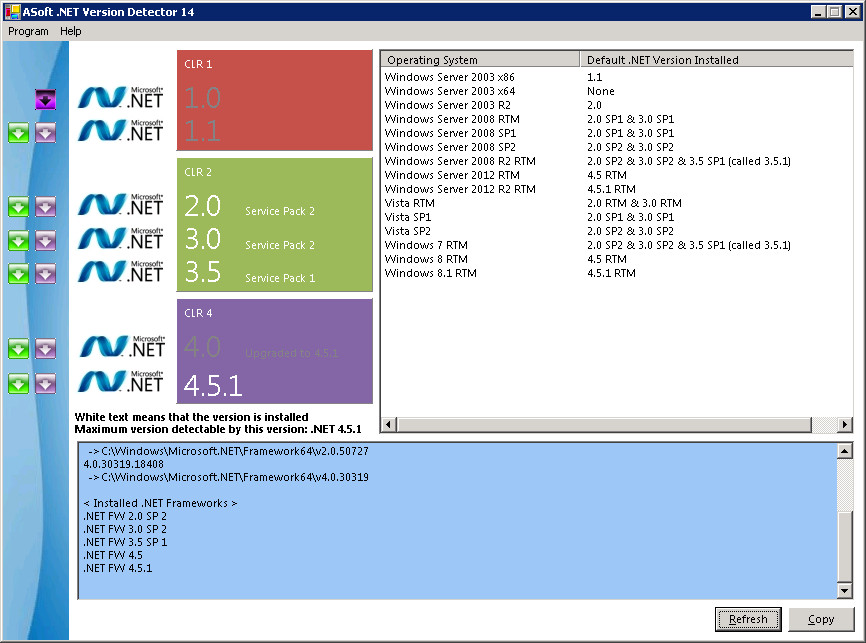
To find out what .NET assembly versions you have installed, run Asoft’s .NET Version Detector. There is more to .NET detection than just looking in Add/Remove Programs, Program Files or the Registry.

http://www.asoft.be/prod_netver.html

1) Download and unzip Asoft’s .NET Version Detector. Double-click the dotnet.exe file, click OK on the license page and it will render your versions on the left and in the lower section. On the right they conveniently provide you with the default .NET version for each Windows OS. This is a great time saver. Thanks Asoft devs!

DotNet-04

2) Download the Sysinternals Suite at the URL above or just download Process Explorer itself. Unzip and copy the procexp.chm and procexp.exe files to C:\Windows\System32 or if you don’t want to place them in System32 just park them in a location of your choice. Process Explorer is standalone so no installation is required.

3) In order to access the .NET tabs, it must be run as Administrator. I prefer to execute it from the CLI. Start > enter cmd.exe in the search field and cmd.exe will appear at the top. Right-click it and select Run As Administrator. If you didn’t place it in the System32 folder, change directories to the location of procexp.exe.  To run it just type procexp.exe and press enter. You can also just right-click the procexp.exe file and select Run As Administrator. Click Yes on the User Account Control pop-up window.

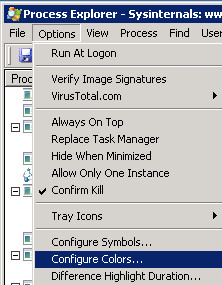
4) Select Options > Configure Colors.

DotNet-00

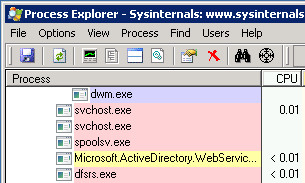
5) Select the check box next to .Net Processes in the yellow box and click OK. This will highlight .NET processes in yellow.

DotNet-01

6) Scroll up and down in the process column and look for yellow highlighted entries. Note that there may not be any. If you suspect that an application might be a .NET application simply start it and check the process column again for that app. In this case, the first instance I find is Microsoft AD web services.

DotNet-02

7) Right-click the service that is highlighted in yellow and select Properties. Select the .NET Assemblies and .NET Performance tabs to dig deeper into the service.

DotNet-03

8) A less useful but honorable mention goes to wmic. It provides the installed version but little else. I need to play around with it a bit more and see what I can find. Running the command below will provide the installed version and takes about 30 seconds to run.

C:\Windows\system32> wmic product where “Name like ‘Microsoft .Net%'” get Name, Version

Name                                    Version
Microsoft .NET Framework    4.5.1  4.5.50938

HOWTO Secure iSCSI Luns Between Red Hat Enterprise Linux 7 (Beta) and NetApp Storage with Mutual CHAP

Tags

, , ,

This post demonstrates how to enable Bidirectional or Mutual CHAP on iSCSI luns between Red Hat Enterprise Linux 7 (Beta) and NetApp storage. The aggregate, lun and disk sizes are small in this HOWTO to keep it simple.

1) If not already installed, install the iSCSI initiator on your system.
> yum install iscsi-initiator*

2) Display your server’s new iscsi initiator or iqn nodename.
> cat /etc/iscsi/initiatorname.iscsi
InitiatorName=iqn.1994-05.com.redhat:ece5618996a9

3) On the NetApp filer, create the volume that will hold the iscsi luns. This command assumes you have aggregate aggr1 already created.  If not use an aggregate that has enough room for your volume.
netapp> vol create MCHAPVOL aggr1 10g

4) Create the lun in the volume.
netapp> lun create -s 5g -t linux /vol/MCHAPVOL/RHEL7_iSCSI_MCHAP_01

5) Create an igroup and add the Linux iscsi nodename or iqn from step 2 above to the new igroup.
netapp> igroup create -i -t linux ISCSI_MCHAP_RHEL7
netapp> igroup add ISCSI_MCHAP_RHEL7 iqn.1994-05.com.redhat:ece5618996a9
netapp> igroup show ISCSI_MCHAP_RHEL7

ISCSI_MCHAP_RHEL7 (iSCSI) (ostype: linux):
iqn.1994-05.com.redhat:ece5618996a9 (not logged in)

6) Map the lun to the igroup and give it lun ID 01.
netapp> lun map /vol/MCHAPVOL/RHEL7_iSCSI_MCHAP_01 ISCSI_MCHAP_RHEL7 01

7) Obtain the NetApp target nodename.
netapp> iscsi nodename
iqn.1992-08.com.netapp:sn.84167939

8) Set the CHAP secret on the NetApp controller.
netapp> iscsi security add -i iqn.1994-05.com.redhat:ece5618996a9 -s chap -p RHEL7 -n iqn.1994-05.com.redhat:ece5618996a9 -o NETAPPMCHAP -m iqn.1992-08.com.netapp:sn.84167939

netapp> iscsi security show
init: iqn.1994-05.com.redhat:ece5618996a9 auth: CHAP Inbound password: **** Inbound username: iqn.1994-05.com.redhat:ece5618996a9 Outbound password: **** Outbound username: iqn.1992-08.com.netapp:sn.84167939

9) On the server, edit your /etc/iscsi/iscsi.conf file and set the parameters below.
> vi /etc/iscsi/iscsid.conf
node.startup = automatic
node.session.auth.authmethod = CHAP
node.session.auth.username = iqn.1994-05.com.redhat:ece5618996a9
node.session.auth.password = RHEL7
node.session.auth.username_in = iqn.1992-08.com.netapp:sn.84167939
node.session.auth.password_in = NETAPPMCHAP
discovery.sendtargets.auth.authmethod = CHAP
discovery.sendtargets.auth.username = iqn.1994-05.com.redhat:ece5618996a9
discovery.sendtargets.auth.password = RHEL7
discovery.sendtargets.auth.username_in = iqn.1992-08.com.netapp:sn.84167939
discovery.sendtargets.auth.password_in = NETAPPMCHAP
> wq!

10) On the server, restart the service and discover your iSCSI target (your storage system).
> service iscsi restart
Redirecting to /bin/systemctl restart  iscsi.service

a) Verify the target.
> iscsiadm -m discovery -t st -p 10.10.10.11
10.10.10.11:3260,1000 iqn.1992-08.com.netapp:sn.84167939

> iscsiadm -m node  (this should display the same as above)
10.10.10.11:3260,1000 iqn.1992-08.com.netapp:sn.84167939

11) On the server, manually login to the iSCSI target (your storage array). Note there are two dashes “- -” in front of targetname and login.
> iscsiadm -m node –targetname “iqn.1992-08.com.netapp:sn.84167939” –login
Logging in to [iface: default, target: iqn.1992-08.com.netapp:sn.84167939, portal: 10.10.10.11,3260] (multiple)
Login to [iface: default, target: iqn.1992-08.com.netapp:sn.84167939, portal: 10.10.10.11,3260] successful.

a) On the NetApp storage console you should see the iSCSI session:
[iscsi.notice:notice]: ISCSI: New session from initiator iqn.1994-05.com.redhat:ece5618996a9 at IP addr 10.10.10.186

b) Verify the iSCSI session on the filer:
netapp> iscsi session show
Session 88
Initiator Information
Initiator Name: iqn.1994-05.com.redhat:ece5618996a9
ISID: 00:02:3d:01:00:00
Initiator Alias: rhel7

12) From the server , check your session.
> iscsiadm -m session -P 1
Target: iqn.1992-08.com.netapp:sn.84167939
Current Portal: 10.10.10.11:3260,1000
Persistent Portal: 10.10.10.11:3260,1000
**********
Interface:
**********
Iface Name: default
Iface Transport: tcp
Iface Initiatorname: iqn.1994-05.com.redhat:ece5618996a9
Iface IPaddress: 10.10.10.186
Iface HWaddress: <empty>
Iface Netdev: <empty>
SID: 1
iSCSI Connection State: LOGGED IN
iSCSI Session State: LOGGED_IN
Internal iscsid Session State: NO CHANGE

13) From the server, check the NetApp iSCSI details. Note there are two dashes “- -” in front of mode, targetname and portal.
> iscsiadm –mode node –targetname “iqn.1992-08.com.netapp:sn.84167939” –portal 10.10.10.11:3260

14) From the server, find and format the new lun (new disk). Your fdisk commands are in bold red below.
> cat /var/log/messages | grep “unknown partition table”
rhel7 kernel: [   24.102281]  sdb: unknown partition table

> fdisk /dev/sdb

Welcome to fdisk (util-linux 2.23.2).

Changes will remain in memory only, until you decide to write them.
Be careful before using the write command.

Device does not contain a recognized partition table
Building a new DOS disklabel with disk identifier 0x2c025f67.

Command (m for help): w
The partition table has been altered!

Calling ioctl() to re-read partition table.
Syncing disks.

> fdisk /dev/sdb
Command (m for help): n
Partition type:
p   primary (0 primary, 0 extended, 4 free)
e   extended
Select (default p): p
Partition number (1-4, default 1): 1
First sector (2048-10485759, default 2048): <press enter>
Using default value 2048
Last sector, +sectors or +size{K,M,G} (2048-10485759, default 10485759): <press enter>
Using default value 10485759
Partition 1 of type Linux and of size 5 GiB is set

Command (m for help): p
Disk /dev/sdb: 5368 MB, 5368709120 bytes, 10485760 sectors
Units = sectors of 1 * 512 = 512 bytes
Sector size (logical/physical): 512 bytes / 512 bytes
I/O size (minimum/optimal): 512 bytes / 512 bytes
Disk label type: dos
Disk identifier: 0xeb560917

Device Boot  Start  End       Blocks   Id  System
/dev/sdb1    2048   10485759  5241856  83  Linux

Command (m for help): w
The partition table has been altered.
Calling ioctl() to re-read partition table.
Syncing disks.

15) On the server, create the Linux file system on the new partition.
> mkfs -t ext4 /dev/sdb1
mke2fs 1.42.8 (20-Jun-2013)
Filesystem label=
OS type: Linux
Block size=4096 (log=2)
Fragment size=4096 (log=2)
Stride=0 blocks, Stripe width=0 blocks
327680 inodes, 1310464 blocks
65523 blocks (5.00%) reserved for the super user
First data block=0
Maximum filesystem blocks=1342177280
40 block groups
32768 blocks per group, 32768 fragments per group
8192 inodes per group
Superblock backups stored on blocks:
32768, 98304, 163840, 229376, 294912, 819200, 884736

Allocating group tables: done
Writing inode tables: done
Creating journal (32768 blocks): done
Writing superblocks and filesystem accounting information: done

16) Verify the partition.
> blkid /dev/sdb1
/dev/sdb1: UUID=”540997d7-ee07-42b3-a4af-612af6812d18″ TYPE=”ext4″

17) Create the mount point and manually mount the directory.
> mkdir /newiscsilun
> mount /dev/sdb1 /newiscsilun
> df -h | grep newiscsilun
Filesystem Size  Used Avail Use% Mounted on
/dev/sdb1  4.8G  10M  4.6G   1% /newiscsilun

18) Add the new mount point to /etc/fstab.
> vi /etc/fstab
/dev/sdb1 /newiscsilun ext4 _netdev 0 0
> wq!

Note: the _netdev option is important so that it doesn’t try mounting the target before the network is available.

19) Test that it survives a reboot by rebooting the server. With the _netdev set, iscsi starts and your CHAP logins should take place before it attempts to mount. After the reboot, login and verify its mounted.

> df -h | grep newiscsilun
Filesystem Size  Used Avail Use% Mounted on
/dev/sdb1  5.0G  139M  4.6G   3% /newiscsilun

20) On the server you can check session stats.
> iscsiadm -m session -s
Stats for session [sid: 1, target: iqn.1992-08.com.netapp:sn.84167939, portal: 10.10.10.11,3260]
iSCSI SNMP:
txdata_octets: 17096
rxdata_octets: 748232
noptx_pdus: 0
scsicmd_pdus: 213
tmfcmd_pdus: 0
login_pdus: 0
text_pdus: 0
dataout_pdus: 0
logout_pdus: 0
snack_pdus: 0
noprx_pdus: 0
scsirsp_pdus: 213
tmfrsp_pdus: 0
textrsp_pdus: 0
datain_pdus: 204
logoutrsp_pdus: 0
r2t_pdus: 0
async_pdus: 0
rjt_pdus: 0
digest_err: 0
timeout_err: 0
iSCSI Extended:
tx_sendpage_failures: 0
rx_discontiguous_hdr: 0
eh_abort_cnt: 0

21) As root, change permissions on /etc/iscsi/iscsid.conf. I’m not sure why they haven’t fixed this clear text CHAP password in a file issue so just make sure only root can read/write the file.
> chmod 600 /etc/iscsi/iscsid.conf

22) On the NetApp storage you can verify the Lun and the server’s session.
> lun show -v /vol/MCHAPVOL/RHEL7_iSCSI_MCHAP_01
/vol/MCHAPVOL/RHEL7_iSCSI_MCHAP_01      5g (5368709120)    (r/w, online, mapped)
Serial#: hoagPJvrDTup
Share: none
Space Reservation: enabled (not honored by containing Aggregate)
Multiprotocol Type: linux
Maps: ISCSI_MCHAP_RHEL7=1

> iscsi session show -v
Session 90
Initiator Information
Initiator Name: iqn.1994-05.com.redhat:ece5618996a9
ISID: 00:02:3d:01:00:00
Initiator Alias: rhel7

Session Parameters
SessionType=Normal
TargetPortalGroupTag=1000
MaxConnections=1
ErrorRecoveryLevel=0
AuthMethod=CHAP
HeaderDigest=None
DataDigest=None
ImmediateData=Yes
InitialR2T=No
FirstBurstLength=65536
MaxBurstLength=65536
Initiator MaxRecvDataSegmentLength=65536
Target MaxRecvDataSegmentLength=65536
DefaultTime2Wait=2
DefaultTime2Retain=0
MaxOutstandingR2T=1
DataPDUInOrder=Yes
DataSequenceInOrder=Yes
Command Window Size: 32

Connection Information
Connection 0
Remote Endpoint: 10.10.10.186:59575
Local Endpoint: 10.10.10.11:3260
Local Interface: e0a
TCP recv window size: 131400

Command Information
No commands active

HOWTO verify the SSL Cipher Suite and Plug-ins supported by your browser and validate your website certificate

Tags

If you ever wondered what your browser tells the world in terms of your supported SSL/TLS cipher suites, key sizes and plug-in versions, try the first four URLs below in each web browser that you use. If you have a website, the bottom three check your site certificate.

For your Browsers:

Qualys Vulnerable Plug-in Browser Check
https://browsercheck.qualys.com/?scan_type=js

Mozilla Vulnerable Plug-in Check for Firefox, Opera, and Chrome. I believe the Qualys checker above is a little better but it doesn’t hurt to run both Qualys and Mozilla’s just in case one misses something. Also, the Qualys check doesn’t always capture the latest micro point release from Firefox.
http://www.mozilla.org/en-US/plugincheck/

SSL Cipher Suite Details of your Browser
https://cc.dcsec.uni-hannover.de/

SSL/TLS Details of your Browser and POODLE Test
https://www.ssllabs.com/ssltest/viewMyClient.html

For your Website:

Check your Site Certificate or CSR
https://ssltools.websecurity.symantec.com/checker/

Qualys SSl Labs Site checker
https://www.ssllabs.com/ssltest/index.html

SSL Site Configuration Checker
https://sslcheck.globalsign.com/en_US

HOWTO Secure iSCSI Luns Between Oracle Solaris 11 and NetApp Storage Using Bidirectional CHAP

Tags

, , , ,

This post demonstrates how to secure iSCSI luns between Oracle Solaris 11 and NetApp storage. Solaris calls it Bidirectional CHAP rather than Mutual CHAP. The aggregate, lun and disk sizes are small in this HOWTO to keep it simple. Research the relationship between Solaris EFI, Solaris VTOC and lun size as well as UFS vs ZFS to make sure you choose the proper type for your environment. This was done with Solaris 11 (11/11) x86. All steps except the fdisk step near the end are the same for SPARC systems.

1) Check for the iSCSI packages. They should be installed by default.
> pkginfo | grep iSCSI
system    SUNWiscsir    Sun iSCSI Device Driver (root)
system    SUNWiscsiu    Sun iSCSI Management Utilities (usr)

2) Make sure the iSCSI service is running on your Solaris host.
> svcs | grep iscsi
online  6:41:58 svc:/network/iscsi/initiator:default

If not, start it.
> svcadm enable svc:/network/iscsi/initiator:default

3) Get your local iSCSI Initiator Node Name or iqn name on the Solaris host.
> iscsiadm list initiator-node | grep iqn
Initiator node name: iqn.1986-03.com.sun:01:e00000000000.52bcad1c

4) Make sure the iscsi service is running on the NetApp.
netapp> iscsi status

5) Create the volume that will hold the iscsi luns. This command assumes you have aggregate aggr1 already created. If not use an aggregate that has enough room for your volume.
netapp> vol create MCHAPVOL aggr1 10g

6) Create a lun on the volume.
netapp> lun create -s 5g -t solaris_efi /vol/MCHAPVOL/SOL11_iSCSI_MCHAP_01

7) Create an igroup and add the Solaris iscsi node name or iqn from step 3 above to it.
netapp> igroup create -i -t solaris ISCSI_MCHAP_SOL11
netapp> igroup add ISCSI_MCHAP_SOL11 iqn.1986-03.com.sun:01:e00000000000.52bcad1c
netapp> igroup show

ISCSI_MCHAP_SOL11 (iSCSI) (ostype: solaris):
iqn.1986-03.com.sun:01:e00000000000.52bcad1c (not logged in)

8) Map the lun to the igroup and give it lun ID 01.
netapp> lun map /vol/MCHAPVOL/SOL11_iSCSI_MCHAP_01 ISCSI_MCHAP_SOL11 01

Note: Solaris EFI is for larger than 2 TB luns and Solaris VTOC for smaller disks. This lun is small just to demonstrate the configuration.

9) Obtain the NetApp target nodename.
netapp> iscsi nodename
iqn.1992-08.com.netapp:sn.4055372815

10) On the Solaris host, configure the target (NetApp controller) to be statically discovered. Note that there are two dashes “- -” in front of –static and –sendtargets. For some reason it displays as one dash in some browsers.
> iscsiadm modify discovery –static enable
> iscsiadm modify discovery –sendtargets enable
> iscsiadm add discovery-address 10.10.10.141:3260
> iscsiadm add static-config iqn.1992-08.com.netapp:sn.4055372815,10.10.10.141:3260
> iscsiadm list static-config
Static Configuration Target: iqn.1992-08.com.netapp:sn.4055372815,10.10.10.141:3260

11) Check your discovery methods. Make sure Static and Send Targets are enabled.
> iscsiadm list discovery
Discovery:
Static: enabled
Send Targets: enabled
iSNS: disabled

12) Enable Bidirectional CHAP on the Solaris host for the target NetApp controller.
> iscsiadm modify target-param –authentication CHAP iqn.1992-08.com.netapp:sn.4055372815
> iscsiadm modify target-param -B enable iqn.1992-08.com.netapp:sn.4055372815

13) Set the target device secret key that identifies the target NetApp controller. Note Solaris supports a minimum of 12 and a maximum of 16 character CHAP secrets. Also, there are two dashes “- -” in front of –CHAP-secret. You can make up your own secrets.
> iscsiadm modify target-param –CHAP-secret iqn.1992-08.com.netapp:sn.4055372815
Enter secret: NETAPPBICHAP
Re-enter secret: NETAPPBICHAP

14) Set the Solaris host initiator name and CHAP secret. Remember, there are two dashes “- -” in front of –CHAP-secret. You can make up your own secrets.
> iscsiadm modify initiator-node –authentication CHAP
> iscsiadm modify initiator-node –CHAP-name iqn.1986-03.com.sun:01:e00000000000.52bcad1c
> iscsiadm modify initiator-node –CHAP-secret
Enter secret: BIDIRCHAPSOL11
Re-enter secret: BIDIRCHAPSOL11

15) Verify your target parameters. Make sure Bidirectional Authentication is enabled and Authentication type is CHAP.
> iscsiadm list target-param -v iqn.1992-08.com.netapp:sn.4055372815
Target: iqn.1992-08.com.netapp:sn.4055372815
Alias: –
Bi-directional Authentication: enabled
Authentication Type: CHAP
CHAP Name: iqn.1992-08.com.netapp:sn.4055372815
Login Parameters (Default/Configured):
Data Sequence In Order: yes/-
Data PDU In Order: yes/-
Default Time To Retain: 20/-
Default Time To Wait: 2/-
Error Recovery Level: 0/-
First Burst Length: 65536/-
Immediate Data: yes/-
Initial Ready To Transfer (R2T): yes/-
Max Burst Length: 262144/-
Max Outstanding R2T: 1/-
Max Receive Data Segment Length: 8192/-
Max Connections: 65535/-
Header Digest: NONE/-
Data Digest: NONE/-
Tunable Parameters (Default/Configured):
Session Login Response Time: 60/-
Maximum Connection Retry Time: 180/-
Login Retry Time Interval: 60/-
Configured Sessions: 1

16) Set the Bidirectional CHAP secrets on the NetApp controller.
netapp> iscsi security add -i iqn.1986-03.com.sun:01:e00000000000.52bcad1c -s chap -p BIDIRCHAPSOL11 -n iqn.1986-03.com.sun:01:e00000000000.52bcad1c -o NETAPPBICHAP -m iqn.1992-08.com.netapp:sn.4055372815

a) View the iSCSI security configuration.
netapp> iscsi security show
init: iqn.1986-03.com.sun:01:e00000000000.52bcad1c auth: CHAP Local Inbound password: **** Inbound username: iqn.1986-03.com.sun:01:e00000000000.52bcad1c Outbound password: **** Outbound username: iqn.1992-08.com.netapp:sn.4055372815

17) On the Solaris host, reconfigure the /dev namespace to recognize the iSCSI disk (lun) you just connected.
> devfsadm -i iscsi or devfsadm -Cv -i iscsi

18) Login to server and format the disk. Note – the fdisk command below can be skipped on SPARC systems. Your input is in bold red in the next sequence.
> format
Searching for disks…done

AVAILABLE DISK SELECTIONS:
0. c4t0d0 <VMware-Virtual disk-1.0 cyl 1824 alt 2 hd 255 sec 63>
/pci@0,0/pci15ad,1976@10/sd@0,0
1. c5t2d0 <NETAPP-LUN-7350 cyl 2558 alt 2 hd 128 sec 32>
/iscsi/disk@0000iqn.1992-08.com.netapp%3Asn.8416793903E8,1
Specify disk (enter its number): 1
selecting c5t2d0
[disk formatted]
No Solaris fdisk partition found.

FORMAT MENU:
disk       – select a disk
type       – select (define) a disk type
partition  – select (define) a partition table
current    – describe the current disk
format     – format and analyze the disk
fdisk      – run the fdisk program
repair     – repair a defective sector
label      – write label to the disk
analyze    – surface analysis
defect     – defect list management
backup     – search for backup labels
verify     – read and display labels
save       – save new disk/partition definitions
inquiry    – show disk ID
volname    – set 8-character volume name
!<cmd>     – execute <cmd>, then return
quit
format> fdisk   (skip this command if you are on a SPARC system)
No fdisk table exists. The default partition for the disk is:

a 100% “SOLARIS System” partition

Type “y” to accept the default partition,  otherwise type “n” to edit the
partition table.
y

format> p

PARTITION MENU:
0      – change `0′ partition
1      – change `1′ partition
2      – change `2′ partition
3      – change `3′ partition
4      – change `4′ partition
5      – change `5′ partition
6      – change `6′ partition
7      – change `7′ partition
select – select a predefined table
modify – modify a predefined partition table
name   – name the current table
print  – display the current table
label  – write partition map and label to the disk
!<cmd> – execute <cmd>, then return
quit
partition> p
Current partition table (default):
Total disk cylinders available: 2557 + 2 (reserved cylinders)

Part      Tag    Flag     Cylinders        Size            Blocks
0 unassigned    wm       0               0         (0/0/0)           0
1 unassigned    wm       0               0         (0/0/0)           0
2     backup    wu       0 – 2556        4.99GB    (2557/0/0) 10473472
3 unassigned    wm       0               0         (0/0/0)           0
4 unassigned    wm       0               0         (0/0/0)           0
5 unassigned    wm       0               0         (0/0/0)           0
6 unassigned    wm       0               0         (0/0/0)           0
7 unassigned    wm       0               0         (0/0/0)           0
8       boot    wu       0 –    0        2.00MB    (1/0/0)        4096
9 unassigned    wm       0               0         (0/0/0)           0

partition> 0
Part      Tag    Flag     Cylinders        Size            Blocks
0 unassigned    wm       0               0         (0/0/0)           0

Enter partition id tag[unassigned]: <press enter>
Enter partition permission flags[wm]: <press enter>
Enter new starting cyl[0]: <press enter>
Enter partition size[0b, 0c, 0e, 0.00mb, 0.00gb]: 4.99gb

partition> l     (This is a lower case “L” not a numeral one or 1. This step labels the disk.)
Ready to label disk, continue? y

partition> q

format> q

19) Create the file system. You can choose either UFS or ZFS. Both options are shown below.

a) If you will use UFS:
> newfs -Tv /dev/rdsk/c5t2d0s0
newfs: construct a new file system /dev/rdsk/c5t2d0s0: (y/n)? y
mkfs -F ufs /dev/rdsk/c5t2d0s0 10465280 32 128 8192 8192 -1 1 250 1048576 t 0 -1 8 128 y
/dev/rdsk/c5t2d0s0:     10465280 sectors in 2555 cylinders of 128 tracks, 32 sectors
5110.0MB in 18 cyl groups (149 c/g, 298.00MB/g, 320 i/g)
super-block backups (for fsck -F ufs -o b=#) at: 32, 610368, 1220704, 1831040, 2441376,
3051712, 3662048, 4272384, 4882720, 5493056,
6103392, 6713728, 7324064, 7934400, 8544736, 9155072, 9765408, 10375744

> fsck /dev/rdsk/c5t2d0s0
> mkdir /old_ufs_filesystem
> mount /dev/dsk/c5t2d0s0 /old_ufs_filesystem
> vi /etc/vfstab and add the line below to the bottom of the file. This will mount it when the system boots.
/dev/dsk/c5t2d0s0 /dev/rdsk/c5t2d0s0 /old_ufs_filesystem  ufs  2 yes –
> wq! (to exit the vi session)

b) Check the new mount.
> df -h | grep old_ufs_filesystem
/dev/dsk/c5t2d0s0      5.0G  5.0M 4.9G 1% /old_ufs_filesystem

20) If you will use ZFS:
a) Create a pool.
> zpool create -f netappluns c5t2d0s0

b) Create the filesystem.
> zfs create netappluns/fs

c) List the new filesystem.
> zfs list -r netappluns
NAME           USED  AVAIL  REFER  MOUNTPOINT
netappluns     124K  4.89G    32K  /netappluns
netappluns/fs   31K  4.89G    31K  /netappluns/fs

d) Use the legacy display method.
> df -h | grep netappluns
netappluns       4.9G    32K   4.9G   1%    /netappluns
netappluns/fs    4.9G    31K   4.9G   1%    /netappluns/fs

21) You are done. Hope this helps.