• List of iSCSI Mutual CHAP Posts by OS
  • Tools and Utilities for Windows
  • Unix and Linux Distros

slice2

slice2

Category Archives: NetApp

New Releases: NetApp Data ONTAP Powershell Toolkit 3.0 and OnCommand Systems Manager 3.0

16 Friday Aug 2013

Posted by Slice2 in NetApp

≈ Leave a comment

Tags

NetApp

1) Data ONTAP PowerShell Toolkit v3 (access with free community site account)
https://communities.netapp.com/docs/DOC-22259

The new version adds support for clustered ONTAP 8.2 with 67 new cmdlets.

2) OnCommand Systems Manager v3 (you need a support contract to download)
http://support.netapp.com/NOW/download/software/systemmgr_win/3.0/

Of particular note if you still have DOT7 systems:
The installer installs both System Manager 3.0 and System Manager 2.2.0.1. System Manager 3.0 enables you to manage clustered Data ONTAP systems and System Manager 2.2.0.1 enables you to manage 7-Mode systems. System Manager 2.2.0.1 supports all the features, enhancements, and changes in the System Manager 2.2 release.

System Manager 3.0 is launched in a new browser tab or window if you are managing clustered Data ONTAP systems. Similarly, System Manager 2.2.0.1 is launched in a new browser tab or window if you are managing 7-Mode systems.

Hidden Gems – Health check Network, ONTAP, NAS and SAN configuration on NetApp storage within the NetApp Management Console

02 Friday Aug 2013

Posted by Slice2 in NetApp

≈ Leave a comment

Tags

NetApp

I believe this feature has been around since the DFM v4.x releases. If you haven’t noticed, DFM has been re-branded to NetApp OnCommand Unified Manager. There are Core and Host packages. You can download the latest v5.2 release here. You need a support contract to access the site.

Note- click images in the post below to increase size.

The NetApp OnCommand Unified Manager Core package bundles a great performance analysis tool built into the NetApp Management Console. Once you install OnCommand Unified Manager Core, its available in two locations:

1) C:\Program Files\NetApp\DataFabric Manager\DFM\web\clients\nmconsole-setup-3-3-win32.exe.

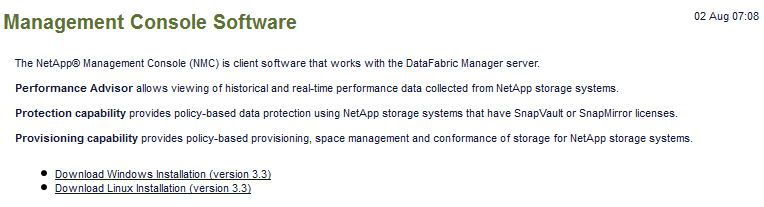
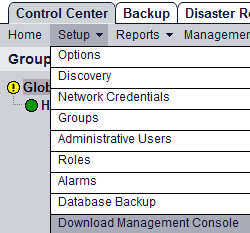
2) Start > NetApp > DataFabric Manager > Show Appliance Summary Page > click Setup > click Download Management Console.

nmc-1

2a) Click Download Windows Installation (version 3.3) and save it locally.

nmc-2

Install the Management Console on your workstation or server.

1) Double-click nmconsole-setup-3-3-win32.exe > Next > Install > Next > Finish. It will launch when done.

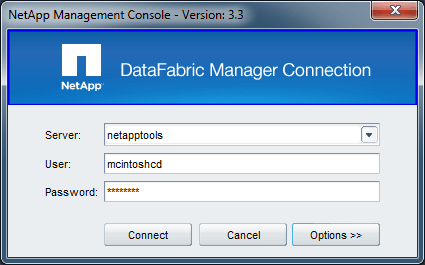
2) Enter your OnCommand Unified Manager server name or IP, username and password and click connect. Note you can click Options and switch between http and https. Hopefully you are using https.

nmc-3

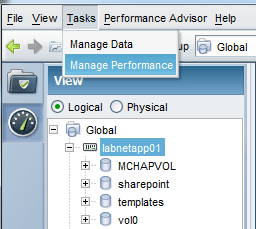
3) In the upper left, click Tasks > Manage Performance. Under View, select Logical and click the controller that you want to assess.

nmc-5

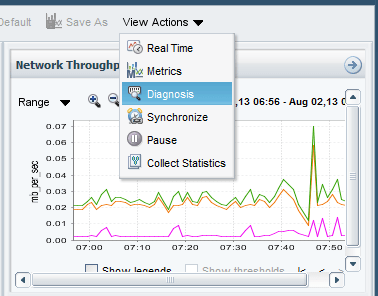
4) In a few seconds the page will render. On the right, just above the Network Throughput diagnostic panel, click View Actions > Diagnostics.

nmc-8

5) You will see either green, yellow or red as indicators of the health check category. Click on each and see what is available. In this case, when you select NAS Specific Issues, it says that Atime updates are enabled on the volumes. See the recommendation at the bottom and correct as needed.

nmc6

Note: You can sometimes improve performance by directing Data ONTAP to skip logging of access time (atime) information to NVRAM. The downside is that if there is a storage system crash, a few seconds worth of access time updates may not be recorded in the file system.

To make the change:

> vol options <your_vol_name> no_atime_update on

6) In this image for SAN Specific Issues, you can see it has detected LUN partial read/write issues. Assess the recommendations and make changes as needed.

Note: notice on the left that you can adjust the date and time of the diagnostic. This is useful when you want to assess a change you made to an NFS mount, for example rsize=8192,wsize=8192, or maybe a realigned LUN, etc. You can go back in time and correlate the diagnostic and performance data.

nmc-7

7) See TR-4090 (page 46) for Diagnostic tests and meanings.

Click to access tr-4090.pdf

Nessus now audits NetApp Data ONTAP

16 Tuesday Jul 2013

Posted by Slice2 in Nessus, NetApp, Security

≈ Leave a comment

Tags

NetApp, Security

From the Tenable blog post:

Nessus recently added capabilities to perform configuration and compliance audits in two major areas of the enterprise. First, Tenable added the ability to audit enterprise Cisco networking equipment, namely Cisco’s Nexus NX-OS. Then, we expanded and greatly enhanced support for auditing VMware vSphere and vCenter. Now, we’ve added support for auditing NetApp Data ONTAP storage devices. The new .audit is primarily based off the NetApp hardening guides (technical reports TR-3649 and TR-3996).

http://www.tenable.com/blog/nessus-now-secures-netapp-data-ontap

NetApp releases Data ONTAP PowerShell Toolkit v2.4

06 Thursday Jun 2013

Posted by Slice2 in NetApp

≈ Leave a comment

Tags

NetApp

Update: 23 DEC 2013 – a new version was released. Click here for the new post.

You need a free NetApp Communities account to download the toolkit.

http://support.netapp.com/eservice/public/community.do

This is the URL for ONTAP Powershell Toolkit page. Click Download on the left in the Spaces panel.

https://communities.netapp.com/community/products_and_solutions/microsoft/powershell

Version 2.4 release notes:
Major features

Virtual disk space reclamation
A new cmdlet, Invoke-NaVirtualDiskSpaceReclaim, can reclaim space from a virtual disk (VHD and VHDX format, NTFS file system).  With Windows Server 2012, it is possible to perform space reclamation on a running virtual machine by taking a Hyper-V snapshot of the running virtual machine, running Invoke-NaVirtualDiskSpaceReclaim, and then removing the Hyper-V snapshot.

VMDK to VHD/VHDX IDE driver injection

Toolkit 2.4 introduces the Win2K3ScsiToIde switch to ConvertTo-NaVhd and ConvertTo-NaVhdx.  When present, the Toolkit will automatically install and configure IDE drivers on a Windows Server 2003 virtual disk.

Data ONTAP 8.2 API support

Data ONTAP 8.2 includes a great number of new and updated APIs.  Toolkit 2.4 includes 133 new cmdlets covering most of these new APIs.  Toolkit 2.4 also updates over 60 cmdlets to include new parameters available in Data ONTAP 8.2.

New cmdlets, not including the Data ONTAP 8.2 API set:

Invoke-NaVirtualDiskSpaceReclaim

The following 7-Mode categories contain new cmdlets:

aggr (1 cmdlet)
feature (1 cmdlet)
volume (2 cmdlets)

The following clustered ONTAP categories contain new cmdlets:

aggr (8 cmdlets)
cifs (31 cmdlets)
cluster (2 cmdlets)
feature (1 cmdlet)
fpolicy (22 cmdlets)
group mapping (5 cmdlets)
license (3 cmdlets)
lun (3 cmdlets)
net (6 cmdlets)
qos (10 cmdlets)
qtree (1 cmdlet)
snapmirror (7 cmdlets)
snapmirror policy (7 cmdlets)
snapshot (4 cmdlets)
system (1 cmdlet)
volume (5 cmdlets)
vserver (1 cmdlet)
vserver peer (7 cmdlets)
vserver peer transition (4 cmdlets)

Enhancements

Many of the host-side cmdlets use the ‘Na’ prefix even when they are able to operate on either a 7-Mode or clustered ONTAP controller.  In order to prevent confusion, all of these cmdlets have been aliased with the ‘Nc’ prefix.
Toolkit 2.4 supports Update-Help.  Use Add-NaHelpInfoUri to enable functionality.

Fixes

Get-NaCommand and Get-NcCommand were case-sensitive.
Get-NaCifsShare would not fill out IsAccessBasedEnum value.
Invoke-NaHostVolumeSpaceReclaim would emit “Target volume is not hosted by Data ONTAP.” error on Windows Server 2003.

Installing and configuring Microsoft iSCSI Initiator 2.08, NetApp DSM MPIO 4, NetApp SnapDrive for Windows 6.4.2 and creating an ISCSI lun on the NetApp controller.

24 Friday May 2013

Posted by Slice2 in NetApp, Windows

≈ Leave a comment

Tags

NetApp, Windows

A friend was having issues setting up iSCSI on Windows 2003 with a NetApp storage array. I know what you are thinking…, “Dude, 32 bit Windows 2003 is totally obsolete! Why would you still be running an OS with a Mainstream Support End Date of 2010?”

Well, this is what they have at the moment so I created a VM to create this HOWTO and figured I would post it in hopes of helping others.

This HOWTO covers installing the Microsoft iSCSI Initiator v2.08 on Windows 2003, Microsoft patches specific to the Windows Storport and storage subsystem, NetApp DSM 4.0 and NetApp SnaDrive for Windows 6.4.2 (v6.5 is not supported on Windows 2003). It does not cover the process of enabling Mutual CHAP but I guess I can add that at a later date. Although CHAP is weak from a security standpoint, its better than nothing I guess.

The HOWTO is here: iSCSI on Windows with NetApp

Securing NetApp Data ONTAP with the NetApp Powershell Toolkit

10 Wednesday Apr 2013

Posted by Slice2 in NetApp, Security

≈ Leave a comment

Tags

NetApp, Security

The NetApp Data ONTAP Powershell Toolkit has come a long way. The latest release has many improvements including the new simplified installer. It couldn’t be easier to deploy and use.

See this .pdf to get started. Installing NetApp Data ONTAP Powershell Toolkit v2.3

The commands below represent the NetApp Powershell cmdlet version of the ONTAP commands referenced in a previous post titled http://slice2.com/2013/04/01/hardening-netapp-dataontap-8-1x/

Edit the text below to fit your environment and save as a .ps1 script. When done, simply execute it inside a powershell session or just run the command one at a time to get familiar.

1) Login to Controller.
If you want to use your controller name in the command , edit the Example line below. Otherwise, the Connect-NaController cmdlett will prompt you for a username and password and then the controller name you want to login to.
Example: Connect-NaController -Name <you filer hostname or ip> -Credential (Get-Credential) -https

Connect-NaController -Credential (Get-Credential) -https

2) Setup ssh with strong keys.

Set-NaOption -OptionName ssh1.enable off
Set-NaOption -OptionName ssh2.enable off
Initialize-NaSecureAdminSsh -Ssh1HostKeySize 2048 -Ssh1ServerKeySize 1920 -Ssh2HostKeySize 2048 -Force -Confirm

3) Set options.

Set-NaOption -OptionName ssh.idle.timeout -OptionValue 600 -Confirm
Set-NaOption -OptionName ssh1.enable -OptionValue off -Confirm
Set-NaOption -OptionName telnet.distinct.enable -OptionValue on -Confirm
Set-NaOption -OptionName rsh.access -OptionValue “none” -Confirm
Set-NaOption -OptionName rsh.enable -OptionValue off -Confirm
Set-NaOption -OptionName telnet.access -OptionValue “none” -Confirm
Set-NaOption -OptionName telnet.enable -OptionValue off -Confirm
Set-NaOption -OptionName webdav.enable -OptionValue off -Confirm
Set-NaOption -OptionName autologout.console.enable -OptionValue on -Confirm
Set-NaOption -OptionName autologout.console.timeout -OptionValue 60 -Confirm
Set-NaOption -OptionName autologout.telnet.enable -OptionValue on -Confirm
Set-NaOption -OptionName autologout.telnet.timeout -OptionValue 5 -Confirm
Set-NaOption -OptionName security.passwd.rules.enable -OptionValue on -Confirm
Set-NaOption -OptionName security.passwd.rules.everyone -OptionValue on -Confirm
Set-NaOption -OptionName security.passwd.rules.minimum -OptionValue 8 -Confirm
Set-NaOption -OptionName security.passwd.rules.maximum -OptionValue 16 -Confirm
Set-NaOption -OptionName security.passwd.rules.minimum.alphabetic -OptionValue 2 -Confirm
Set-NaOption -OptionName security.passwd.rules.minimum.digit -OptionValue 2 -Confirm
Set-NaOption -OptionName security.passwd.rules.minimum.symbol -OptionValue 2 -Confirm
Set-NaOption -OptionName security.passwd.rules.history -OptionValue 6 -Confirm
Set-NaOption -OptionName security.passwd.lockout.numtries -OptionValue 6 -Confirm
Set-NaOption -OptionName security.passwd.firstlogin.enable -OptionValue off -Confirm
Set-NaOption -OptionName sp.autologout.enable -OptionValue on -Confirm
Set-NaOption -OptionName sp.autologout.timeout -OptionValue 60 -Confirm
Set-NaOption -OptionName sp.ssh.access -OptionValue * -Confirm
Set-NaOption -OptionName ndmpd.enable -OptionValue off -Confirm
Set-NaOption -OptionName interface.blocked.cifs -OptionValue e0M -Confirm
Set-NaOption -OptionName interface.blocked.ftpd -OptionValue e0M -Confirm
Set-NaOption -OptionName interface.blocked.iscsi -OptionValue e0M -Confirm
Set-NaOption -OptionName interface.blocked.nfs -OptionValue e0M -Confirm
Set-NaOption -OptionName interface.blocked.snapmirror -OptionValue e0M -Confirm
Set-NaOption -OptionName ip.fastpath.enable -OptionValue off -Confirm
Set-NaOption -OptionName ip.icmp_ignore_redirect.enable -OptionValue on -Confirm
Set-NaOption -OptionName ip.match_any_ifaddr -OptionValue off -Confirm
Set-NaOption -OptionName ip.ping_throttle.alarm_interval -OptionValue 15 -Confirm
Set-NaOption -OptionName ip.ping_throttle.drop_level -OptionValue 100 -Confirm
Set-NaOption -OptionName tftpd.enable -OptionValue off -Confirm
Set-NaOption -OptionName ssl.enable -OptionValue on -Confirm
Set-NaOption -OptionName ssl.v2.enable -OptionValue off -Confirm
Set-NaOption -OptionName ssl.v3.enable -OptionValue on -Confirm
Set-NaOption -OptionName tls.enable -OptionValue on -Confirm
Set-NaOption -OptionName httpd.admin.enable -OptionValue off -Confirm
Set-NaOption -OptionName httpd.admin.ssl.enable -OptionValue on -Confirm
Set-NaOption -OptionName httpd.timeout -OptionValue 600 -Confirm
Set-NaOption -OptionName nfs.tcp.enable -OptionValue on -Confirm

4) Setup snmpv3 parameters.
You still have to setup OnCommand (DFM). This just takes care of the controller.
See http://slice2.com/2013/03/20/how-to-enable-snmpv3-in-ontap-7-3-38-x-and-dfmoncommand-core-4-05-x

Set-NaRole -Role snmpv3role -AddCapabilities login-snmp -Confirm
Set-NaGroup -Group snmpv3group -AddRoles snmpv3role -Confirm
Set-NaUser -User snmpv3user -AddGroups snmpv3group -Confirm

5) You need to add your OnCommand/DFM Server name below. Use fqdn or ip address. Also edit the read only (ro) community  string to your setting if not public and the Location and Contact.

Set-NaOption -OptionName snmp.enable -OptionValue on -Confirm
Add-NaSnmpTrapHost -Host 10.10.10.26 -Confirm
Remove-NaSnmpCommunity -Community public
Set-NaSnmpLocation -Location “Roswell NM”
Set-NaSnmpContact -Contact “The Borg”

6) Setup syslog. Edit these parameters to point to your syslog server. Note that you must have a tab space between syslog IP address and the facility you want to syslog. The gap below is a tab not a spacebar.

Write-NaFile -Path /vol/vol0/etc/syslog.conf -AppendLine “*.* @10.10.10.100”

Hardening NetApp DataONTAP 8.1x

01 Monday Apr 2013

Posted by Slice2 in NetApp, Security

≈ Leave a comment

Tags

NetApp, Security

This configuration can be implemented on ONTAP 8.1.1 and 8.1.2. Some options are not available on 7.3x or 8.0x but that shouldnt prevent you from hardening as many options as possible. If its not available on your version, skip and move to the next option. I’ll cover securing the controllers, OnCommand Unified Manager and 7.3.x FilerView with Certificates in another post.

Secure shell should already be enabled on your controller. If the system has been around a while or the deployment engineer accepted defaults, chances are you have weak keys. Note that this process generates keys for sshv1 which is insecure and no longer used (it will be disable later in this HOWTO). Also, the host/server key size must differ by 128 bits explaining the size differential in the steps that follow. As the root user, run:

1) SSH has to be disabled before you configure it.
> secureadmin disable all

2) If it has been setup before, use the -f switch.
> secureadmin setup -f ssh

SSH Setup
———
Determining if SSH Setup has already been done before…yes
You have chosen to re-run SSH Setup. The old host keys will be
backed up to the following files:
/etc/sshd/ssh_host_key.201303310835
/etc/sshd/ssh_host_rsa_key.201303310835
/etc/sshd/ssh_host_dsa_key.201303310835
Do you want to proceed? [no] y

SSH server supports both ssh1.x and ssh2.0 protocols.

SSH server needs two RSA keys to support ssh1.x protocol. The host key is
generated and saved to file /etc/sshd/ssh_host_key during setup. The server
key is re-generated every hour when SSH server is running.

SSH server needs a RSA host key and a DSA host key to support ssh2.0 protocol.
The host keys are generated and saved to /etc/sshd/ssh_host_rsa_key and
/etc/sshd/ssh_host_dsa_key files respectively during setup.

SSH Setup will now ask you for the sizes of the host and server keys.
For ssh1.0 protocol, key sizes must be between 384 and 2048 bits.
For ssh2.0 protocol, key sizes must be between 768 and 2048 bits.
The size of the host and server keys must differ by at least 128 bits.

Please enter the size of host key for ssh1.x protocol [768] :2048
Please enter the size of server key for ssh1.x protocol [512] :1920
Please enter the size of host keys for ssh2.0 protocol [768] :2048

You have specified these parameters:
host key size = 2048 bits
server key size = 1920 bits
host key size for ssh2.0 protocol = 2048 bits
Is this correct? [yes] yes

Setup will now generate the host keys. It will take a minute.
After Setup is finished the SSH server will start automatically.

Sun Mar 31 08:35:48 EST [sim812:secureadmin.ssh.setup.passed:info]: SSH setup is done and ssh2 is enabled. Host keys are stored in /etc/sshd/ssh_host_key,

/etc/sshd/ssh_host_rsa_key, and /etc/sshd/ssh_host_dsa_key.

3) If using Putty or xterm, logout and login back in to accept the new, stronger keys.

4) Set the ssh.idle.timeout (set in seconds)
> options ssh.idle.timeout 600

4) Disable ssh1 and never use it unless you abolutely have no other choice.
> options ssh1.enable off

5) Enable the ability to separate SSH and ONTAP console sessions.
> options telnet.distinct.enable on

6) Disable RSH and never use it.
> options rsh.access “none”
> options rsh.enable off

7) Disable telnet and never use it.
> options telnet.access “none”
> options telnet.enable off

8) Disable webdav.
> options webdav.enable off

9) Configure Autologout.
> options autologout.console.enable on
> options autologout.console.timeout 60
> options autologout.telnet.enable on
> options autologout.telnet.timeout 5 (The SSH timeout is controlled by the telnet timeout setting)

10) Set the default user account settings. You may want to tune this to your environemnt. Note that Windows users cant use the max password size of 16.
> options security.passwd.rules.enable on
> options security.passwd.rules.everyone on
> options security.passwd.rules.minimum 8
> options security.passwd.rules.maximum 16
> options security.passwd.rules.minimum.alphabetic 2
> options security.passwd.rules.minimum.digit 2
> options security.passwd.rules.minimum.symbol 2
> options security.passwd.rules.history 6
> options security.passwd.lockout.numtries 6
> options security.passwd.firstlogin.enable off  (This setting locks out root so don’t turn it on!)
Note: root and the service processors’s naroot user share the same password so root’s password cannot exceed 16 characters.

11) Configure options for the service processor.
> options sp.autologout.enable on
> options sp.autologout.timeout 60 (set in minutes. This can be shortened but uninterrupted SP access is critical during updrades or troubleshooting)
> options sp.ssh.access * (this should be set to a specific IP/CIDR range rather than * to be more secure. If you must access your controllers from many networks, leave it at *.

12) Disable NDMP until needed. Ndmp is very usefull in certain Sysadmin situations but doesnt need to be left on unless you dump to VTLs or tape libraries.
> options ndmpd.enable off

13) Disable specific protocols on the management interface. Its a good idea to block protocols on interfaces that will never carry that traffic type. These options allow you to properly isolate traffic which complements VLAN separation.

> options interface.blocked.cifs e0M
> options interface.blocked.ftpd e0M
> options interface.blocked.iscsi e0M
> options interface.blocked.nfs e0M
> options interface.blocked.snapmirror e0M
To open the interface enter interface.blocked.nfs “”

14) NetApp recommended IP options:
> options ip.fastpath.enable off
> options ip.icmp_ignore_redirect.enable on
> options ip.match_any_ifaddr off
> options ip.ping_throttle.alarm_interval 15
> options ip.ping_throttle.drop_level 100

15) Disable TFTP.
> options tftpd.enable off

16) Enable SSL on the controller.
> options ssl.enable on
> options ssl.v2.enable off
> options ssl.v3.enable on
> options tls.enable on

Enable SSL for System Manager:
> options httpd.admin.enable off
> options httpd.admin.ssl.enable on
> options httpd.timeout 600  (timeout time in seconds, 600 = 10 minutes)

16) Enable SNMPv3 for secure communication between OnCommand(DFM) and the controller. See my other post for the simple steps here:

How to Enable SNMPv3 in ONTAP 7.3.3/8.x and DFM (OnCommand Core) 4.0/5.x

17) Create a banner for SSH and SP console login. Using a text editor, create a login banner. Copy the text to your Windows/Unix buffer so you can paste it in the follow steps.
> options ssh2.banner.enable on
> wrfile /etc/motd and paste your banner text into the terminal. Press CTRL+C to save the file (ignore the warning).
> wrfile /etc/issue and paste the text above into the terminal. Press CTRL+C to save the file (ignore the warning).

18) Create Administrative users. Don’t login as root. Create user accounts in the administrators group so you have an audit trail. Also note that the parameters for mix/max password age (-m -M) fit common best practices.

> useradmin user add john.doe -g Administrators -m 1 -M 90

a) For OnCommand Unified Manager, consider an account such as:
> useradmin user add OnCommandAdmin -g Administrators -m 1 -M 365

b) For NetApp Virtual Storage Console (VSC), consider an account such as:
> useradmin user add VSCadmin -g Administrators -m 1 -M 365

c) When setting user password expiry, you occasionally get locked out. To determine a users status, check the “Status” sections of the following command:
> useradmin user list john.doe

If Status is expired, the only way to enable the user account is to change the password. Login as root or an admin user and enter:
> passwd
Login: john.doe
New password:
Retype new password:

19) Configure NFS Parameters. Since most of us have VMware ESXi clusters in our environment, we must use NFSv3. ESXi does not support NFSv4 so the enhanced security is not available. Enable NFS over TCP rather than UDP for ESXi hosts.
> options nfs.tcp.enable on

20) Identify your admin host on the controller. This is a hidden option that is not seen with the options command unless it is defined. If you enter > options admin.hosts no output is returned if it is not configured. This should be set to a dedicated host, possibly your OnCommand Unified Manager server that should also have System Manager, Performance Adviser, ConfigAdviser, VASA plugin, ONTAP Powershell Toolkit and other NetApp management tools.
> options admin.hosts <your server name>

21) Configure Syslog to send to a remote syslog server like Splunk, Kiwi, WhatsUp, etc.
> rdfile /etc/syslog.conf.sample
Copy the text below, paste into notepad.exe and add your syslog server hostname or IP address. Note: use tab key, not space bar to separate the blank space between *.info/*.err;kern.*.local7* and <your syslog IP/hostname>

# Log messages of priority info or higher to the console and to /etc/messages
*.info                                  /dev/console
*.info                                  /etc/messages
*.*                @<your syslog server>

# Edit and uncomment following line to log all messages of priority
# err or higher and all kernel messages to a remote host, e.g. adminhost
# *.err;kern.*                          @adminhost
*.*                @<your syslog server>

# Edit and uncomment following line to log all messages of priority
# err or higher and all kernel messages to the local7 facility of the
# syslogd on a remote host, e.g. adminhost.
# *.err;kern.*                          local7.*@adminhost
local7.*            @<your syslog server>

a) After you have made the changes to the file above, perform the following:
> wrfile /etc/syslog.conf

b) Paste the text from notepad into the blank console, press enter to add a line at the bottom of the input and press CTRL+C to end the session.  Ignore the error that appears.

c) The Syslog service should restart in 15 seconds. If it does not, send a test message:
> logger Hello World

d) If you dont see “kern.syslogd.restarted:info]: syslogd: Restarted” on the console within 20-30 seconds of saving the file, manually restart syslog service.
> priv set advanced
*> syslog reset_syslog
*> priv set admin

NetApp ONTAP 7.3.3 Simulator Installation Guide for Oracle Enterprise Linux and Oracle VirtualBox

20 Wednesday Mar 2013

Posted by Slice2 in Linux, NetApp, Oracle

≈ Leave a comment

Tags

Linux, NetApp, Oracle

The following document provides detailed instructions to create a simulated NetApp filer environment using Oracle Enterprise Linux 5.5, Oracle VirtualBox 3.2.10 and the NetApp ONTAP 7.3.3 Simulator.

Outline

The naming convention I use will differentiate the Linux VM by using “L” and the ONTAP Simulator by using “O” as the first character in the hostname.

OS Hostname   IP                     SIM Hostname              IP Address             

L733SIM01        10.10.10.50       O733SIM01                   10.10.10.51

L733SIM02        10.10.10.52       O733SIM02                   10.10.10.53

You can run multiple versions of the Simulator (such as 7.3.1 or 7.3.4 or even 8.0). Simply adjust the hostnames to the version number to keep things sane. It is assumed you have Active Directory and DNS already in place so you can create CIFS shares as you would for user homes and profiles in a Domain.

Hardware

This document describes the process for Installing Oracle VirtualBox, creating the Linux VM and installing the ONTAP Simulator in the VM, My system is a Dell 8300 with 3 Gigs of RAM, 3 GHz Pentium 4 CPU with Windows 7 Ultimate x32. Not exactly the fastest system these days but plenty fast for the Simulator. 25 Gigs or more of disc space is enough to run the Simulator.

Oracle Enterprise Linux 5.5 x32

http://edelivery.oracle.com/EPD/GetUserInfo/get_form?caller=LinuxWelcome

Fill in your name, email address, answer yes to the export and license and click Continue.

  1. Select Oracle Linux, x86 32 bit and click Go. Note that the 7.3.3 Sim is not x64. The ONTAP 8x Sim is x64.
  1. Select the top option and click Continue at the bottom of the page.
  1. Scroll down and click Download on the x32 DVD. Save it to your computer. When the download finishes, right-click and extract the ISO image.
  1. Browse to the download location (right-click Start | Explore), right-click the zip file and unzip in the current location. I use 7zip but whatever zip utility works for you is fine.

Oracle VirtualBox

http://www.virtualbox.org/wiki/Downloads

  1. Click the VirtualBox 3.2.10 for Windows hosts x86/amd64 link and download to your computer.
  2. Browse to the file and double-click it (you may have to right-click and select Run As Administrator).
  3. If it appears, click Yes to the User Access Control pop-up window.
  4. Click Next on the Welcome screen | accept the License and click Next.
  5. Click Next on the Custom Setup screen | click next on the Shortcuts screen.
  6. Click Yes on the Network interface notice screen and the Install to start the installation.
  7. Deselect Start Oracle VirtualBox and click Finish.
  8. Manually reboot your system.

Create the VM Profile

  1. Click Start | All Programs | Oracle VM VirtualBox | VirtualBox.
  2. Click Ignore on the Media accessibility pop-up message.
  3. In the upper left corner, click the blue New icon.
  4. Click Next on the Welcome screen.
  5. Enter the hostname L733SIM01, under OS Type select Linux and Oracle and then click Next.
  6. Set the memory to 1024 (1 Gig) and lick Next.
  7. Select Create New Hard Disk and click Next.
  8. Click Next on the Create New Disk Wizard.
  9. Select fixed-size storage. Note that this will take a while to complete. Your Simulator VM will run faster with this option although the Dynamic expanding storage option is an acceptable (and supported) choice.
  10. Enter 25 Gigs and click Next.
  11. Assess the Summary and click Finish. This will take a while so go have a cup of coffee.
  12. When done click Finish.

Customize the VM Hardware

  1. In the upper left select the Setting icon.
  2. Select the System icon. In the middle next to Boot Order, un-check Floppy.
  3. Select the Audio icon on the left. Un-check the Enable Audio checkbox.
  4. Select the Network icon. Check Enable network adapter. Next to Attached to select Not Attached (you will attach later). Below that, expand Advanced and select Intel PRO/1000 MT Server adapter.
  5. Select the Serial Ports icon. Check Enable serial port on COM1 with port mode Disconnected and click OK to commit the hardware changes.
  6. In the upper left, click Settings again. Select the Storage icon. Under IDE Controller, select the dick icon marked Empty. On the right next to CD/DVD Device (Empty) click the small Folder icon.
  7. Click Add.
  8. Browse out to the ISO image for Oracle Enterprise Linux x32 v5.5 and click Open.
  9. Highlight the ISO image and click Select.
  10. Click OK to complete the preparation. The ISO image is now attached and ready to boot.
  11. In the upper left, click Start.
  12. When the console pop-up appears, read the message so you understand how to capture and release the mouse during the installation of the OS. Click OK to proceed. Note – after Installation, you will install the Guest Additions.
  13. Click inside the VM to make sure the mouse and keyboard is captured and press Enter. Click OK on mouse capture pop-up messages.
  14. Tab over to Skip and press Enter.
  15. At the Welcome screen click Next.
  16. Select English and click Next.
  17. Select US English and click Next.
  18. Select Yes to initialize the disk and erase all data.
  19. On the drop-down menu, select Remove all partitions on selected drives and create default layout. At the bottom select Review and click Next.
  20. Select Yes to remove all partitions.
  21. View the partition summary and click Next. Note: if you want to make changes to the partitions do it here.
  22. Accept the default boot loader options and click Next.
  23. Click Edit to the right of Network Devices. On the pop-up window select Manual Configuration and enter 10.10.10.50 and 255.255.255.0 for the mask. Below, deselect IPv6 and click OK.
  24. Back on the main window, enter hostname OEL733SIM01, gateway 10.10.10.1, primary DNS 10.10.10.100 and click Next.
  25. At the bottom left deselect System clock uses UTC and click Next.
  26. Set a root password and click Next.
  27. At the bottom click Customize now and Next.
  28. Select Applications and deselect Games, Graphics, Office, Sound and Video.
  29. Select Base System, deselect Dialup Networking and click Next.
  30. Next to start the installation.
  31. The installation begins and the disk is formatted.
  32. When done click Reboot. Click OK when the mouse pop-up message appears.
  33. The system reboots and runs Firstboot to complete the configuration. Click Forward.
  34. Accept the License agreement and click Forward.
  35. Disable the Firewall and click Forward. Click Yes on the security override pop-up window.
  36. Set SELinux to disabled and click Forward. Click Yes on the SELinux reboot pop-up message.
  37. Do not enable Kdump and click Forward.
  38. Select the Network Time Protocol tab, check Enable Network Time Protocol and click Forward. Note: to keep the ONTAP Simulator and the host OS time in sync you can also add your domain controller on this screen.
  39. Create a netappadmin account and click Forward.
  40. There is no sound card so click Forward.
  41. Click Finish and OK to reboot.
  42. Login as root and prepare for the Guest Additions. After login, right-click the desktop and select Open Terminal.
  43. In the upper left under Devices, select Install Guest Additions.
  44. Click inside the xterm console and run the following commands:

# cd /media/*/

# ls

# cp -rp /media/*/ /root/

# cd /root/V*/

# ls -l (to verify that they are there).

# umount /media/VBOXADDITIONS_3.2.10_66523

  1. Mount the Oracle Enterprise Linux 5.5 ISO image again (it was disconnected in the previous step). In the lower right corner of the VM, right-click the CD/DVD icon and select Enterprise-R5-U5-Server-i386-dvd.iso.
  2. Now, disconnect it but leave it “in the DVD tray” so to speak. This is an odd step but you must do it.

# umount /media/”Enterprise Linux dvd 20100405″

3. In the lower right hardware icons, double-click the network icon. On adapter 1, select Bridged adapter and the Intel Pro/100 and click OK.  You should now be on the network (or internet).

Setup Yum to read the DVD ISO image and install development components

  1. This process makes dependency resolution a no brainer.

# mkdir -p /media/disk

# mount /dev/cdrom /media/disk

# ls -l /media/disk/

2. Setup the yum base. Edit /etc/yum.conf, adding the following section:

# vi /etc/yum.conf

3. At the end of the file, below the lines that reads “#PUT YOUR REPOS HERE OR IN separate files named file.repo # in /etc/yum.repos.d, ” add the [base] section below.

[base]

name = Oracle Enterprise Linux 5.5 DVD

baseurl=file:///media/disk/Server/

gpgcheck=0

enabled=1

# wq!

# service yum-updatesd restart

# yum repolist

4. Run the install process for the groups below. Follow the prompt because you must answer “Is this OK, [y/N]: y” to continue. You must enter y to install the software. I know, I know, it installs a few libraries you don’t need but who has time to dissect every rpm?

# yum install unifdef rpm-build

# yum groupinstall “Development Libraries”

# yum groupinstall “Development Tools”

# yum install lynx

5. Exit the DVD path and umount it.

# cd /

# umount /media/disk

# df -h (to verify)

# reboot  (don’t argue, just do it!)

Note that the ISO is still attached to the VM. To remove it completely right-click the DVD icon in the lower right and select Unmount CD/DVD Device.

Install the VirtualBox Guest Additions

1. As root, run the following commands.

# cd /root/V*

# sh ./VBoxLinuxAdditions-x86.run

2. When the installation completes reboot the VM to seat the new drivers and kernel modules.

# reboot

You now have a pass-through mouse (no more right Ctrl key to release the mouse) and better overall integration.

For reference, Guest Additions are installed to:

/opt/VBoxGuestAdditions-3.2.10


Get the NetApp Simulator

1. Login to the VM as root and launch an xterm. Create the directory where the Simulator will reside.

# cd /

# mkdir 733sim

2. Launch a browser and perform the following steps.

  1. Create a NOW account on the NetApp support site: https://now.netapp.com/eservice/public/now.do
  2. Browse to the Simulator download site: http://now.netapp.com/NOW/cgi-bin/simulator
  3. Select the 7.3.3-tarfile-v22.tgz (76.6 MB) file and download to /733sim

An alternative method would be to use lynx. Note that you have to add your NOW user/password info after the auth= statement in the command below. When run, just answer yes to all the odd messages that appear.

lynx -accept_all_cookies -auth=NOW account  user/password http://now.netapp.com/download/tools/simulator/ONTAP/7.3.3/7.3.3-tarfile-v22.tgz

Install the Simulator

  1. Login as root and open an xterm. Questions are answered with bold text below. Note: at the end of the setup script it will create the disks. Let it run for a few minutes and then press enter to get the command prompt back.  Otherwise it will just sit at “Adding 20 additional disks” forever.

# cd /733sim

# tar -zxvf 7.3.3-tarfile-v22.tgz

# cd simulator

# ./setup.sh

Script version 22 (18/Sep/2007)

Where to install to? [/sim]: /733sim/sim

Would you like to install as a cluster? [no]: no

Would you like full HTML/PDF FilerView documentation to be installed [yes]: yes

Continue with installation? [no]: yes

Creating /733sim/sim

Unpacking sim.tgz to /733sim/sim

Configured the simulators mac address to be [00:50:56:6:79:c8]

Please ensure the simulator is not running.

Your simulator has 3 disk(s). How many more would you like to add? [0]: 20

The following disk types are available in MB:

Real (Usable)

a –   43   ( 14)

b –   62   ( 30)

c –   78   ( 45)

d –  129   ( 90)

e –  535   (450)

f – 1024   (900)

If you are unsure choose the default option a

What disk size would you like to use? [a]: f

Disk adapter to put disks on? [0]: 0

Use DHCP on first boot? [yes]: no

Ask for floppy boot? [no]: no

Checking the default route…

You have a single network interface called eth0 (default route) . You will not be able to access the simulator from this Linux host. If this interface is marked DOWN in ifconfig then your simulator will crash.

Which network interface should the simulator use? [default]: <press enter>

Your system has 872MB of free memory. The smallest simulator memory you should choose is 110MB. The maximum simulator memory is 832MB.

The recommended memory is 512MB.

How much memory would you like the simulator to use? [512]: 512

Create a new log for each session? [no]: yes

Adding 20 additional disk(s).

Complete. Run /733sim/sim/runsim.sh to start the simulator.

[root@L733SIM01 simulator]#

Run the Simulator to set the initial configuration in /etc/rc

  1. As root, run the Simulator. Note that the first time you run it will take some time to complete the boot sequence. Please be patient. Answers to questions are in bold below. Also we will break out of the cifs configuration at the end since you will have to answer the questions to fit your domain.

# /733sim/sim/runsim.sh

runsim.sh script version Script version 22 (18/Sep/2007)

This session is logged in /733sim/sim/sessionlogs/log-1287856931

NetApp Release 7.3.3: Wed Feb 24 10:15:48 PST 2010

Copyright (c) 1992-2009 NetApp.

Starting boot on Sat Oct 23 18:02:12 GMT 2010

Sat Oct 23 18:04:09 GMT [iomem.init.fail:CRITICAL]: Failed to initialize acceleration card (model name X1938A-R5, serial number 5012345670, part number virgo-simulator) in slot 1.

Sat Oct 23 18:04:09 GMT [fmm.domain.card.failure:error]: PAM II in slot 1 (model name X1938A-R5, serial number 5012345670, part number virgo-simulator): Flash device failed and needs to be updated or repaired or replaced.

Sat Oct 23 18:04:24 GMT [fmmb.current.lock.disk:info]: Disk v4.16 is a local HA mailbox disk.

Sat Oct 23 18:04:24 GMT [fmmb.current.lock.disk:info]: Disk v4.17 is a local HA mailbox disk.

Sat Oct 23 18:04:24 GMT [fmmb.instStat.change:info]: normal mailbox instance on local side.

Sat Oct 23 18:04:28 GMT [raid.cksum.replay.summary:info]: Replayed 0 checksum blocks.

Sat Oct 23 18:04:28 GMT [raid.stripe.replay.summary:info]: Replayed 0 stripes.

sparse volume upgrade done. num vol 0.

Vdisk Snap Table for host:0 is initialized

Sat Oct 23 18:04:32 GMT [vol.language.unspecified:info]: Language not set on volume vol0. Using language config “C”. Use vol lang to set language.

Sat Oct 23 18:04:32 GMT [rc:notice]: The system was down for 20113981 seconds

Sat Oct 23 18:04:32 GMT [useradmin.added.deleted:info]: The role ‘compliance’ has been added.

Sat Oct 23 18:04:33 GMT [useradmin.added.deleted:info]: The group ‘Backup Operators’ has been modified.

/etc/rc is missing. Running configuration dialog.

NetApp Release 7.3.3: Wed Feb 24 10:15:48 PST 2010

System ID: 0099920376 ()

System Serial Number: 987654-32-0 ()

System Storage Configuration: Multi-Path

System ACP Connectivity: NA

Model Name: Simulator

Processors: 1

slot 0: NetApp Virtual SCSI Host Adapter v0

23 Disks:             20.7GB

2 shelves with LRC

slot 1: NetApp Virtual SCSI Host Adapter v1

slot 2: NetApp Virtual SCSI Host Adapter v2

slot 3: NetApp Virtual SCSI Host Adapter v3

slot 4: NetApp Virtual SCSI Host Adapter v4

23 Disks:             20.7GB

2 shelves with LRC

slot 5: NetApp Virtual SCSI Host Adapter v5

slot 6: NetApp Virtual SCSI Host Adapter v6

slot 7: NetApp Virtual SCSI Host Adapter v7

slot 8: NetApp Virtual SCSI Host Adapter v8

4 Tapes:            VT-100MB

VT-100MB

VT-100MB

VT-100MB

Please enter the new hostname []: O733SIM01

Do you want to enable IPv6? [n]: n

Do you want to configure virtual network interfaces? [n]: n

Please enter the IP address for Network Interface ns0 []: 10.10.10.51

Please enter the netmask for Network Interface ns0 [255.0.0.0]: 255.255.255.0

Please enter media type for ns0 {100tx-fd, auto} [auto]: <press enter>

Please enter the IP address for Network Interface ns1 []: <press enter>

Would you like to continue setup through the web interface? [n]: n

Please enter the name or IP address of the IPv4 default gateway: 10.10.10.1

The administration host is given root access to the filer’s

/etc files for system administration.  To allow /etc root access

to all NFS clients enter RETURN below.

Please enter the name or IP address of the administration host: 10.10.10.200

Please enter timezone [GMT]: EST

Where is the filer located? []: Earth

What language will be used for multi-protocol files (Type ? for list)?:?

Supported language codes are:

C               (POSIX)

ar              (Arabic)

cs              (Czech)

da              (Danish)

de              (German)

en              (English)

en_US           (English (US))

es              (Spanish)

fi              (Finnish)

fr              (French)

he              (Hebrew)

hr              (Croatian)

hu              (Hungarian)

it              (Italian)

ja              (Japanese euc-j*)

ja_v1           (Japanese euc-j)

ja_JP.PCK       (Japanese PCK(sjis)*)

ja_JP.932       (Japanese cp932*)

ja_JP.PCK_v2    (Japanese PCK(sjis))

ko              (Korean)

no              (Norwegian)

nl              (Dutch)

pl              (Polish)

pt              (Portuguese)

ro              (Romanian)

ru              (Russian)

sk              (Slovak)

sl              (Slovenian)

sv              (Swedish)

tr              (Turkish)

zh              (Simplified Chinese)

zh.GBK          (Simplified Chinese (GBK))

zh_TW           (Traditional Chinese euc-tw)

zh_TW.BIG5      (Traditional Chinese Big 5)

To use UTF-8 as the NFS character set append ‘.UTF-8’

Language codes flagged with “*” are obsolete versions of those language character sets.

What language will be used for multi-protocol files (Type ? for list)?:en_US

Setting language on volume vol0

The new language mappings will be available after reboot

Sat Oct 23 18:11:45 GMT [vol.language.changed:info]: Language on volume vol0 changed to en_US

Language set on volume vol0

Do you want to run DNS resolver? [n]: n

Do you want to run NIS client? [n]: n

The Shelf Alternate Control Path Management process provides the ability

to recover from certain SAS shelf module failures and provides a level of

availability that is higher than systems not using the Alternate Control

Path Management process.

Do you want to configure the Shelf Alternate Control Path Management interface for SAS shelves [n]: n

Setting the administrative (root) password for O733SIM01 …

New password: <enter password>

Retype new password: <enter password>

Sat Oct 23 13:12:39 EST [passwd.changed:info]: passwd for user ‘root’ changed.

Sat Oct 23 13:12:39 EST [tapemc.alias.addOK:info]: Alias st0 automatically added for tape device WWN[0:042:424200:000000].

Sat Oct 23 13:12:39 EST [dfu.firmwareUpToDate:info]: Firmware is up-to-date on all disk drives

Sat Oct 23 13:12:39 EST [sfu.firmwareUpToDate:info]: Firmware is up-to-date on all disk shelves.

Sat Oct 23 13:12:39 EST [tapemc.alias.addOK:info]: Alias st1 automatically added for tape device WWN[0:142:424200:000000].

Sat Oct 23 13:12:39 EST [tapemc.alias.addOK:info]: Alias st2 automatically added for tape device WWN[0:242:424200:000000].

Sat Oct 23 13:12:39 EST [tapemc.alias.addOK:info]: Alias st3 automatically added for tape device WWN[0:342:424200:000000].

Sat Oct 23 13:12:39 EST [netif.linkUp:info]: Ethernet ns0: Link up.

Sat Oct 23 13:12:40 EST [perf.archive.start:info]: Performance archiver started. Sampling 22 objects and 195 counters.

add net default: gateway 10.10.10.1

There are 20 spare disks; you may want to use the vol or aggr command

to create new volumes or aggregates or add disks to the existing aggregate.

Sat Oct 23 13:12:42 EST [rc:info]: Registry is being upgraded to improve storing of local changes.

Sat Oct 23 13:12:42 EST [rc:info]: Registry upgrade successful.

Sat Oct 23 13:12:43 EST [mgr.boot.disk_done:info]: NetApp Release 7.3.3 boot complete. Last disk update written at Thu Mar  4 17:51:28 EST 2010

Sat Oct 23 13:12:43 EST [mgr.boot.reason_ok:notice]: System rebooted after a halt command.

This process will enable CIFS access to the filer from a Windows(R) system.

Use “?” for help at any prompt and Ctrl-C to exit without committing changes.

///

Press Ctrl+C to break out of CIFS configuration. Note that you can run the cifs setup command at any time.

  1. List out the disks to make sure you have them.

O733SIM01> vol status -r

Aggregate aggr0 (online, raid0) (zoned checksums)

Plex /aggr0/plex0 (online, normal, active)

RAID group /aggr0/plex0/rg0 (normal)

RAID Disk Device  HA  SHELF BAY CHAN Pool Type  RPM  Used (MB/blks)    Phys (MB/blks)

——— ——  ————- —- —- —- —– ————–    ————–

data      v4.16   v4    1   0   FC:B   –  FCAL  N/A  120/246784        127/261248

data      v4.17   v4    1   1   FC:B   –  FCAL  N/A  120/246784        127/261248

data      v4.18   v4    1   2   FC:B   –  FCAL  N/A  120/246784        127/261248

Spare disks

RAID Disk       Device  HA  SHELF BAY CHAN Pool Type  RPM  Used (MB/blks)    Phys (MB/blks)

———       ——  ————- —- —- —- —– ————–    ————–

Spare disks for zoned checksum traditional volumes or aggregates only

spare           v4.19   v4    1   3   FC:B   –  FCAL  N/A  1020/2089984      1027/2104448

spare           v4.20   v4    1   4   FC:B   –  FCAL  N/A  1020/2089984      1027/2104448

spare           v4.21   v4    1   5   FC:B   –  FCAL  N/A  1020/2089984      1027/2104448

spare           v4.22   v4    1   6   FC:B   –  FCAL  N/A  1020/2089984      1027/2104448

spare           v4.24   v4    1   8   FC:B   –  FCAL  N/A  1020/2089984      1027/2104448

spare           v4.25   v4    1   9   FC:B   –  FCAL  N/A  1020/2089984      1027/2104448

spare           v4.26   v4    1   10  FC:B   –  FCAL  N/A  1020/2089984      1027/2104448

spare           v4.27   v4    1   11  FC:B   –  FCAL  N/A  1020/2089984      1027/2104448

spare           v4.28   v4    1   12  FC:B   –  FCAL  N/A  1020/2089984      1027/2104448

spare           v4.29   v4    1   13  FC:B   –  FCAL  N/A  1020/2089984      1027/2104448

spare           v4.32   v4    2   0   FC:B   –  FCAL  N/A  1020/2089984      1027/2104448

spare           v4.33   v4    2   1   FC:B   –  FCAL  N/A  1020/2089984      1027/2104448

spare           v4.34   v4    2   2   FC:B   –  FCAL  N/A  1020/2089984      1027/2104448

spare           v4.35   v4    2   3   FC:B   –  FCAL  N/A  1020/2089984      1027/2104448

spare           v4.36   v4    2   4   FC:B   –  FCAL  N/A  1020/2089984      1027/2104448

spare           v4.37   v4    2   5   FC:B   –  FCAL  N/A  1020/2089984      1027/2104448

spare           v4.38   v4    2   6   FC:B   –  FCAL  N/A  1020/2089984      1027/2104448

spare           v4.39   v4    2   7   FC:B   –  FCAL  N/A  1020/2089984      1027/2104448

spare           v4.40   v4    2   8   FC:B   –  FCAL  N/A  1020/2089984      1027/2104448

spare           v4.41   v4    2   9   FC:B   –  FCAL  N/A  1020/2089984      1027/2104448


2. Connect to FilerView on the Simulator. From your Windows PC (where you installed VirtualBox), launch a browser (Firefox, Chrome, Opera, etc) and enter the following url: http://10.10.10.51/na_admin

3. Click the Simulator Documentation icon to get the license keys.

4. On the Documentation page click License Keys and the list of keys will be displayed. Add them to the filer in FilerView or with the license add <license> command.

How to Migrate a NetApp FAS2x to FAS2040

20 Wednesday Mar 2013

Posted by Slice2 in NetApp

≈ Leave a comment

Tags

NetApp

Prep for Updates

1)     Make sure you have enough space on your aggregates for 7.3.3. See release notes.

2)     No hardware or firmware related errors. If so, fix them first.

3)     Check for CIFS shares, NFS exports, iSCSI/FCP luns. Make sure your HBA drivers, iSCSI initiators, SnapDrive, SnapManager, and required OS patches are available and ready to be installed/upgraded as necessary. Verify all components with the NetApp support matrix on the NOW site.

4)     Make sure you know your time zone code such as US\Pacific for Pacific Standard Time.

Assumptions

1)     This doc describes how to use an IP address on the same network as the existing unit temporarily while you transfer the data to the new filer.

2)     Your existing filer is running an ONTAP version between 7.2.2 and 7.3.3 (although it should work for others).

3)     You have already moved the ONTAP versions you need to upgrade into /etc/software on the FAS2020.

4)     You have power in the rack or close by the existing filer to power on the new unit.

5)     You have SnapMirror license for both units.

6)     If your switch ports are VLAN’d or disabled until use, coordinate with your network team to get the correct IP and temporarily enable the port you will use. For this doc we will use a simple 10 net to demonstrate the transfer. Insert your own IP addresses bases on your company VLAN or switch policies. This doc assumes that your existing filer is 10.10.10.1 and the new unit will be 10.10.10.2.

7)     The initial configuration of the FAS2040 only needs to get the unit on the network and nothing more. This process fully copies the existing FAS2020 vol0 root volume and replaces the factory FAS2040 vol0. When done, you boot the FAS2040 into the original SnapMirrored FAS2020 vol0. If you have additional aggregates and volumes on your old filer, move them in the same way at the same time as vol0.

8)     This doc only covers vol0. For systems that have multiple aggregates and volumes simply create them on the FAS2040 as you would any SnapMirror operation and replicate the data.

9)     This outline has worked on a FAS270 and FAS20xx systems.

Step 1:

1)     Rack and stack new FAS2040.

2)     Connect network cable to e0a on the back of the filer. NIC e0a will be used as the primary interface.

3)     Use Putty or HyperTerminal to connect to the console.

4)     Using the serial to RJ45 adapted that ships with the unit, connect a serial cable to the filer management port and power on the unit.

5)     Initial setup during boot:

  1. Contacting DCHP server. Press CTRL+C to skip. CTRL+C
  2. Please enter the new hostname: bogus
  3. Do you want to enable IPv6? n
  4. Do you want to configure virtual network interfaces? n
  5. Please enter the IP address for Network Interface e0a: 10.10.10.2
  6. Please enter the netmask for Network Interface e0a. 255.255.255.0
  7. Should interface e0a take over a partner IP address during failover? n
  8. Please enter media type for e0a (100tx-fd, tp-fd, 100tx, tp, auto (10/100/1000)? <press enter>
  9. Please enter flow control for e0a {none, receive, send, full} [full]? <press enter>
  10. Do you want e0a to support jumbo frames? [n]? <press enter>
  11. Continue to enter network parameter values for each network interface when prompted.
    1. Press enter to skip e0c and e0d NICs.
  12. Would you like to continue setup through the Web interface? n
  13. Please enter the name or IP address of the IPv4 default gateway. 10.10.10.1
    1. Note: rdfile /etc/rc on FAS2020 to very.
  14. Please enter the name or IP address for administrative host. <press enter for none>
  15. Please enter the IP address for (name of admin host). <press enter for none>
  16. Please enter timezone: US/Pacific
  17. Where is the filer located? <press enter>
  18. What language will be used for multiprotocol files? en_US
  19. Enter the root directory for HTTP files: <press enter>
  20. Do you want to run DNS resolver? n
  21. Do you want to run NIS client? n
  22. Press any key to continue. <press enter>
  23. Would you like to configure the BMC LAN interface? n
  24. Would you like to configure the RLM LAN interface? n
  25. Setting the root password for bogus: <press enter>
  26. Do you want to make your system available via WINS? n
  27. Do you want to configure the Shelf Alternate Control Path Management? n
  28. When setup is complete, to transfer the information you’ve entered to the storage system, enter the following command, as directed by the prompt on the screen: reboot

Responding to cifs setup prompts:

  1. Do you want to make the system visible via WINS? n

(1) Multiprotocol filer

(2) NTFS-only filer

> 1

  1. Should CIFS create default /etc/passwd and /etc/group files? y
  2. Would you like to enable NIS group caching? n
  3. When the default name of the CIFS server is listed, you see the following prompt:
    1. Would you like to change this name? n
  4. Select the style of user authentication appropriate to your environment: 3

(1) Active Directory domain authentication (Active Directory domains only)

(2) Windows NT 4 domain authentication (Windows NT or Active Directory domains)

(3) Windows Workgroup authentication using the filer’s local user accounts

(4) /etc/passwd and/or NIS/LDAP authentication

  1. What is the name of the Workgroup [WORKGROUP]? <press enter>
  2. Do you want to create the (name of filer) administrator account? y

It is recommended that you create a local administrator account.

If you answer y, respond to the following prompts:

Enter the new password for (storage system name). <press enter for no password>

Retype the password. <press enter for no password>

  1. Would you like to specify a user or group that can administer CIFS? n

Step 2:

1)     Login to the FAS2040 as root (with no password). You should now be able to hit FilerView on the FAS2040.

http://10.10.10.2/na_admin/

2)     For reference, this is how you would set the IP on FAS2040 interface e0a. If FilerView is not available, run:

> ifconfig e0a address 10.10.10.2 netmask 255.255.255.0 mediatype auto flowcontrol full up

> ifconfig -a  (verify e0b, auto-1000t-fd-up)

> ping each other; >ping 10.10.10.1

3)     Check battery voltage and status for OK. At the console:

> priv set diag

> nv

4)     Make sure NTP is set the same on the FAS2020 and FAS2040 (filer | set date/time | modify date/time)

5)     Add license for SnapMirror on FAS2040

6)     Enable SnapMirror: > snapmirror on, or in FilerView, SnapMirror | Enable/Disable | Enable

7)     Add SnapMirror remote access on the FAS2020. In FilerView, SnapMirror | remote access | add | enter the FAS2040 IP address. Repeat this step adding the FAS2040 hostname.

8)     The default aggr0 and vol0 should be on the new FAS2040. Rename the current vol0 on the FAS2040 to vol00 and reboot. Open a putty or serial session if possible on both filers to watch for console messages.

> vol rename vol0 vol00

> reboot

9)     Create vol0 on the FAS2040. Make sure aggregates and volumes are the same size or larger as the source FAS2020 filer. Also make sure the default aggregate (aggr0) is large enough for the new volume you are about to create. If needed, add disks to aggr0 on the FAS2040.

  1. In FilerView on the FAS2040, Volumes | Add | Next | volume type=Flexible | vol name=vol0, lang=English | containing aggr=agg0, space guarantee=volume | volume type=total size, volume size= <enter your size>, snap reserve=20 | commit.

10)  On the FAS2040 in FilerView, create the SnapMirrors:

  1. Note: in the following steps, if not specified, leave the default setting.
  2. Volumes | Manage | select check box next to vol0 and click Restrict.
  3. SnapMirror | Add | dest vol=vol0 | src filer=FAS2020 ip address, src location=vol0 | restart mode=always | snap-sched=every hour | commit.
  4. SnapMirror | Manage | find vol0 SnapMirror and select Advanced | initialize.
  5. Check the status in SnapMirror | Manage and check the Status column for Idle, or run >snapmirror status on the command line. If it fails to run, check the console messages. You may have manually define the filer in options snapmirror.access at the command line on the FAS2020.
  6. Continue ONLY when the transfer is done. Depending on volume size, this could take many hours or just a few minutes.

Step 3:

1)     When the SnapMirror step above completes, upgrade the FAS2020. If your filer is 7.2.x, upgrade to 7.2.6.1 first and then 7.3.3. As of October 2010, FAS2040s shipped with 7.3.3.

> software list

> software update 7261_setup_e.exe

> version, sysconfig -a/v/d, vol/aggr status, etc., to check that everything is OK.

> software list

> software update 733P5_setup_e.exe

> version, sysconfig -a/v/d, vol/aggr status, etc., to check that everything is OK.

> disk_fw_update

  1. Do you want to continue? yes

> disk_fw_update (answer yes to check status if it is running. If disks are updated you will see “Disk Drive Firmware Updated” when done. Proceed to the next step.

Step 4:

1)     After you upgrade the FAS2020 ONTAP to 7.3.3P5, refresh the SnapMirrors and complete the migration.

  1. On the FAS2040, FilerView | SnapMirror | Manage | click Advanced (on the right) for vol0 and click Update.
  2. Check the status in SnapMirror | Manage and see if the Status column says Idle, or run >snapmirror status on the command line.
  3. Quiesce and break the SnapMirrors. In FilerView on the FAS2040, click SnapMirror | Manage | for vol0, on the right click Advanced | Quiesce. Now, back in Advanced for vol0, click Break. It should be listed as Broken-off on the Manage page before you proceed.
  4. When done, disconnect the FAS2020 network cables on e0a to prevent logins or simply halt the filer.

> halt

  1. Make vol0 the root volume on the FAS2040:
    > vol options vol0 root
    > reboot
  2. Verify new root: Volumes | Manage | look for root checkmark on vol0, or run the >vol options vol0 command and look for root at the beginning of the output.
  3. Offline vol00 to make it unavailable. You can destroy is later when done.

> vol offline vol00

2)     Data is now replicated. Finish upgrading the FAS2040 ONTAP to 7.3.3P5.

> software list

> software update 733P5_setup_e.exe

> version, sysconfig -a/v/d, vol/aggr status, etc.

Note: if you received a message to run update_flash during the reboot, continue with the next steps. If not, go to step “e” below.

> halt

Loader> update_flash

Loader> boot_ONTAP

> reboot

> disk_fw_update (to check status)

  1. Do you want to continue? yes
  2. Check for backup primary kernel bug.

> version -b  (if you see the 7.2.6.1 backup primary kernel run the download command)

> download  (this is a bug fix to remove the 7.2.6.1 backup primary kernel. Don’t skip this step)

Reset the volume option fs_size_fixed.

> vol options vol0 fs_size_fixed off

> vol options vol1 fs_size_fixed off

3)     Verify vol0. Check \\filer\shares, browse shares, have a user login, etc., etc. Check NFS mounts, iSCSI/FCP luns.

4)     Rejoice. You are done.

Migrating a NetApp Traditional root vol0 to a Flexvol root vol0

20 Wednesday Mar 2013

Posted by Slice2 in NetApp

≈ Leave a comment

Tags

NetApp

Before migrating, you need to create a destination aggregate and volume of the correct size. Since the new FlexVol volume will be the root volume, it must meet the minimum size requirements for root volumes, which are based on your storage system. Data ONTAP prevents you from designating as root a volume that does not meet the minimum size requirement. The table below is for Data ONTAP 7.3.3.

Storage Model              Minimum Root FlexVol volume size

FAS2020                       10 GB
FAS2040                       16 GB
FAS3040                       16 GB
FAS3140                       16 GB
FAS3170                       37 GB

1)     Enter the following command to determine the amount of space your traditional volume uses:

> df -Ah vol0

Aggregate            total                  used                  avail                capacity

vol0                      192GB              6278MB            186GB              3%
vol0/.snapshot   48GB               2494MB            45GB                5%

The total space used by the traditional volume is displayed as “used” for the volume name.

2)     Create an aggregate to contain the new FlexVol volume. In filerView, click Aggregates | Add | aggr name=aggr0 | RID Group Size=16 | Disk Selection=Auto | Disk Type=Any Type | Disk Size=click the down arrow and select the smallest disks you have | Number of Disks=3 | Commit.

3)     Create the destination volume in the new aggregate you just created. In FilerView, click Volumes | Add | Volume Type Selection=Flexible | Volume Name=vol00 | Containing Aggregate=aggr0 | Volume Size Type=Total Size, Volume Size=200 Gigs, Snapshot Reserve=20 | Commit.

IMPORTANT:

4)     Due to a rare occurrence where the kernel is cleared from your flash rendering the system unbootable after an ndmpcopy, copy the same ONTAP version you are now running into /etc/software on the filer before you start.

  1. If the /etc/software folder is not present simply run the “software list” command on the filer to create it.
  2. For example, on a 3140, make sure you have 733P5_setup_q.exe in /etc/software on the filer before you start. If the system won’t boot after the ndmpcopy with a “kernel not found” or similar error, netboot the filer and run software update 733P5_setup_q.exe to reinstall your OS. See the System Administration Guide for your ONTAP version for steps on how to create a netboot filer.
  3. Collect the IP information on your filer in case you need to netboot.

> ifconfig -a (get the IP and interface name)

> rdfile /etc/rc (get the mask and default route)

> dns info (get the DNS server’s IP and domain)

Attention: Make sure that you use the storage system command-line interface from a serial connection to run the ndmpcopy command. If you run this command from a client like Putty, your data may not migrate successfully. For more information about the ndmpcopy command, see the Data ONTAP Data Protection Online Backup and Recovery Guide.

Migrate the Volume

1)     You will use the ndmpcopy command to migrate your data to the target volume. Ensure that NDMP is configured correctly by entering the following commands:

> options ndmpd.enable on

> options ndmpd.authtype challenge

2)     Migrate the data by entering the following command at the storage system prompt:

> ndmpcopy /vol/vol0 /vol/vol00

3)     Verify copy. Look for something similar to:

ndmpcopy: filername: Log: Dump: Dump is Done

ndmpcopy: filername: Log: RESTORE: RESTORE is Done

ndmpcopy: filername: Log: RESTORE: The destination path is /vol/vol00

ndmpcopy: filername: Log: Notify: restore successful

ndmpcopy: filername: Log: Notify: dump successful

ndmpcopy: transfer successful

ndmpcopy: done

Completing the Migration

1)     After you copy your data, you need to perform some additional tasks before the migration is complete. Make the new FlexVol volume the root volume by entering the following command:

> vol options vol00 root

> reboot

Note: if the filer won’t boot with a kernel missing error and dumps to the CFE> or LOADER> prompt, netboot the filer and reinstall the OS. The following steps are based on a FAS3140.

> ifconfig e0a -addr=<filer IP> -mask=<filer mask> -gw=<filer gateway> -dns=<filer DNS server IP>

Ping your gateway and netboot filer to make sure you are up. Some switches take 30 seconds to one minute to fully establish the link. Pause for a moment if the ping fails and verify your net mask.

> netboot http://<IP of netboot filer>/path_to_kernel/netapp_7.3.3P5-x86-64

The system will boot to the 1-5 menu. Select option 1 for a normal boot. When the filer is up, login as an administrative user.

> software list

> software update 733P5_setup_q.exe

The install will complete and the filer will reboot. You should now have a properly seated kernel. To verify enter:

> version -b

The first line should read: 1:/x86_64/kernel/primary.krn: 7.3.3P5

2)     Rename and offline the existing traditional vol0 to prevent hairballs.

> vol rename vol0 vol0trad

> vol offline vol0trad

Note: you can destroy vol0trad later when you’re confident everything is stable.

3)     Rename the new Flexvol vol00 to vol0 and reboot.

> vol rename vol00 vol0

> vol options vol0 root

> reboot

4)     Verify that the new vol0 is the root vol.

> vol status vol0

Look under Options for root:

Volume       State    Status               Options

vol0            online   raid_dp, flex      root   (and whatever other default options you have)

5)     Fix FilerView.  This is a bug. See https://kb.netapp.com/support/index?page=content&id=2010752

> secureadmin disable ssl

           > secureadmin setup ssl  (answer the questions for your environment)

> secureadmin enable ssl

Launch FilerView and you should be able to login and render each page.

← Older posts
Newer posts →

Follow Blog via Email

Enter your email address to follow this blog and receive notifications of new posts by email.

Recent Posts

  • Patch Alma Linux 8.7 on an Offline or Air-Gapped System
  • HOWTO Remove /home logical volume and add that space to the root partition
  • Patch Rocky Linux 8.6 on an Offline or Air-Gapped System
  • HOWTO Install the Splunk Universal Forwarder on FreeBSD
  • HOWTO install a Splunk Universal Forwarder on Solaris 11 SPARC and x64 Using pkg(p5p) and tar
  • HOWTO install a Splunk Universal Forwarder on Solaris 10 SPARC and x64 Using pkgadd and tar
  • Recover Files from a Windows NTFS partition using Linux based SystemRescue
  • Sysmon Event ID 1 Process Creation rules for Splunk Universal Forwarder and McAfee All Access
  • Upgrading CentOS 7.2003 to 7.2009 on an Offline or Air-Gapped System
  • HOWTO Easily Resize the Default LVM Volume on Ubuntu 18.04
  • Create a Docker Container for your Cisco ESA, SMA or WSA Offline Content Updates
  • Apply the Mozilla Firefox STIG to Firefox on Ubuntu Linux 18.04
  • Dynamically Resize Those Tiny BlackArch Linux Terminals and Add a Scrollbar
  • Kali Linux OVA for Air-Gapped Use Build Process
  • HOWTO install the XFCE 4 Desktop on NetBSD 8.1
  • Build a Kali Linux ISO with the latest OS patches and packages
  • HOWTO quickly STIG Firefox 59.01
  • HOWTO mount a Synology NAS SMB share on Linux with SMBv1 disabled
  • Howto safely delete the WSUS WID on Windows 2012R2
  • HOWTO quickly STIG Firefox 45.0.1
  • Completing the vSphere vCenter Appliance Hardening Process
  • HOWTO install the XFCE 4.12 Desktop on NetBSD 7
  • Enabling TLS 1.2 on the Splunk 6.2x Console and Forwarders using Openssl and self signed certs.
  • HOWTO enable SSH on a Cisco ASA running 9.1.x
  • Apply a Windows 2012 R2 Domain GPO to a standalone Windows 2012 R2 server
  • Enable legacy SSL and Java SSL support in your browser for those old, crusty websites
  • HOWTO update FreeBSD 10.1 to the latest 11-current release
  • HOWTO Secure iSCSI Luns Between FreeBSD 10.1 and NetApp Storage with Mutual CHAP
  • HOWTO install the XFCE 4 Desktop on NetBSD 6.1.5
  • HOWTO Secure iSCSI Luns Between Ubuntu Server 14.10 and NetApp Storage with Mutual CHAP

Categories

  • Cisco (2)
  • ESXi (4)
  • FreeBSD (2)
  • HP (5)
  • iSCSI (12)
  • Linux (31)
  • Nessus (3)
  • NetApp (31)
  • NetBSD (10)
  • Oracle (9)
  • Security (48)
  • Solaris (9)
  • Splunk (5)
  • VMware (19)
  • Windows (20)
  • Wireshark (4)
  • XFCE (3)

Archives

  • February 2023
  • August 2022
  • July 2022
  • April 2022
  • March 2022
  • February 2022
  • January 2022
  • November 2021
  • January 2021
  • December 2020
  • November 2020
  • August 2020
  • May 2020
  • September 2019
  • August 2019
  • March 2018
  • November 2016
  • March 2016
  • January 2016
  • November 2015
  • July 2015
  • June 2015
  • February 2015
  • January 2015
  • December 2014
  • November 2014
  • October 2014
  • September 2014
  • August 2014
  • July 2014
  • May 2014
  • April 2014
  • March 2014
  • February 2014
  • January 2014
  • December 2013
  • November 2013
  • October 2013
  • September 2013
  • August 2013
  • July 2013
  • June 2013
  • May 2013
  • April 2013
  • March 2013

Blogroll

  • Adobe Security Bulletins
  • CentOS Blog
  • Cisco Security Blog
  • CSO Magazine
  • DHS National Vulnerability Database
  • Eric Sloof's NTPRO
  • HT SSL Tests
  • Intel Corp Security Advisories
  • Internet Usage World Stats
  • Kali Linux Blog
  • Linux Mint Blog
  • Meltdown and Spectre
  • Microsoft Security Blog
  • Microsoft Security Intelligence Report
  • Microsoft Security Research & Defense
  • Microsoft Security Response Center
  • MITRE CVE Site
  • NetApp Blogs
  • NetBSD Blog
  • Oracle OTN Security
  • Oracle Security Blog
  • PacketStorm
  • Redhat Security Blog
  • SC Magazine
  • Shodan Search Engine
  • US-CERT Alerts
  • US-CERT Bulletins
  • US-CERT Vulnerability Notes KB
  • VMware Blogs
  • VMware Security Advisories

Category Cloud

Cisco ESXi FreeBSD HP iSCSI Linux Nessus NetApp NetBSD Oracle Security Solaris Splunk VMware Windows Wireshark XFCE

Follow Blog via Email

Enter your email address to follow this blog and receive notifications of new posts by email.

Join 41 other subscribers

Powered by WordPress.com.


Loading Comments...