• List of iSCSI Mutual CHAP Posts by OS
  • Tools and Utilities for Windows
  • Unix and Linux Distros

slice2

slice2

Yearly Archives: 2013

HOWTO Secure iSCSI Luns Between Debian Linux 7.1 and NetApp Storage with Mutual CHAP

28 Saturday Sep 2013

Posted by Slice2 in iSCSI, Linux, NetApp, Security

≈ Leave a comment

Tags

iSCSI, Linux, NetApp, Security

This post demonstrates how to enable two-way or mutual CHAP on iSCSI luns between Debian Linux 7.1 and NetApp storage. The aggregate, lun and disk sizes are small in this HOWTO to keep it simple.

1) Install open-iscsi on your server.
> apt-get install open-iscsi
> reboot (don’t argue with me, just do it!)

2) Display your server’s new iscsi initiator or iqn nodename.
> cat /etc/iscsi/initiatorname.iscsi
InitiatorName=iqn.1993-08.org.debian:01:e6d4ee61d916

3) On the NetApp filer, create the volume that will hold the iscsi luns. This command assumes you have aggregrate aggr1 already created. If not use an aggregate that has enough room for your volume.
netapp> vol create MCHAPVOL aggr1 10g

4) Create the lun in the volume.
netapp> lun create -s 5g -t linux /vol/MCHAPVOL/DEB71_iSCSI_MCHAP_01

5) Create an igroup and add the Linux iscsi nodename or iqn from step 2 above to it.
netapp> igroup create -i -t linux ISCSI_MCHAP_DEB71
netapp> igroup add ISCSI_MCHAP_DEB71 iqn.1993-08.org.debian:01:e6d4ee61d916
netapp> igroup show

ISCSI_MCHAP_DEB71 (iSCSI) (ostype: linux):
iqn.1993-08.org.debian:01:e6d4ee61d916 (not logged in)

6) Map the lun to the iscsi-group and give it lun ID 01.
netapp> lun map /vol/MCHAPVOL/DEB71_iSCSI_MCHAP_01 ISCSI_MCHAP_DEB71 01

7) Obtain the NetApp target nodename.
netapp> iscsi nodename
iqn.1992-08.com.netapp:sn.84167939

8) Set the CHAP secret on the NetApp controller.
netapp> iscsi security add -i iqn.1993-08.org.debian:01:e6d4ee61d916 -s chap -p MCHAPDEB71 -n iqn.1993-08.org.debian:01:e6d4ee61d916 -o NETAPPMCHAP -m iqn.1992-08.com.netapp:sn.84167939

netapp> iscsi security show

init: iqn.1993-08.org.debian:01:e6d4ee61d916 auth: CHAP Inbound password: **** Inbound username: iqn.1993-08.org.debian:01:e6d4ee61d916 Outbound password: **** Outbound username: iqn.1992-08.com.netapp:sn.84167939

9) On the server, edit your /etc/iscsi/iscsi.conf file and set the parameters below.  
> vi /etc/iscsi/iscsid.conf:
node.startup = automatic
node.session.auth.authmethod = CHAP
node.session.auth.username = iqn.1993-08.org.debian:01:e6d4ee61d916
node.session.auth.password = MCHAPDEB71
node.session.auth.username_in = iqn.1992-08.com.netapp:sn.84167939
node.session.auth.password_in = NETAPPMCHAP
discovery.sendtargets.auth.authmethod = CHAP
discovery.sendtargets.auth.username = iqn.1993-08.org.debian:01:e6d4ee61d916
discovery.sendtargets.auth.password = MCHAPDEB71
discovery.sendtargets.auth.username_in = iqn.1992-08.com.netapp:sn.84167939
discovery.sendtargets.auth.password_in = NETAPPMCHAP
> wq!

10) On the server, discover your iSCSI target (your storage system).
> iscsiadm -m discovery -t st -p 10.10.10.11
10.10.10.11:3260,1000 iqn.1992-08.com.netapp:sn.84167939

> iscsiadm -m node  (this should display the same as above)
10.10.10.11:3260,1000 iqn.1992-08.com.netapp:sn.84167939

11) On the server, manually login to the iSCSI target (your storage array).
> iscsiadm -m node –targetname “iqn.1992-08.com.netapp:sn.84167939” –login

Logging in to [iface: default, target: iqn.1992-08.com.netapp:sn.84167939, portal: 10.10.10.11,3260] (multiple)
Login to [iface: default, target: iqn.1992-08.com.netapp:sn.84167939, portal: 10.10.10.11,3260] successful.

On the NetApp storage console you should see the iSCSI sessions:
[iscsi.notice:notice]: ISCSI: New session from initiator iqn.1993-08.org.debian:01:e6d4ee61d916 at IP addr 10.10.10.203
[iscsi.notice:notice]: ISCSI: New session from initiator iqn.1993-08.org.debian:01:e6d4ee61d916 at IP addr 10.10.10.203

Verify the iSCSI session on the filer:
netapp> iscsi session show
Session 49
Initiator Information
Initiator Name: iqn.1993-08.org.debian:01:e6d4ee61d916
ISID: 00:02:3d:01:00:00
Initiator Alias: deb71

12) Stop and start the iscsi service on the server.
> service open-iscsi stop
Pause for 10 seconds and then run the next command.
> service open-iscsi start

[ ok ] Starting iSCSI initiator service: iscsid.
[….] Setting up iSCSI targets:
Logging in to [iface: default, target: iqn.1992-08.com.netapp:sn.84167939, portal: 10.10.10.11,3260] (multiple)
Login to [iface: default, target: iqn.1992-08.com.netapp:sn.84167939, portal: 10.10.10.11,3260] successful.
. ok
[ ok ] Mounting network filesystems:.

13) From the server , check your session.
> iscsiadm -m session -P 1

14) From the server, check the NetApp iSCSI details.
> iscsiadm –mode node –targetname “iqn.1992-08.com.netapp:sn.84167939” –portal 10.10.10.11:3260

15) From the server, find and format the new lun (new disk).
> cat /var/log/messages | grep “unknown partition table”
deb71 kernel: [ 1856.751777]  sdb: unknown partition table

> fdisk /dev/sdb

Device contains neither a valid DOS partition table, nor Sun, SGI or OSF disklabel
Building a new DOS disklabel with disk identifier 0x07f6c360.
Changes will remain in memory only, until you decide to write them.
After that, of course, the previous content won’t be recoverable.

Warning: invalid flag 0x0000 of partition table 4 will be corrected by w(rite)

Command (m for help): w
The partition table has been altered!

Calling ioctl() to re-read partition table.
Syncing disks.

Command (m for help): n
Partition type:
p   primary (0 primary, 0 extended, 4 free)
e   extended
Select (default p): p
Partition number (1-4, default 1): 1
First sector (2048-10485759, default 2048): press enter
Using default value 2048
Last sector, +sectors or +size{K,M,G} (2048-10485759, default 10485759): press enter
Using default value 10485759

Command (m for help): p
Disk /dev/sdb: 5368 MB, 5368709120 bytes
166 heads, 62 sectors/track, 1018 cylinders, total 10485760 sectors
Units = sectors of 1 * 512 = 512 bytes
Sector size (logical/physical): 512 bytes / 512 bytes
I/O size (minimum/optimal): 512 bytes / 512 bytes
Disk identifier: 0x07f6c360

Device Boot      Start     End               Blocks       Id  System
/dev/sdb1         2048    10485759     5241856   83  Linux

Command (m for help): w
The partition table has been altered!

Calling ioctl() to re-read partition table.
Syncing disks.

Command (m for help): q

16) On the server, create the Linux file system on the new partition.
> mkfs -t ext4 /dev/sdb1
mke2fs 1.42.5 (29-Jul-2012)
Filesystem label=
OS type: Linux
Block size=4096 (log=2)
Fragment size=4096 (log=2)
Stride=0 blocks, Stripe width=0 blocks
327680 inodes, 1310464 blocks
65523 blocks (5.00%) reserved for the super user
First data block=0
Maximum filesystem blocks=1342177280
40 block groups
32768 blocks per group, 32768 fragments per group
8192 inodes per group
Superblock backups stored on blocks:
32768, 98304, 163840, 229376, 294912, 819200, 884736

Allocating group tables: done
Writing inode tables: done
Creating journal (32768 blocks): done
Writing superblocks and filesystem accounting information: done

17) Verify the partition.
> blkid /dev/sdb1
/dev/sdb1: UUID=”afba2daf-1de8-4ab1-b93e-e7c99c82c054″ TYPE=”ext4″

18) Create the mount point and manually mount the directory.
> mkdir /newiscsilun
> mount /dev/sdb1 /newiscsilun
> df -h | grep newiscsilun
Filesystem Size  Used Avail Use% Mounted on
/dev/sdb1 5.0G   10M  4.7G   1% /newiscsilun

19) Add the new mount point to /etc/fstab.
> vi /etc/fstab
/dev/sdb1 /newiscsilun ext4 _netdev 0 0
> wq!

Note: the _netdev option is important so that it doesn’t try mounting the target before the network is available.

20) Test that it survives a reboot by rebooting the server. With the _netdev set, iscsi starts and your CHAP logins should take place before it attempts to mount. After the reboot, login and verify its mounted.

> df -h | grep newiscsilun
Filesystem Size  Used Avail Use% Mounted on
/dev/sdb1 5.0G   10M  4.7G   1% /newiscsilun

21) On the server you can check session stats.
> iscsiadm -m session -s
Stats for session [sid: 1, target: iqn.1992-08.com.netapp:sn.84167939, portal: 10.10.10.11,3260]
iSCSI SNMP:
txdata_octets: 69421020
rxdata_octets: 765756
noptx_pdus: 0
scsicmd_pdus: 365
tmfcmd_pdus: 0
login_pdus: 0
text_pdus: 0
dataout_pdus: 924
logout_pdus: 0
snack_pdus: 0
noprx_pdus: 0
scsirsp_pdus: 365
tmfrsp_pdus: 0
textrsp_pdus: 0
datain_pdus: 193
logoutrsp_pdus: 0
r2t_pdus: 924
async_pdus: 0
rjt_pdus: 0
digest_err: 0
timeout_err: 0
iSCSI Extended:
tx_sendpage_failures: 0
rx_discontiguous_hdr: 0
eh_abort_cnt: 0

22) As root, change permissions on /etc/iscsi/iscsid.conf. I’m not sure why they haven’t fixed this clear text CHAP password in a file issue so just make sure only root can read/write the file.
> chmod 600 /etc/iscsi/iscsid.conf

23) On the NetApp storage you can verify the Lun and the server’s session.
> lun show -v /vol/MCHAPVOL/DEB71_iSCSI_MCHAP_01
/vol/MCHAPVOL/DEB71_iSCSI_MCHAP_01      5g (5368709120)    (r/w, online, mapped)
Serial#: hoagPJtrPZCi
Share: none
Space Reservation: enabled
Multiprotocol Type: linux
Maps: ISCSI_MCHAP_DEB71=1

>  iscsi session show -v
Session 55
Initiator Information
Initiator Name: iqn.1993-08.org.debian:01:e6d4ee61d916
ISID: 00:02:3d:01:00:00
Initiator Alias: deb71

Session Parameters
SessionType=Normal
TargetPortalGroupTag=1000
MaxConnections=1
ErrorRecoveryLevel=0
AuthMethod=CHAP
HeaderDigest=None
DataDigest=None
ImmediateData=Yes
InitialR2T=No
FirstBurstLength=65536
MaxBurstLength=65536
Initiator MaxRecvDataSegmentLength=65536
Target MaxRecvDataSegmentLength=65536
DefaultTime2Wait=2
DefaultTime2Retain=0
MaxOutstandingR2T=1
DataPDUInOrder=Yes
DataSequenceInOrder=Yes
Command Window Size: 32

Connection Information
Connection 0
Remote Endpoint: 10.10.10.203:57127
Local Endpoint: 10.10.10.11:3260
Local Interface: e0a
TCP recv window size: 131400

HOWTO find a NetBSD iSCSI Initiator Name (iqn) with Wireshark

19 Thursday Sep 2013

Posted by Slice2 in NetBSD, Wireshark

≈ Leave a comment

Tags

NetBSD, Wireshark

The BSD variants make it difficult to quickly determine your iSCSI initiator name or iqn but I’m told they are working on a solution. While sniffing packets is an effective method of discovery, it’s simply far to cumbersome in a busy IT shop. If you know of an easier way to display the initiator please add a comment below and I’ll post it. This post is a followup to my previous list of ways to display initiators on various platforms. I have not tested this with the other BSD variants but assume the packets would be the same.

1) Install Wireshark on the NetBSD server.

> pkg_add wireshark

2) Make sure iscsi is started on the NetBSD server.

> iscsid

3) Add your storage array (your target that will present the lun)

> iscsictl add_send_target -a 10.10.10.11

Added Send Target 1

4) Refresh your target list.

> iscsictl refresh_targets

OK

5) List your targets.

> iscsictl list_targets

1: iqn.1992-08.com.netapp:sn.84167939

2: 10.10.10.11:3260,1000

6) Launch Wireshark. 

> wireshark

6a) In the Wireshark GUI, click Capture > Start to initiate packet sniffing.

8) Login to the target. In this case we’ll use target 2.

> iscsictl login -P 2

Created Session 2, Connection 1

9) List your iscsi session with your target (storage array).

> iscsictl list_sessions

Session 2: Target iqn.1992-08.com.netapp:sn.84167939

10) Stop the packet sniffing.

a) Click on Capture > Stop.

Note: click image to enlarge. The next two steps are depicted in this image.

iscsiwireshark

b) In the upper left, in the Filter: field enter “iscsi.isid” without the quotes and on the right click Apply.

11) Select the first packet from your server. In the middle expand iSCSI (Login Command), and then expand Key/Value Pairs. The first entry should list the InitiatorName= value. That is your iSCSI initiator or host iqn. In this case it’s iqn.1994-04.org.netbsd:iscsi.nbsd611.lab.slice2.com.

Display the iSCSI Initiator Node Name or IQN from the command line.

01 Sunday Sep 2013

Posted by Slice2 in HP, iSCSI, Linux, NetApp, NetBSD, Solaris, VMware, Windows

≈ 2 Comments

Tags

iSCSI

At some point you will be asked by a Storage Engineer for your system’s iSCSI Initiator Node Name or your iqn. This list shows you how to get your local iSCSI initiator name or iqn from the command line. This assumes the iSCSI service is installed, enabled and running. If you have a different way or want to add an OS or platform to this list simply leave a comment and I’ll add it.

AIX:
> smitty iscsi
select > iSCSI Protocol Device
select > Change / Show Characteristics of an iSCSI Protocol Device

FreeBSD (v10 and newer. Thanks to Edward Tomasz Napierala for this update):
> iscsictl -v  (only after you have established a session with your array)

HP-UX:
> iscsiutil -l

Linux:
> cat /etc/iscsi/initiatorname.iscsi

NetApp Data ONTAP: (this is a target iqn not a host iqn)
7-Mode:
> iscsi nodename

Cluster Mode from the clustershell:
> vserver iscsi show

NetBSD: (please make this easier NetBSD developers! How about an iscsictl list_initiators command?)
> iscsictl add_send_target -a <hostname or IP of your target/storage)
Added Send Target 1
> iscsictl refresh_targets
OK
> iscsictl list_targets
1: iqn.1992-08.com.netapp:sn.84167939
2: 10.1.0.25:3260,1000
> iscsictl login -P 2
Created Session 2, Connection 1
> iscsictl list_sessions
Session 2: Target iqn.1992-08.com.netapp:sn.84167939

On the NetApp filer find the initiator:
netapp01> iscsi initiator show
Initiators connected:
TSIH  TPGroup  Initiator/ISID/IGroup
4    1000   nbsd611.lab.slice2.com (iqn.1994-04.org.netbsd:iscsi.nbsd611.lab.slice2.com:0 / 40:00:01:37:00:00 / )

Solaris 11:
> iscsiadm list initiator-node

VMware ESXi 5.1:
ESXi console:
Get the devices first:
> esxcfg-scsidevs -a | grep iSCSI
Then get the iqn (in this case vmhba33 is the iSCSI device)
> vmkiscsi-tool -I -l vmhba33

esxcli:
> esxcli -s <esxihostname or ip> -u root iscsi adapter get -A vmhba33

Windows:
c:\iscsicli.exe

NetApp releases SnapDrive for Windows and SnapManager for MSSQL 7.0

30 Friday Aug 2013

Posted by Slice2 in NetApp, Windows

≈ Leave a comment

Tags

NetApp, Windows

These are major new versions with much needed support for cDOT 8.2, Powershell and SMB 3.

SnapDrive 7.0 for Windows
http://support.netapp.com/NOW/download/software/snapdrive_win/7.0/

SnapDrive 7.0 for Windows is a major release, adding support for the following features:
1) Clustered Data ONTAP 8.2
2) Sub-LUN cloning in restore operations
3) PowerShell cmdlet support in SMB 3.0 enviornments
4) Volume and share provisioning template in SMB 3.0 environments
5) Virtual Fibre Channel
6) Group Managed Service Accounts (gMSA) on Windows Server 2012

SnapManager 7.0 for Microsoft SQL Server
http://support.netapp.com/NOW/download/software/snapmanager_sql2k/7.0/

SnapManager 7.0 for Microsoft SQL Server includes several new features:
1) Support for clustered Data ONTAP 8.2.
2) Support for databases running on clustered Data ONTAP SMB 3.0 shares.
Note: Specify SMB shares with or without a closing backslash: \\ServerName\ShareName or \\ServerName\ShareName\
3) Support for archiving backups to SnapVault secondary volumes running on clustered Data ONTAP.
5) The option to restore databases to a different location on the same Microsoft SQL Server instance.
6) Performance improvements when restoring databases from a LUN that stores multiple databases.
7) The Backup report now includes the cmdlet syntax for database backups initiated from the Backup wizard or Backup and Verify option.
8) Support for running SnapManager from a group Managed Service Account.

Read these URLs to see why you should be interested in SMB 3.0.

http://blogs.technet.com/b/filecab/archive/2012/05/03/smb-3-security-enhancements-in-windows-server-2012.aspx
http://networkerslog.blogspot.com/2012/09/new-storage-space-on-smb30-in-windows.html
http://blogs.technet.com/b/windowsserver/archive/2012/04/19/smb-2-2-is-now-smb-3-0.aspx

DISA STIGs released for vSphere 5

21 Wednesday Aug 2013

Posted by Slice2 in Security, VMware

≈ Leave a comment

Tags

Security, VMware

Secure your virtual infrastructure by using the following guidelines.

1) The DISA STIGs for vSphere 5 have been released:

http://iase.disa.mil/stigs/os/virtualization/esx.html

2) The VMware vSphere Hardening Guide is here:

http://blogs.vmware.com/vsphere/2013/04/vsphere-5-1-hardening-guide-official-release.html


Hidden Gems – NetApp Operations Manager Storage Efficiency Dashboard Plugin

17 Saturday Aug 2013

Posted by Slice2 in NetApp

≈ Leave a comment

Tags

NetApp

This is a relatively unknown plugin for DFM/Operations Manager, now called OnCommand Unified Manager. The Plugin helps to answer a number of questions related to storage utilization and storage efficiency savings.  It also helps in identifying ways to improve the storage utilization.  It is implemented as a script that can be installed on the Operations Manager server.   The script can be scheduled for execution in Operations Manager and generates a set of web pages that provide an Efficiency Dashboard for the NetApp storage systems managed by Operations Manager.  Two primary charts are produced with additional charts to provide detailed breakdowns of how the storage space is being consumed.  These charts can be produced to represent all storage systems being monitored by Operations Manager, ‘groups’ of storage systems as grouped in Operations Manager or a single storage system. I wonder why they don’t include this as a tab inside OnCommand Unified Manager by default.

Note: click images to see a larger version.

Download it from here:
http://support.netapp.com/NOW/download/tools/omsed_plugin/

1) To install from the OnCommand Unified Manager browser interface:

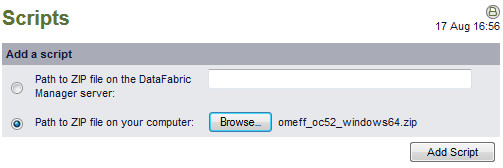
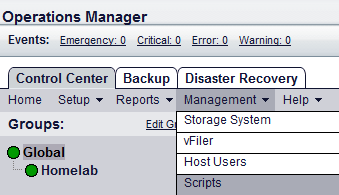
a) Login to Operations Manager as an administrator. Click Management > Scripts.
storageeffplugin5.2-1

b) On the Scripts page choose the option to select the omeff_oc52_windows64.zip file you downloaded above and click Add Script.storageeffplugin-5.2-2

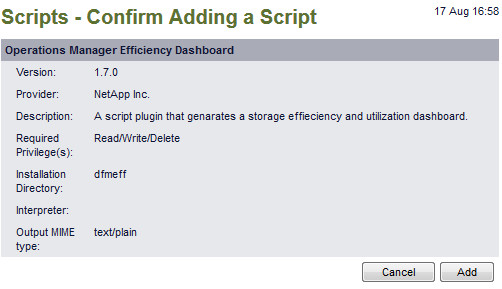
c) On the Confirm page, read the summary and click Add.storageeffplugin-5.2-3

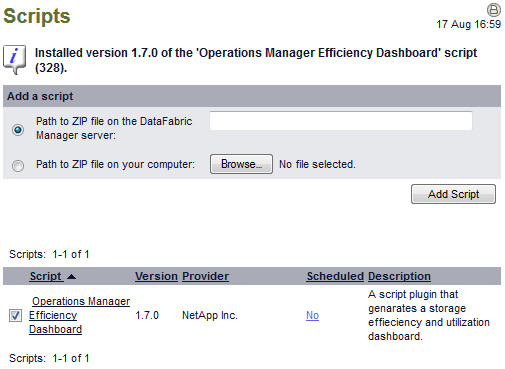
d) After the script is installed, in the lower section, select the script check box and click “No” under the Schedule column.storageeffplugin-5.2-4

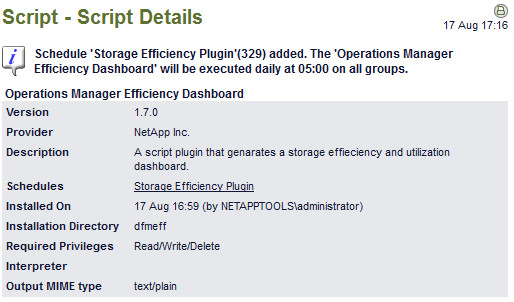
e) On the add a schedule page, enter a name for the plugin such as Storage Efficiency Plugin and at the bottom, enter the schedule of your choice. I run it daily at 05:00 AM. Click Add Schedule when done and you should see the schedule you chose.

storageeffplugin-5.2-6

2) If you want to install from the the OnCommand Unified Manager CLI:

C:\Program Files\NetApp\DataFabric Manager\DFM\bin\dfm script add omeff_oc52_windows64.zip

3) Access the Dashboard. After the script has run the first time, the dashboard will be available. Its located at the root on your OnCommand URL. Just add /dashboard.html at the end as shown in the example below.

https://nocumc.lab.slice2.com:8443/dashboard.html

storageeffplugin-5.2-7

New Releases: NetApp Data ONTAP Powershell Toolkit 3.0 and OnCommand Systems Manager 3.0

16 Friday Aug 2013

Posted by Slice2 in NetApp

≈ Leave a comment

Tags

NetApp

1) Data ONTAP PowerShell Toolkit v3 (access with free community site account)
https://communities.netapp.com/docs/DOC-22259

The new version adds support for clustered ONTAP 8.2 with 67 new cmdlets.

2) OnCommand Systems Manager v3 (you need a support contract to download)
http://support.netapp.com/NOW/download/software/systemmgr_win/3.0/

Of particular note if you still have DOT7 systems:
The installer installs both System Manager 3.0 and System Manager 2.2.0.1. System Manager 3.0 enables you to manage clustered Data ONTAP systems and System Manager 2.2.0.1 enables you to manage 7-Mode systems. System Manager 2.2.0.1 supports all the features, enhancements, and changes in the System Manager 2.2 release.

System Manager 3.0 is launched in a new browser tab or window if you are managing clustered Data ONTAP systems. Similarly, System Manager 2.2.0.1 is launched in a new browser tab or window if you are managing 7-Mode systems.

Hidden Gems – Health check Network, ONTAP, NAS and SAN configuration on NetApp storage within the NetApp Management Console

02 Friday Aug 2013

Posted by Slice2 in NetApp

≈ Leave a comment

Tags

NetApp

I believe this feature has been around since the DFM v4.x releases. If you haven’t noticed, DFM has been re-branded to NetApp OnCommand Unified Manager. There are Core and Host packages. You can download the latest v5.2 release here. You need a support contract to access the site.

Note- click images in the post below to increase size.

The NetApp OnCommand Unified Manager Core package bundles a great performance analysis tool built into the NetApp Management Console. Once you install OnCommand Unified Manager Core, its available in two locations:

1) C:\Program Files\NetApp\DataFabric Manager\DFM\web\clients\nmconsole-setup-3-3-win32.exe.

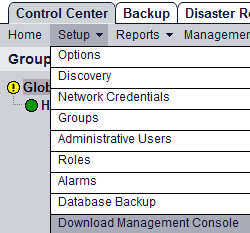
2) Start > NetApp > DataFabric Manager > Show Appliance Summary Page > click Setup > click Download Management Console.

nmc-1

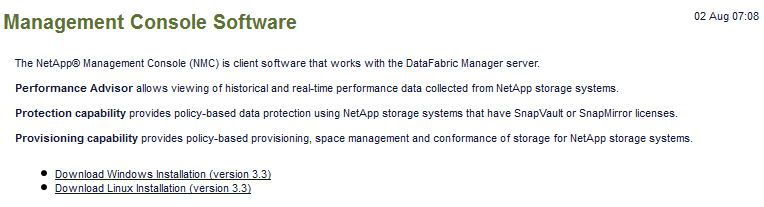
2a) Click Download Windows Installation (version 3.3) and save it locally.

nmc-2

Install the Management Console on your workstation or server.

1) Double-click nmconsole-setup-3-3-win32.exe > Next > Install > Next > Finish. It will launch when done.

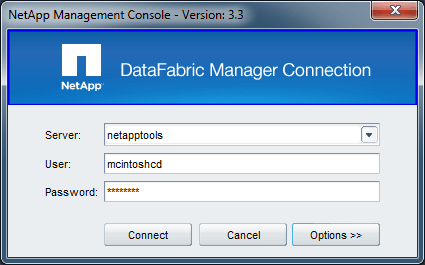
2) Enter your OnCommand Unified Manager server name or IP, username and password and click connect. Note you can click Options and switch between http and https. Hopefully you are using https.

nmc-3

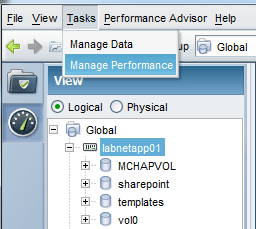
3) In the upper left, click Tasks > Manage Performance. Under View, select Logical and click the controller that you want to assess.

nmc-5

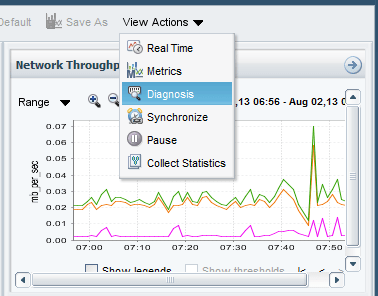
4) In a few seconds the page will render. On the right, just above the Network Throughput diagnostic panel, click View Actions > Diagnostics.

nmc-8

5) You will see either green, yellow or red as indicators of the health check category. Click on each and see what is available. In this case, when you select NAS Specific Issues, it says that Atime updates are enabled on the volumes. See the recommendation at the bottom and correct as needed.

nmc6

Note: You can sometimes improve performance by directing Data ONTAP to skip logging of access time (atime) information to NVRAM. The downside is that if there is a storage system crash, a few seconds worth of access time updates may not be recorded in the file system.

To make the change:

> vol options <your_vol_name> no_atime_update on

6) In this image for SAN Specific Issues, you can see it has detected LUN partial read/write issues. Assess the recommendations and make changes as needed.

Note: notice on the left that you can adjust the date and time of the diagnostic. This is useful when you want to assess a change you made to an NFS mount, for example rsize=8192,wsize=8192, or maybe a realigned LUN, etc. You can go back in time and correlate the diagnostic and performance data.

nmc-7

7) See TR-4090 (page 46) for Diagnostic tests and meanings.

Click to access tr-4090.pdf

Using pathping.exe on Windows to find latency in your network

01 Thursday Aug 2013

Posted by Slice2 in Windows

≈ Leave a comment

Tags

Windows

You suspect your network is burping because your storage replication is slow or failing, or maybe your CIFS shares have inconsistent write errors or disconnects, or you just think the network is slow as molasses. Before calling your network team and waking them from their post lunch nap, try to pinpoint the issue with pathping.exe. It has been there since Windows XP and is a little known utility.

Pathping.exe provides information about network latency and network loss at intermediate hops between a source and destination. Pathping sends multiple Echo Request messages to each router between a source and destination over a period of time and then computes results based on the packets returned from each router. Because pathping displays the degree of packet loss at any given router or link, you can determine which routers or subnets might be having network problems. Pathping performs the equivalent of the tracert command by identifying which routers are on the path. It then sends pings periodically to all of the routers over a specified time period and computes statistics based on the number returned from each.

Example:

C:\Users\me>pathping -n 212.58.251.195

Tracing route to 212.58.251.195 over a maximum of 30 hops

0  10.1.0.20
1  10.1.0.1
2  192.168.1.253
3  173.73.46.1
4  130.81.190.164
5  130.81.151.230
6  152.63.32.133
7  152.63.33.41
8  63.125.125.42
9  80.91.252.45
10  80.91.246.69
11  213.155.133.3
12  213.248.104.70
13     *        *        *
Computing statistics for 300 seconds…
Source to Here   This Node/Link
Hop  RTT    Lost/Sent = Pct  Lost/Sent = Pct  Address
0                                                                 10.1.0.20
0/ 100 =  0%   |
1    0ms     0/ 100 =  0%     0/ 100 =  0%  10.1.0.1
0/ 100 =  0%   |
2    1ms     0/ 100 =  0%     0/ 100 =  0%  192.168.1.253
0/ 100 =  0%   |
3   10ms     0/ 100 =  0%     0/ 100 =  0%  173.73.46.1
0/ 100 =  0%   |
4   14ms     0/ 100 =  0%     0/ 100 =  0%  130.81.190.164
0/ 100 =  0%   |
5   17ms     0/ 100 =  0%     0/ 100 =  0%  130.81.151.230
0/ 100 =  0%   |
6   20ms     0/ 100 =  0%     0/ 100 =  0%  152.63.32.133
0/ 100 =  0%   |
7   16ms     0/ 100 =  0%     0/ 100 =  0%  152.63.33.41
0/ 100 =  0%   |
8   45ms     0/ 100 =  0%     0/ 100 =  0%  63.125.125.42
0/ 100 =  0%   |
9   30ms     0/ 100 =  0%     0/ 100 =  0%  80.91.252.45
                                             0/ 100 =  0%   |
 10   96ms     8/ 100 =  8%     8/ 100 =  8%  80.91.246.69
0/ 100 =  0%   |
11   93ms     0/ 100 =  0%     0/ 100 =  0%  213.155.133.3
0/ 100 =  0%   |
12   89ms     0/ 100 =  0%     0/ 100 =  0%  213.248.104.70

Trace complete.

You can clearly see that between hops 9 and 10 (in red above) the RTT (round trip time) jumps to 93 milliseconds with 8% packet loss. Bingo. Point your network person to this router.

Using cipher.exe on Windows to purge deleted files for good.

20 Saturday Jul 2013

Posted by Slice2 in Security, Windows

≈ Leave a comment

Tags

Security, Windows

It’s well known that when you delete files and folders in Windows they are not technically deleted.  When you delete a file, the disk space used by these files is tagged as available for use. This allows the files to be reconstituted using various free recovery utilities such as SoftPerfect’s File Recovery or Piriform’s Recuva. The blocks must be overwritten to actually eliminate them completely.

Windows has a native utility named cipher.exe that can wipe those pointers and make sure the data is actually purged. Cipher.exe can overwrite all free space on your disk thus insuring files you have deleted and actually gone.

This is a safe utility. I have run this command many times over the years. You can also setup a scheduled task and run weekly to keep your systems clean. Launch a command prompt as administrator (right-click cmd.exe and select Run as administrator) and type the following:

c:\cipher /w:X where X is the drive letter you want to clean.

You can run this on your c:\ drive without any issues. Also note that the larger your drive, the longer this will take. For reference, a 1TB drive 3/4’s full took about 3 hours.

Example (this is on Windows 7):

C:\Windows\system32> cipher /w:c

To remove as much data as possible, please close all other applications while
running CIPHER /W.
Writing 0x00
………………………………………………………………………………………………………….
Writing 0xFF
…………………………………………………………………………………………………………..
Writing Random Numbers
…………………………………………………………………………………………………………..

C:\Windows\system32>


Further reading on cipher.exe options is available here:

http://technet.microsoft.com/en-us/library/cc771346(v=ws.10).aspx

← Older posts
Newer posts →

Follow Blog via Email

Enter your email address to follow this blog and receive notifications of new posts by email.

Recent Posts

  • Patch Alma Linux 8.7 on an Offline or Air-Gapped System
  • HOWTO Remove /home logical volume and add that space to the root partition
  • Patch Rocky Linux 8.6 on an Offline or Air-Gapped System
  • HOWTO Install the Splunk Universal Forwarder on FreeBSD
  • HOWTO install a Splunk Universal Forwarder on Solaris 11 SPARC and x64 Using pkg(p5p) and tar
  • HOWTO install a Splunk Universal Forwarder on Solaris 10 SPARC and x64 Using pkgadd and tar
  • Recover Files from a Windows NTFS partition using Linux based SystemRescue
  • Sysmon Event ID 1 Process Creation rules for Splunk Universal Forwarder and McAfee All Access
  • Upgrading CentOS 7.2003 to 7.2009 on an Offline or Air-Gapped System
  • HOWTO Easily Resize the Default LVM Volume on Ubuntu 18.04
  • Create a Docker Container for your Cisco ESA, SMA or WSA Offline Content Updates
  • Apply the Mozilla Firefox STIG to Firefox on Ubuntu Linux 18.04
  • Dynamically Resize Those Tiny BlackArch Linux Terminals and Add a Scrollbar
  • Kali Linux OVA for Air-Gapped Use Build Process
  • HOWTO install the XFCE 4 Desktop on NetBSD 8.1
  • Build a Kali Linux ISO with the latest OS patches and packages
  • HOWTO quickly STIG Firefox 59.01
  • HOWTO mount a Synology NAS SMB share on Linux with SMBv1 disabled
  • Howto safely delete the WSUS WID on Windows 2012R2
  • HOWTO quickly STIG Firefox 45.0.1
  • Completing the vSphere vCenter Appliance Hardening Process
  • HOWTO install the XFCE 4.12 Desktop on NetBSD 7
  • Enabling TLS 1.2 on the Splunk 6.2x Console and Forwarders using Openssl and self signed certs.
  • HOWTO enable SSH on a Cisco ASA running 9.1.x
  • Apply a Windows 2012 R2 Domain GPO to a standalone Windows 2012 R2 server
  • Enable legacy SSL and Java SSL support in your browser for those old, crusty websites
  • HOWTO update FreeBSD 10.1 to the latest 11-current release
  • HOWTO Secure iSCSI Luns Between FreeBSD 10.1 and NetApp Storage with Mutual CHAP
  • HOWTO install the XFCE 4 Desktop on NetBSD 6.1.5
  • HOWTO Secure iSCSI Luns Between Ubuntu Server 14.10 and NetApp Storage with Mutual CHAP

Categories

  • Cisco (2)
  • ESXi (4)
  • FreeBSD (2)
  • HP (5)
  • iSCSI (12)
  • Linux (31)
  • Nessus (3)
  • NetApp (31)
  • NetBSD (10)
  • Oracle (9)
  • Security (48)
  • Solaris (9)
  • Splunk (5)
  • VMware (19)
  • Windows (20)
  • Wireshark (4)
  • XFCE (3)

Archives

  • February 2023
  • August 2022
  • July 2022
  • April 2022
  • March 2022
  • February 2022
  • January 2022
  • November 2021
  • January 2021
  • December 2020
  • November 2020
  • August 2020
  • May 2020
  • September 2019
  • August 2019
  • March 2018
  • November 2016
  • March 2016
  • January 2016
  • November 2015
  • July 2015
  • June 2015
  • February 2015
  • January 2015
  • December 2014
  • November 2014
  • October 2014
  • September 2014
  • August 2014
  • July 2014
  • May 2014
  • April 2014
  • March 2014
  • February 2014
  • January 2014
  • December 2013
  • November 2013
  • October 2013
  • September 2013
  • August 2013
  • July 2013
  • June 2013
  • May 2013
  • April 2013
  • March 2013

Blogroll

  • Adobe Security Bulletins
  • CentOS Blog
  • Cisco Security Blog
  • CSO Magazine
  • DHS National Vulnerability Database
  • Eric Sloof's NTPRO
  • HT SSL Tests
  • Intel Corp Security Advisories
  • Internet Usage World Stats
  • Kali Linux Blog
  • Linux Mint Blog
  • Meltdown and Spectre
  • Microsoft Security Blog
  • Microsoft Security Intelligence Report
  • Microsoft Security Research & Defense
  • Microsoft Security Response Center
  • MITRE CVE Site
  • NetApp Blogs
  • NetBSD Blog
  • Oracle OTN Security
  • Oracle Security Blog
  • PacketStorm
  • Redhat Security Blog
  • SC Magazine
  • Shodan Search Engine
  • US-CERT Alerts
  • US-CERT Bulletins
  • US-CERT Vulnerability Notes KB
  • VMware Blogs
  • VMware Security Advisories

Category Cloud

Cisco ESXi FreeBSD HP iSCSI Linux Nessus NetApp NetBSD Oracle Security Solaris Splunk VMware Windows Wireshark XFCE

Follow Blog via Email

Enter your email address to follow this blog and receive notifications of new posts by email.

Join 41 other subscribers

Powered by WordPress.com.


Loading Comments...