• List of iSCSI Mutual CHAP Posts by OS
  • Tools and Utilities for Windows
  • Unix and Linux Distros

slice2

slice2

Author Archives: Slice2

HOWTO Install VMware Tools in Nested ESXi on ESXi

10 Tuesday Dec 2013

Posted by Slice2 in VMware

≈ Leave a comment

Tags

ESXi, VMware

A new VMware Fling was release a few weeks ago and I missed it. You can now install VMware tools in your nested ESXi Hosts. It works with nested ESXi running 5.0, 5.1 or 5.5. I’m running 5.1u1 (1312873) with nested 5.1u1 for this post and it works great. I suppose this works with VMWare Workstation 10 but I haven’t tried it.

The Fling, or tools can be downloaded here.
http://labs.vmware.com/flings/vmware-tools-for-nested-esxi

Steps:

1) Login to the ESXi console and enable SSH or the ESXi Shell.
a) In vCenter, open a console on the nested ESXi VM.
b) Press F2 and login as root.
c) Scroll down to Troubleshooting Options and press Enter.
d) Select either Enable SSH (prefered) or Enable ESXi Shell and press Enter to enable.
e) If SSH, launch Putty or an Xterm and login as root. If ESXi Shell, press ALT+F1 and login as root at the console. Press ALT+F2 to get back to the ESXi DCUI.

2) Whether you logged into the Host with SSH or at the console, place the ESXi Host in maintenance mode.
> esxcli system maintenanceMode set -e true

Now, verify Maintenence Mode is enabled.
> esxcli system maintenanceMode get
Enabled

3) Launch vSphere Client and connect directly to the nested ESXi host as root.
a) On the Configuration tab , select Storage. Right-click the local datastore and select Browse datastore.
b) Click the Upload A File icon and select the esx-tools-for-esxi-9.7.0-0.0.00000.i386.vib file and click Open.
c) When done, close out of the vSphere client session.

4) Back in the ESXi Host, change to the volume (datastore) where you placed the VIB.
> cd /vmfs/volumes/<your local datastore name>
> ls -l esx-tools*  (to verify that the file is there)
> esxcli software vib install -v /vmfs/volumes/<your local datastore name>/esx-tools-for-esxi-9.7.0-0.0.00000.i386.vib -f

Installation Result
Message: The update completed successfully, but the system needs to be rebooted for the changes to be effective.
Reboot Required: true
VIBs Installed: VMware_bootbank_esx-tools-for-esxi_9.7.0-0.0.00000
VIBs Removed:
VIBs Skipped:

5) Reboot the Host and set the reason for the reboot action.
> esxcli system shutdown reboot -r “Hey, I just installed VMware Tools on nested ESXi”

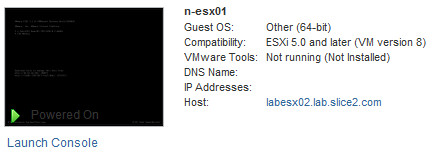
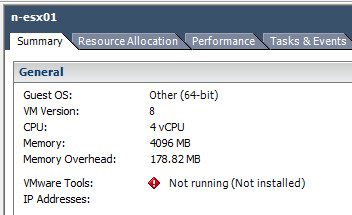
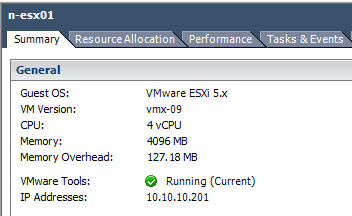
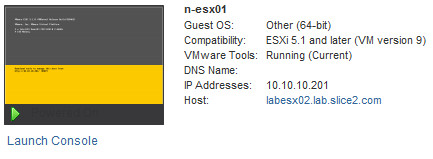
6) In vCenter (Web or vSphere client), check the Summary page for the nested ESXi Host. Is should now show VMware tools installed and current. Reference images are shown below.

a) Before VMware tools (showing both Web and vSphere Client images):
WebClient-nesxi-before vSphereClient-nesxi-before

b) And after VMware tools (showing both Web and vSphere Client images):
vSphereClient-nesxi-after WebClient-nesxi-after

Using Wireshark and Splunk to find iSCSI CHAP Negotiation Failures on VMware ESXi

02 Monday Dec 2013

Posted by Slice2 in iSCSI, NetApp, Security, VMware, Wireshark

≈ Leave a comment

Tags

iSCSI, NetApp, Security, VMware, Wireshark

This is a companion post to sniffing packets in ESXi I posted here.

Say you need to isolate traffic to troubleshoot iSCSI CHAP session negotiation failures between ESXi and NetApp storage.

Using Wireshark:

1) Dump the traffic to a pcap file and open it with Wireshark.  Before you start the capture, change directories so you can easily recover the pcap file from the datastore in vCenter.

> cd /vmfs/volumes/datastore1
> tcpdump-uw -i vmk1 -s 1514 -w esxihost01.pcap
> CTRL+C
a) When done, in vCenter select the ESXi host you were sniffing packets on, then click the Configuration tab > Storage.
b) Right-click datastore1 (or the datastore were your pcap file is) and select Browse datastore.
c) Click download a file > select the location and click OK.
d) Double-click the file and it will open in Wireshark.
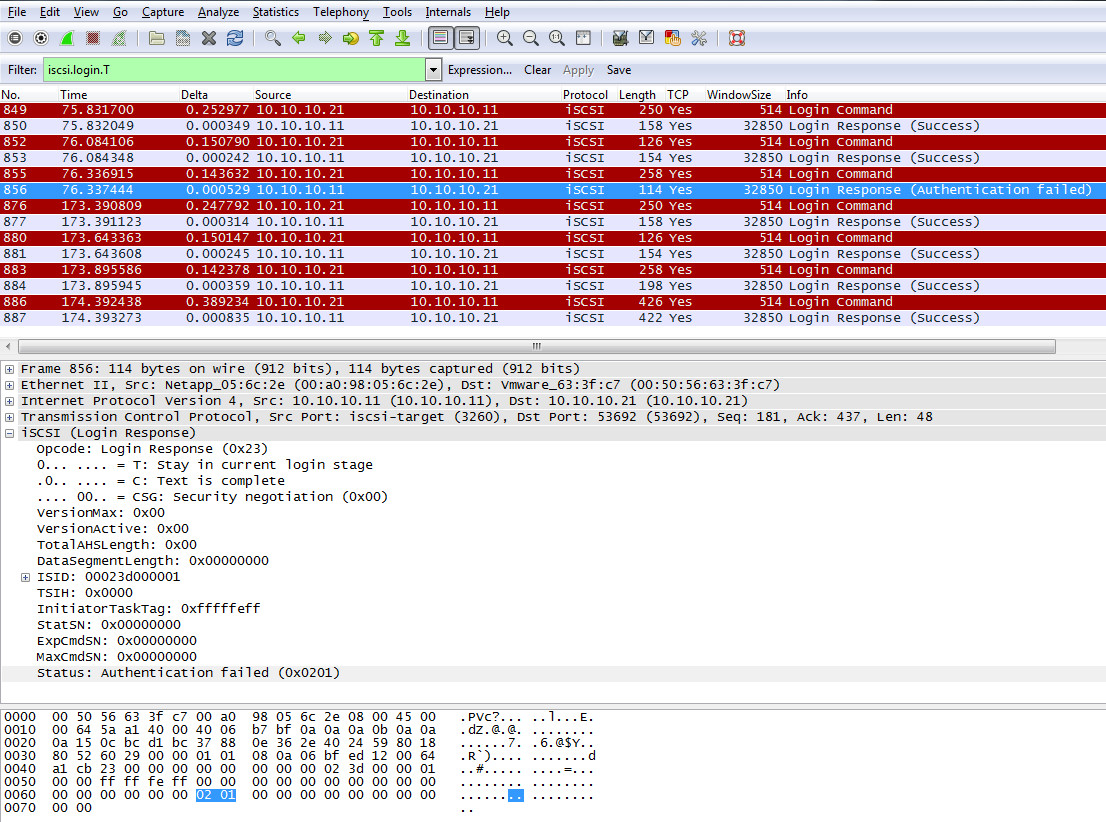
e) In Wireshark, in the upper left, enter iscsi.login.T in the Filter: field and click Apply. This only shows the iSCSI login packets. You can clearly see on the right in the Info column, packet 856 is an Authentication Failure packet.

wiresharkISCSIlogin

Using Splunk:

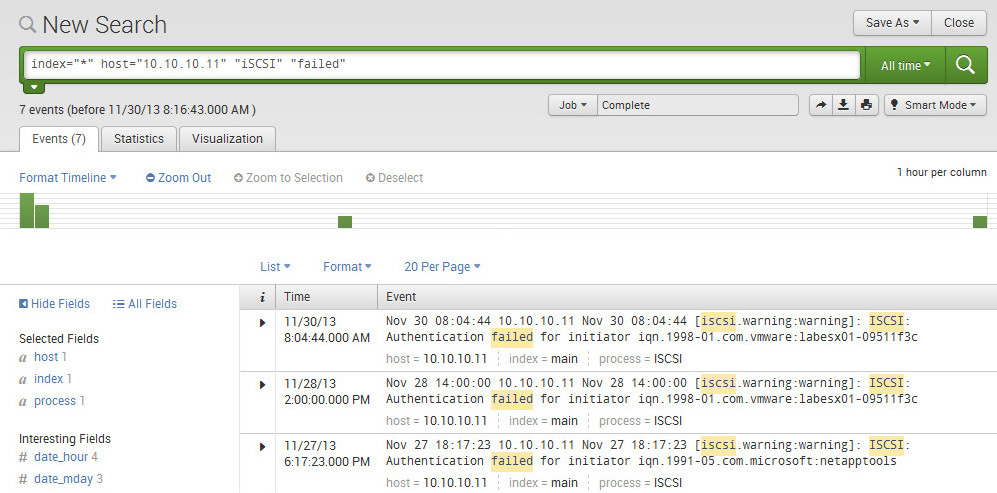
Another way to see the authentication failure is with Splunk. Assuming your NetApp storage (or any vendor) is configured to send syslog to Splunk, you can easily find the event. Splunk is an excellent Syslog server. You can download and use it for free up to 500 Megs a day indexed. I won’t go into the Splunk configuration in this post. I’ll post that soon.

Download it from here: http://www.splunk.com/download?r=header

1) Login to the Splunk UI, click Search to launch the Search app, enter the string below and the results will be displayed.

> index=”*” host=”10.10.10.11″ “iSCSI” “failed”

– Note: replace the IP address with your storage controller hostname or IP.

SplunkiSCSIlogin

Sniffing Packets on VMware ESXi 5.1 and Viewing the Capture in Wireshark

01 Sunday Dec 2013

Posted by Slice2 in VMware, Wireshark

≈ Leave a comment

Tags

VMware, Wireshark

So you need to sniff packets on ESXi 5x for troubleshooting purposes and you are not sure how to get it done. Hopefully this post will assist you. You can access the ESXI CLI from the console or via Putty/xterm by enabling SSH on the host. I prefer SSH access because the buffers in Putty/xterm make life easier.

You can use Wireshark to read the pcap files. Download and install for your OS in this way:
Windows: http://www.wireshark.org/download.html

Debian based Linux:
> apt-get install wireshark

RPM based Linux:
> yum install wireshark

1) Enable SSH on the host.
a) In vCenter, select the Host > Configuration tab > Security Profile > in the Security Profile section click Properties.
b) Scroll down to SSH and select it, then click Options > Start > OK > OK.
c) Launch an xterm or PuTTY session to the ESXi host and login as root.

2) Determine what VMKernel Ports you have on the host.
> esxcfg-vmknic -l | grep vmk
vmk0  Management Network  IPv4 10.10.10.13 255.255.255.0  10.10.10.255  00:1b:78:e0:2f:ea 1500 65535 true STATIC
vmk1  vMotion and iSCSI   IPv4 10.10.10.22 255.255.255.0  10.10.10.255  00:50:56:6f:ba:f2 1500 65535 true STATIC

2) In this case we have two.  Your production systems should have more.
vmk0 – ESXi management network. The default VMKernel Port created when you install ESXi.
vmk1 – vMotion and iSCSI. This is one I created for my LAB used for vMotion and iSCSI traffic.

3) At its most basic, specify the vmk port number and you see the packets fly by.
> tcpdump-uw -i vmk0
a) to stop, simply press CTRL+C.

Three things you need to know about tcpdump-uw:
a) tcpdump-uw only captures the first 68 bytes of data from a packet. To capture the full packet, use the -s option with a value of 1514 for normal MTU or 9014 for jumbo frames.
b) Also, tcpdump-uw can capture a max of 8138 bytes because of buffer constraints. The -B 9 option increases the buffer allowing the capture of up to 9014 bytes.
c) Captures on the vmkernel interface (vmk) only captures network traffic traversing to and from the vmkernel on that interface. It doesnt capture traffic moving across the Virtual Switch.
d) There are quite a few option for so play around with them.
> tcpdump-uw -?
tcpdump-uw version 4.0.0vmw
libpcap version 1.0.0
Usage: tcpdump-uw [-aAdDefIKlLnNOpqRStuUvxX] [ -B size ] [ -c count ]
[ -C file_size ] [ -E algo:secret ] [ -F file ] [ -G seconds ]
[ -i interface ] [ -M secret ] [ -r file ]
[ -s snaplen ] [ -T type ] [ -w file ] [ -W filecount ]
[ -y datalinktype ] [ -z command ] [ -Z user ]
[ expression ]

For example, for default MTU:
> tcpdump-uw -i vmk0 -s 1514
For Jumbo Frames:
> tcpdump-uw -i vmk0 -s 9014 -B 9

4) A few examples to get you started.
a) Dump packets on vmk0 with default MTU very verbose output showing only DNS packets (port 54).
> tcpdump-uw -i vmk0 -s 1514 -vvv port 53

b) Same as above except show NTP packets.
> tcpdump-uw -i vmk0 -s 1514 -vvv port 123

c) Is vCenter communicating properly with the ESXi host?  
> tcpdump-uw -i vmk0 -s 1514 -vvv port 902

d) Filter by transport type – TCP or UDP.
> tcpdump-uw -i vmk0 -s 1514 udp
> tcpdump-uw -i vmk0 -s 1514 tcp

e) Filter for ARP packets.
> tcpdump-uw -i vmk0 -s 1514 udp | grep ARP

5) You can dump the traffic to a pcap file and open it with Wireshark. Before you start the capture, change directories so you can easily recover the pcap file from the datastore in vCenter.

> cd /vmfs/volumes/datastore1
> tcpdump-uw -i vmk0 -s 1514 -w esxihost01.pcap
> When ready to stop capturing packets, press CTRL+C
a) When done, in vCenter select the ESXi host you were sniffing packets on, then click the Configuration tab > Storage.
b) Right-click datastore1 (or the datastore were your pcap file is) and select Browse datastore.
c) Right-click the esxihost01.pcap file > select Download, select a location and click OK.
d) Double-click the file and it will open in Wireshark.esxipacketsniff

Installing and Configuring the NetApp NFS Plug-in v1.0.20 for VMware VAAI

30 Saturday Nov 2013

Posted by Slice2 in NetApp, VMware

≈ Leave a comment

Tags

NetApp, VMware

The plug-in installs on the VMware ESXi v5x host. It takes advantage of vSphere’s enhanced storage features. On the NetApp controller, the nfs.vstorage.enable option has to be set to “on” so the ESXi host can take advantage of VMware VAAI.  This plug-in performs NFS-like RPCs to the server, using the same credentials as that of an ESXi NFS client. That means the plug-in needs no other permissions and has the same access rights as the ESXi NFS client. This is supported with DOT 8.1.1 and later.

The NFS plug-in includes these features:

Copy Offload – A process that used to take a few minutes now runs in seconds. This reduces traffic on the ESXi host and lowers CPU utilization for that task.

Space Reservation – This allows you to create thick virtual disks on NFS datastores. Through the VAAI Reserve Space primitive, you reserve space for the file when its created.

Download the plugin here: http://support.netapp.com/NOW/download/software/nfs_plugin_vaai/1.0.20/

1) Configure the NetApp Controller (this is for 7-Mode).
> options nfs.vstorage.enable on

2) In vCenter, select an ESXi host. Select the Configuration tab and then Storage under Hardware.
a) Under Datastores, right-click datastore1 (or whatever your local datastore is named) and select Browse datastore.
b) Click the Upload icon and select Upload a file. Browse to the NetAppNasPlugin.v20.zip file and click Open > Yes.

3) Enable SSH on the ESXi host or use the console CLI.
a) In vCenter, select the host > Configuration tab > Security Profile > across from Services, click Properties.
b) Scroll down to SSH and click Options. Click Start > OK > OK.

4) Verify that VAAI is enabled on the ESXi host. The output should be 1:
> esxcfg-advcfg -g /DataMover/HardwareAcceleratedMove
Value of HardwareAcceleratedMove is 1

> esxcfg-advcfg -g /DataMover/HardwareAcceleratedInit
Value of HardwareAcceleratedInit is 1

If VAAI is not enabled, enable it now:
> esxcfg-advcfg -s 1 /DataMover/HardwareAcceleratedInit
> esxcfg-advcfg -s 1 /DataMover/HardwareAcceleratedMove

5) Install the Plugin on the ESXi host.
> esxcli software vib install -d “/vmfs/volumes/<your path>/NetAppNasPlugin.v20.zip”
Installation Result
Message: The update completed successfully, but the system needs to be rebooted for the changes to be effective.
Reboot Required: true
VIBs Installed: NetApp_bootbank_NetAppNasPlugin_1.0-020
VIBs Removed:
VIBs Skipped:

6) Reboot the ESXi host. Either through vCenter or at the command line.
> reboot

7) Verify the plugin is installed on the ESXi host. You will have to re-enable SSH in vCenter.
> esxcli software vib get | grep -i NetApp
NetApp_bootbank_NetAppNasPlugin_1.0-020
Name: NetAppNasPlugin
Vendor: NetApp
Summary: NAS VAAI NetApp Plugin
Description: NetApp NAS VAAI Module for ESX Server
Payloads: NetAppNasPlugin

8) Create an NFS export on the NetApp Controller and mount it as a new NFS datastore on the ESXi host. These steps below are specific to my configuration but you should be able to figure out your variables.
a) On the NetApp:
> exportfs -p rw=10.10.10.0/24,root=10.10.10.0/24 /vol/vol1
(substitute your ESXi host IP range)

b) On the ESXi host:
> esxcli storage nfs add -H labnetapp01 -s /vol/vol1 -v DatastoreVAAI
(substitute your controller hostname, volume name and datatstore name)

9) Verify that the new datastore is VAAI supported with the following command. Look for NAS VAAI Supported: YES at the bottom of the output.
> vmkfstools -Ph /vmfs/volumes/<name-of-your-datastore>
NFS-1.00 file system spanning 1 partitions.
File system label (if any): DatastoreVAAI
Mode: public
Capacity 8 GB, 8 GB available, file block size 4 KB
UUID: 69e81cd6-90fa0446-0000-000000000000
Partitions spanned (on “notDCS”):
nfs:DatastoreVAAI
NAS VAAI Supported: YES
Is Native Snapshot Capable: YES

10) You can also verify VAAI support with the following commands.
> esxcli storage core plugin list
Plugin name       Plugin class
—————-  ————
VMW_VAAIP_NETAPP  VAAI
VAAI_FILTER       Filter
NMP               MP

> esxcli storage core claimrule list –claimrule-class=VAAI | grep NETAPP
VAAI        65433  runtime  vendor  VMW_VAAIP_NETAPP  vendor=NETAPP model=*
VAAI        65433  file     vendor  VMW_VAAIP_NETAPP  vendor=NETAPP model=*

> esxcli storage core claimrule list –claimrule-class=Filter | grep NETAPP
Filter      65433  runtime  vendor  VAAI_FILTER  vendor=NETAPP model=*
Filter      65433  file     vendor  VAAI_FILTER  vendor=NETAPP model=*

HOWTO Secure iSCSI Luns Between VMware ESXi 5.1 and NetApp Storage with Bidirectional CHAP

29 Friday Nov 2013

Posted by Slice2 in iSCSI, Security, VMware

≈ Leave a comment

Tags

iSCSI, Security, VMware

This document demonstrates how to configure iSCSI bidirectional CHAP between ESXi 5.1 Update 1 and NetApp storage. There were to many screen captures for a regular post so I created the pdf below.

Versions in use for this document:
1) VMware vSphere vCenter 5.1 Update 1c Web Client
2) VMware ESXi 5.1 Update 1
a. Note: The ESXi software iSCSI initiator will be used for this document
3) NetApp Data ONTAP 7.3.7P3 (this also works with Data ONTAP version 8x)

The HOWTO is here: Bidirectional CHAP with vSphere 5.1u1c.pdf

When a VMware Tools Upgrade Goes Bad – Fixing NICs

27 Wednesday Nov 2013

Posted by Slice2 in VMware, Windows

≈ Leave a comment

Tags

VMware, Windows

Scenario: you upgrade VMware tools on one of your VMs and your IP address will not maintain a static configuration. It reverts back to a Microsoft APIPA address (169.254.0.1 – 169.254.255.254). It’s Sunday at 9:00 PM, the outage window is closing and now you are angry.

Solution: you have to clean out all references to current and previous NICs in the registry. This post tells you how to do this for Windows 2008R2 x64. Make sure you have a local administrator account and know the password before you start. You don’t want to lock yourself out of the VM should something go haywire.

Note: Make sure your VM hardware is set to a version compatible with your version of vSphere. For this post, I’m set to version 9 (for 5.1 U1c). You can run into issues related to buggy hardware mismatches.

1) Remove the NIC and reboot the VM.
a) Right-click the VM > Edit Settings > select the NIC and click Remove > OK.

2) Delete the Interfaces and Adapters from the Registry.
a) Click Start > Run and enter regedt32 and press enter.
b) Navigate to HKEY_LOCAL_MACHINE\SYSTEM\CurrentControlSet\services\Tcpip\Parameters\Interfaces
c) Expand Interfaces and delete all entries (delete folders from the left pane).
d) Navigate to HKEY_LOCAL_MACHINE\SYSTEM\CurrentControlSet\services\Tcpip\Parameters\Adapters
e) Expand Adapters and delete all entries (delete folders from the left pane).
f) Close the registry editor and reboot the VM.

3) Add the VMXNET3 NIC back to the VM.
a) Right-click the VM > Edit Settings > click Add > select Ethernet Adapter and click Next.
b) On the Network Connection page, select the VMXNET3 adapter type, select the network you want to connect to and most importantly, DESELECT connect at power on, and then click Next > Finish > OK.
c) Reboot the VM. Don’t skip this reboot.

4) Configure your IP address.
a) Login to the VM. Click Start > Control Panel > Network and Internet > Network and Sharing Center > Change Adapter Setting.
b) Right-click the NIC > Properties > select IPv4 and click Properties.
c) Enter your IP, mask, gateway, dns and click OK > OK.
d) Right-click the VM > Edit Settings > select the NIC and in the upper right, click both Connect at power on and Connected, then click OK.
e) The NIC will connect and you should have a clean network configuration.
f) Open a cmd prompt and enter ipconfig -all to verify. Ping other hosts to test.

HOWTO Secure iSCSI Luns Between CentOS Linux 5.10 and NetApp Storage with Mutual CHAP

17 Sunday Nov 2013

Posted by Slice2 in iSCSI, Linux, Security

≈ Leave a comment

Tags

iSCSI, Linux, Security

This post demonstrates how to enable two-way or mutual CHAP on iSCSI luns between CentOS Linux 5.10 and NetApp storage. The aggregate, lun and disk sizes are small in this HOWTO to keep it simple.

1) Install open-iscsi on your server.
> yum install iscsi-initiator*
> reboot (don’t argue with me, just do it!)

2) Display your server’s new iscsi initiator or iqn nodename.
> cat /etc/iscsi/initiatorname.iscsi
InitiatorName=iqn.1994-05.com.redhat:01241a79a24

3) On the NetApp filer, create the volume that will hold the iscsi luns. This command assumes you have aggregate aggr1 already created. If not use an aggregate that has enough room for your volume.
netapp> vol create MCHAPVOL aggr1 10g

4) Create the lun in the volume.
netapp> lun create -s 5g -t linux /vol/MCHAPVOL/CENTSOS510_iSCSI_MCHAP_01

5) Create an igroup and add the Linux iscsi nodename or iqn from step 2 above to it.
netapp> igroup create -i -t linux ISCSI_MCHAP_CENTOS510
netapp> igroup add ISCSI_MCHAP_CENTOS510 iqn.1994-05.com.redhat:01241a79a24
netapp> igroup show ISCSI_MCHAP_CENTOS510

ISCSI_MCHAP_CENTOS510 (iSCSI) (ostype: linux):
iqn.1994-05.com.redhat:01241a79a24 (not logged in)

6) Map the lun to the igroup and give it lun ID 01.
netapp> lun map /vol/MCHAPVOL/CENTSOS510_iSCSI_MCHAP_01 ISCSI_MCHAP_CENTOS510 01

7) Obtain the NetApp target nodename.
netapp> iscsi nodename
iqn.1992-08.com.netapp:sn.84167939

8) Set the CHAP secret on the NetApp controller.
netapp> iscsi security add -i iqn.1994-05.com.redhat:01241a79a24 -s chap -p MCHAPCENT510 -n iqn.1994-05.com.redhat:01241a79a24 -o NETAPPMCHAP -m iqn.1992-08.com.netapp:sn.84167939

netapp> iscsi security show
init: iqn.1994-05.com.redhat:01241a79a24 auth: CHAP Inbound password: **** Inbound username: iqn.1994-05.com.redhat:01241a79a24 Outbound password: **** Outbound username: iqn.1992-08.com.netapp:sn.84167939

9) On the server, edit your /etc/iscsi/iscsi.conf file and set the parameters below.  
> vi /etc/iscsi/iscsid.conf:
node.startup = automatic
node.session.auth.authmethod = CHAP
node.session.auth.username = iqn.1994-05.com.redhat:01241a79a24
node.session.auth.password = MCHAPCENT510
node.session.auth.username_in = iqn.1992-08.com.netapp:sn.84167939
node.session.auth.password_in = NETAPPMCHAP
discovery.sendtargets.auth.authmethod = CHAP
discovery.sendtargets.auth.username = iqn.1994-05.com.redhat:01241a79a24
discovery.sendtargets.auth.password = MCHAPCENT510
discovery.sendtargets.auth.username_in = iqn.1992-08.com.netapp:sn.84167939
discovery.sendtargets.auth.password_in = NETAPPMCHAP
> wq!

10) On the server, restart the service and discover your iSCSI target (your storage system).
> service iscsi restart
> iscsiadm -m discovery -t st -p 10.10.10.11
10.10.10.11:3260,1000 iqn.1992-08.com.netapp:sn.84167939

> iscsiadm -m node  (this should display the same as above)
10.10.10.11:3260,1000 iqn.1992-08.com.netapp:sn.84167939

11) On the server, manually login to the iSCSI target (your storage array). Note there are two dashes “- -” in front of targetname and login.
> iscsiadm -m node –targetname “iqn.1992-08.com.netapp:sn.84167939” –login

Logging in to [iface: default, target: iqn.1992-08.com.netapp:sn.84167939, portal: 10.10.10.11,3260] (multiple)
Login to [iface: default, target: iqn.1992-08.com.netapp:sn.84167939, portal: 10.10.10.11,3260] successful.

On the NetApp storage console you should see the iSCSI sessions:
Sun Nov 17 07:51:00 EST [iscsi.notice:notice]: ISCSI: New session from initiator iqn.1994-05.com.redhat:01241a79a24  at IP addr 10.10.10.37
Sun Nov 17 07:56:38 EST [iscsi.notice:notice]: ISCSI: New session from initiator iqn.1994-05.com.redhat:01241a79a24 at IP addr 10.10.10.37

Verify the iSCSI session on the filer:
netapp> iscsi session show
Session 5
Initiator Information
Initiator Name: iqn.1994-05.com.redhat:01241a79a24
ISID: 00:02:3d:01:00:00
Initiator Alias: cent510

12) Stop and start the iscsi service on the server.
> service iscsi stop
Pause for 10 seconds and then run the next command.
> service iscsi start

13) From the server , check your session.
> iscsiadm -m session -P 1
Target: iqn.1992-08.com.netapp:sn.84167939
Current Portal: 10.10.10.11:3260,1000
Persistent Portal: 10.10.10.11:3260,1000
**********
Interface:
**********
Iface Name: default
Iface Transport: tcp
Iface Initiatorname: iqn.1994-05.com.redhat:01241a79a24
Iface IPaddress: 10.10.10.37
Iface HWaddress: <empty>
Iface Netdev: <empty>
SID: 2
iSCSI Connection State: LOGGED IN
iSCSI Session State: LOGGED_IN
Internal iscsid Session State: NO CHANGE

14) From the server, check the NetApp iSCSI details. Note there are two dashes “- -” in front of mode, targetname and portal.
> iscsiadm -–mode node –-targetname “iqn.1992-08.com.netapp:sn.84167939” –-portal 10.10.10.11:3260

15) From the server, find and format the new lun (new disk).
> cat /var/log/messages | grep “unknown partition table”
Nov 17 04:56:52 cent510 kernel:  sdb: unknown partition table

> fdisk /dev/sdb

Device contains neither a valid DOS partition table, nor Sun, SGI or OSF disklabel
Building a new DOS disklabel. Changes will remain in memory only,
until you decide to write them. After that, of course, the previous
content won’t be recoverable.

Warning: invalid flag 0x0000 of partition table 4 will be corrected by w(rite)

Command (m for help): w
The partition table has been altered!

Calling ioctl() to re-read partition table.
Syncing disks.

> fdisk /dev/sdb
Command (m for help): n
Command action
e   extended
p   primary partition (1-4)
p
Partition number (1-4): 1
First cylinder (1-1018, default 1):
Using default value 1
Last cylinder or +size or +sizeM or +sizeK (1-1018, default 1018):
Using default value 1018

Command (m for help): p

Disk /dev/sdb: 5368 MB, 5368709120 bytes
166 heads, 62 sectors/track, 1018 cylinders
Units = cylinders of 10292 * 512 = 5269504 bytes

Device Boot      Start         End      Blocks   Id  System
/dev/sdb1               1        1018     5238597   83  Linux

Command (m for help): w
The partition table has been altered!

Calling ioctl() to re-read partition table.
Syncing disks.

16) On the server, create the Linux file system on the new partition.
> mkfs -t ext3 /dev/sdb1
mke2fs 1.39 (29-May-2006)
Filesystem label=
OS type: Linux
Block size=4096 (log=2)
Fragment size=4096 (log=2)
655360 inodes, 1309649 blocks
65482 blocks (5.00%) reserved for the super user
First data block=0
Maximum filesystem blocks=1342177280
40 block groups
32768 blocks per group, 32768 fragments per group
16384 inodes per group
Superblock backups stored on blocks:
32768, 98304, 163840, 229376, 294912, 819200, 884736

Writing inode tables: done
Creating journal (32768 blocks): done
Writing superblocks and filesystem accounting information: done

This filesystem will be automatically checked every 26 mounts or
180 days, whichever comes first.  Use tune2fs -c or -i to override.

17) Verify the partition.
> blkid /dev/sdb1
/dev/sdb1: UUID=”90e6dc7f-13ac-42bd-b471-b6f8e6863414″ SEC_TYPE=”ext2″ TYPE=”ext3″

18) Create the mount point and manually mount the directory.
> mkdir /newiscsilun
> mount /dev/sdb1 /newiscsilun
> df -h | grep newiscsilun
Filesystem Size  Used Avail Use% Mounted on
/dev/sdb1  5.0G  139M  4.6G   3% /newiscsilun

19) Add the new mount point to /etc/fstab.
> vi /etc/fstab
/dev/sdb1 /newiscsilun ext4 _netdev 0 0
> wq!

Note: the _netdev option is important so that it doesn’t try mounting the target before the network is available.

20) Test that it survives a reboot by rebooting the server. With the _netdev set, iscsi starts and your CHAP logins should take place before it attempts to mount. After the reboot, login and verify its mounted.

> df -h | grep newiscsilun
Filesystem Size  Used Avail Use% Mounted on
/dev/sdb1  5.0G  139M  4.6G   3% /newiscsilun

21) On the server you can check session stats.
> iscsiadm -m session -s
Stats for session [sid: 1, target: iqn.1992-08.com.netapp:sn.84167939, portal: 10.10.10.11,3260]
iSCSI SNMP:
txdata_octets: 22136
rxdata_octets: 377532
noptx_pdus: 0
scsicmd_pdus: 60
tmfcmd_pdus: 0
login_pdus: 0
text_pdus: 0
dataout_pdus: 0
logout_pdus: 0
snack_pdus: 0
noprx_pdus: 0
scsirsp_pdus: 60
tmfrsp_pdus: 0
textrsp_pdus: 0
datain_pdus: 56
logoutrsp_pdus: 0
r2t_pdus: 0
async_pdus: 0
rjt_pdus: 0
digest_err: 0
timeout_err: 0
iSCSI Extended:
tx_sendpage_failures: 0
rx_discontiguous_hdr: 0
eh_abort_cnt: 0

22) As root, change permissions on /etc/iscsi/iscsid.conf. I’m not sure why they haven’t fixed this clear text CHAP password in a file issue so just make sure only root can read/write the file.
> chmod 600 /etc/iscsi/iscsid.conf

23) On the NetApp storage you can verify the Lun and the server’s session.
> lun show -v /vol/MCHAPVOL/CENTSOS510_iSCSI_MCHAP_01
/vol/MCHAPVOL/CENTSOS510_iSCSI_MCHAP_01      5g (5368709120)    (r/w, online, mapped)
Serial#: hoagPJupukXK
Share: none
Space Reservation: enabled
Multiprotocol Type: linux
Maps: ISCSI_MCHAP_CENTOS510=1

>  iscsi session show -v
Session 7
Initiator Information
Initiator Name: iqn.1994-05.com.redhat:01241a79a24
ISID: 00:02:3d:01:00:00
Initiator Alias: cent510

Session Parameters
SessionType=Normal
TargetPortalGroupTag=1000
MaxConnections=1
ErrorRecoveryLevel=0
AuthMethod=CHAP
HeaderDigest=None
DataDigest=None
ImmediateData=Yes
InitialR2T=No
FirstBurstLength=65536
MaxBurstLength=65536
Initiator MaxRecvDataSegmentLength=65536
Target MaxRecvDataSegmentLength=65536
DefaultTime2Wait=2
DefaultTime2Retain=0
MaxOutstandingR2T=1
DataPDUInOrder=Yes
DataSequenceInOrder=Yes
Command Window Size: 32

Connection Information
Connection 0
Remote Endpoint: 10.10.10.37:44786
Local Endpoint: 10.10.10.11:3260
Local Interface: e0a
TCP recv window size: 131400

Command Information
No commands active

HOWTO use Wireshark to read a packet capture from NetApp Data ONTAP after running the pktt command.

08 Friday Nov 2013

Posted by Slice2 in NetApp, Wireshark

≈ Leave a comment

Tags

NetApp, Wireshark

NetApp Data ONTAP 7 and 8 has the ability to sniff packets but the trace file cant be viewed on the controller. You can open and manipulate the trace file in Wireshark on another host. This HOWTO uses Wireshark on Windows 7. Wireshark on Linux will work as well. You must have Wireshark already installed on your Windows/Linux host before you start. You can download it here:

Windows: http://www.wireshark.org/download.html

Debian based Linux:
> apt-get install wireshark

RPM based Linux:
> yum install wireshark

1) Identify the controller’s NIC where you want to sniff packets on. In this case we will use e0a.
netapp> ifconfig -a

e0a: flags=0xe48867<UP,BROADCAST,RUNNING,MULTICAST> mtu 1500
inet 10.10.10.140 netmask 0xffffff00 broadcast 10.10.10.255
ether 00:0c:29:89:3f:3c (auto-1000t-fd-up) flowcontrol full
e0b: flags=0xe08866<BROADCAST,RUNNING,MULTICAST> mtu 1500
ether 00:0c:29:89:3f:46 (auto-1000t-fd-up) flowcontrol full
e0c: flags=0xe08866<BROADCAST,RUNNING,MULTICAST> mtu 1500
ether 00:0c:29:89:3f:50 (auto-1000t-fd-up) flowcontrol full
e0d: flags=0xe08866<BROADCAST,RUNNING,MULTICAST> mtu 1500
ether 00:0c:29:89:3f:5a (auto-1000t-fd-up) flowcontrol full
lo: flags=0x1b48049<UP,LOOPBACK,RUNNING,MULTICAST,TCPCKSUM> mtu 9188
inet 127.0.0.1 netmask 0xff000000 broadcast 127.0.0.1
losk: flags=0x40a400c9<UP,LOOPBACK,RUNNING> mtu 9188
inet 127.0.20.1 netmask 0xff000000 broadcast 127.0.20.1

2) Using the pktt command, start the capture on interface e0a and dump the output into /etc/log on the controller. When you run the command, a file is created in /etc/log/ with the NIC name (e0a), a date/time stamp and a .trc file extension.
netapp> pktt start e0a -d /etc/log
e0a: started packet trace

3) You can check the status of the packet capture and get details.
netapp> pktt status
e0a: Packet tracing enabled; packets truncated at 1514 bytes.
e0a: Trace buffer utilization = 2% of 1048320 bytes, 258 packets
e0a: 0 bytes written to file /etc/log/e0a_20131108_173928.trc
e0a: Currently tracing to file /etc/log/e0a_20131108_173928.trc
e0a: 258 packets seen; 0 packets dropped; 24936 total bytes seen

lo: Packet tracing enabled; packets truncated at 1514 bytes.
lo: Trace buffer utilization = 99% of 130816 bytes, 1011 packets
lo: 1387 packets seen; 0 packets dropped; 160568 total bytes seen

losk: Packet tracing enabled; packets truncated at 1514 bytes.
losk: Trace buffer utilization = 99% of 130816 bytes, 282 packets
losk: 40901 packets seen; 0 packets dropped; 21761277 total bytes seen

4) After a period of time you deem adequate, stop the packet capture.
netapp> pktt stop e0a
e0a: Tracing stopped and packet trace buffers released.
Fri Nov  8 17:42:25 EST [sim81:cmds.pktt.write.info:info]: pktt: 280 packets seen, 0 dropped, 32046 bytes written to /etc/log/e0a_20131108_173928.trc.

5) Verify that it has stopped.
netapp> pktt status
e0a: packet tracing not enabled

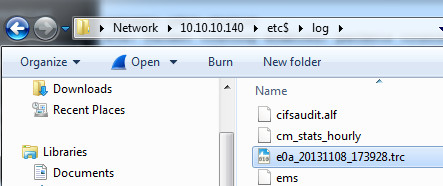
6) Open Windows Explorer on the PC/Server and enter the UNC path to the /etc/ folder on the filer. If you don’t have CIFS enabled and use NFS, mount the file system to your UNIX host.   \\10.10.10.140\etc$

pktt01

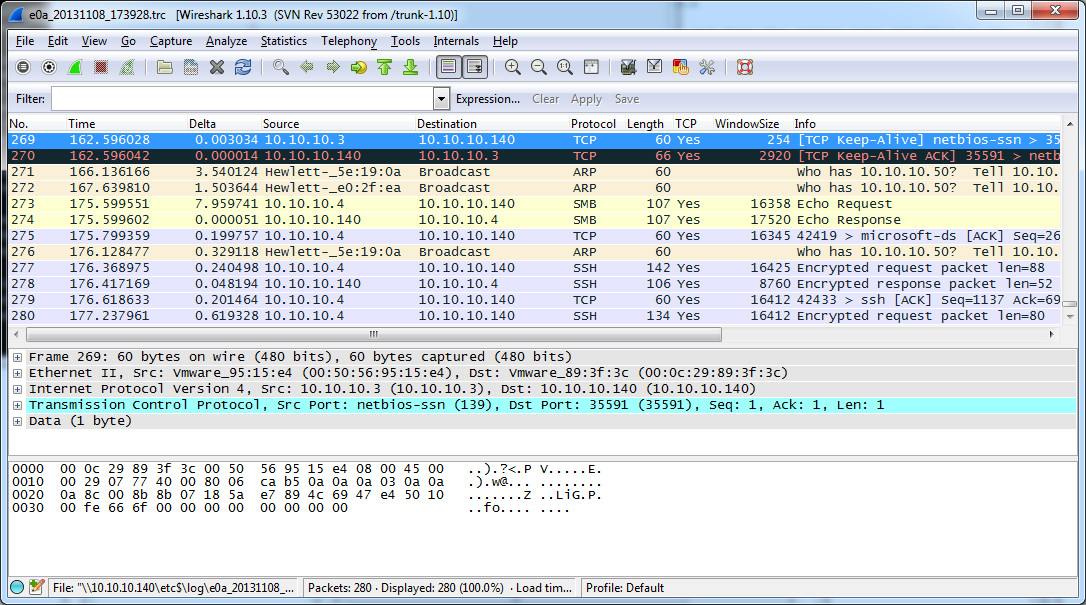
7) Browse to the log folder and locate the .trc file you just created. Double-click the file and it will load in Wireshark.

pktt02

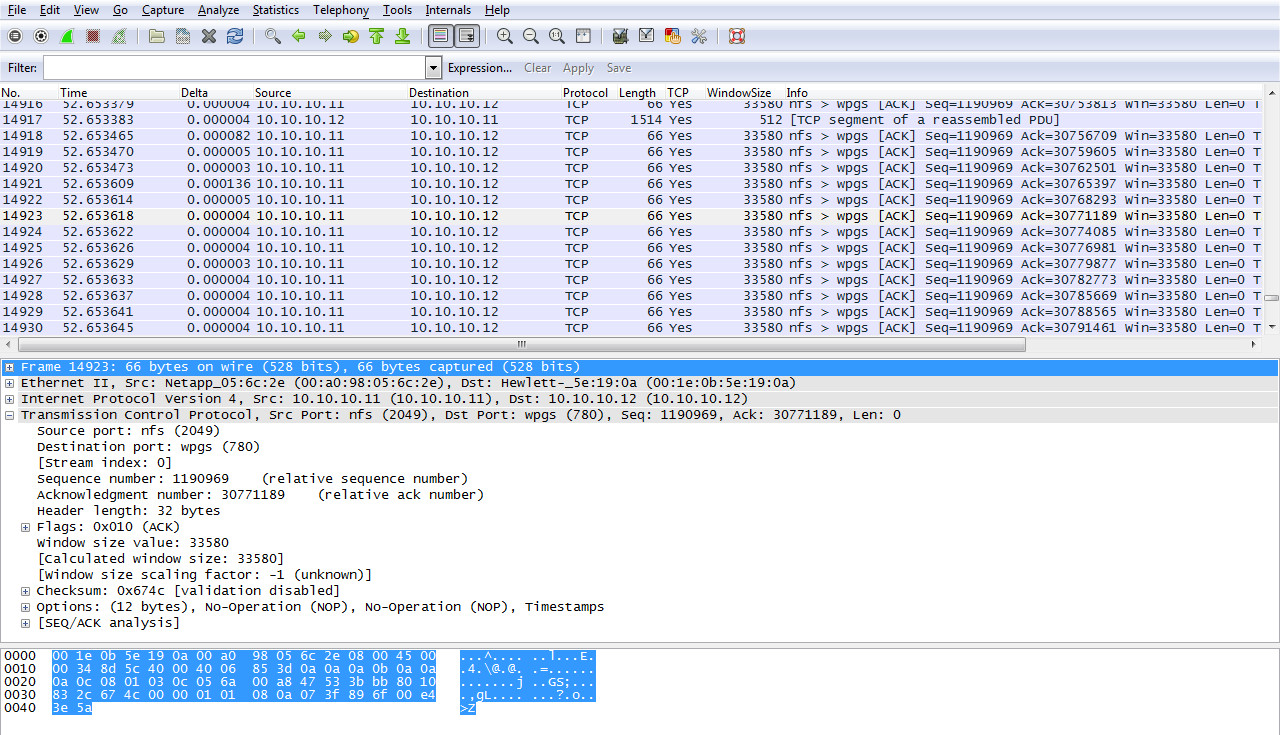
8) You can now operate on the trace file and filter, search and analyze packets.

pktt03

HOWTO install the XFCE 4 Desktop on NetBSD 6.1.2

10 Thursday Oct 2013

Posted by Slice2 in NetBSD, XFCE

≈ Leave a comment

Tags

NetBSD, XFCE

Note: An update is posted here for NetBSD 6.1.5: http://slice2.com/2015/01/03/howto-install-the-xfce-4-desktop-on-netbsd-6-1-5/

For a lightweight functional desktop, install XFCE 4. As root perform the steps below. This HOWTO covers 32 and 64 bit x86 hardware. Since NetBSD essentially runs on everything, simply adjust the repository path to your architecture from the list here: http://ftp.netbsd.org/pub/pkgsrc/packages/NetBSD/

1) Setup your binary repository.
> mkdir -p /usr/pkg/etc/pkgin
> touch /usr/pkg/etc/pkgin/repositories.conf
> vi /usr/pkg/etc/pkgin/repositories.conf and add your binary path:

For x64
http://ftp.netbsd.org/pub/pkgsrc/packages/NetBSD/amd64/6.1.2/All/

For x32
http://ftp.netbsd.org/pub/pkgsrc/packages/NetBSD/i386/6.1.2/All/

2) Add the NetBSD ftp server to your host file. This is for convenience and can be removed when done.
> vi /etc/hosts and add:
199.233.217.249 ftp.netbsd.org
> wq!

3) Export your path.
Note: I don’t know why the characters keep appearing after /ALL/ in the path statements below. It must be a WordPress bug and I’m not a developer. Just make sure that the end of the path statement ends with /6.1.2/ALL/” with no trailing characters. In other words, it should look like the paths depicted in step 1 above only it must end in a ” character.

For x64:
> export PKG_PATH=”http://ftp.netbsd.org/pub/pkgsrc/packages/NetBSD/amd64/6.1.2/All/&#8221;

For x32:
> export PKG_PATH=”http://ftp.netbsd.org/pub/pkgsrc/packages/NetBSD/i386/6.1.2/All/&#8221;

4) Install pkgin on your system.
> pkg_add -v pkgin-*
proceed ? [Y/n] Y

5) Update the pkgin database and install XFCE.
> pkgin update
Database needs to be updated.
proceed ? [Y/n] Y

> pkgin install xfce4
calculating dependencies… done.

4 packages to be upgraded: gtk2+-2.24.17nb5 pango-1.34.1nb3 tiff-4.0.3nb3 cairo-gobject-1.12.14nb4

67 packages to be installed: pkg-config-0.28 p5-Business-ISBN-Data-20120719.001nb1 jbigkit-2.0 py27-cElementTree-2.7.5 libIDL-0.8.14nb4 p5-Business-ISBN-2.06 p5-ExtUtils-PkgConfig-1.13nb2 p5-ExtUtils-Depends-0.304nb2 tiff-4.0.3nb6 cairo-gobject-1.12.16 xcb-util-0.3.9nb1 p5-glib2-1.262nb3 usbids-20081118 policykit-0.9nb15 pciids-20091229 libvolume_id-0.81.1 hal-info-20091130nb2 p5-URI-1.60nb2 ORBit2-2.14.19nb4 iso-codes-3.11.1 psutils-1.17nb4 orc-0.4.18 gstreamer0.10-0.10.36nb6 gobject-introspection-1.36.0nb3 pango-1.34.1nb4 libxfce4menu-4.6.1nb16 gst-plugins0.10-base-0.10.36nb7 a2ps-4.14nb4 libxklavier-5.0nb5 libnotify-0.7.5nb1 vte-0.28.1nb12 libexif-0.6.21 fam-2.7.0nb9 GConf-2.32.4nb7 p5-XML-Parser-2.41nb2 xfce4-exo-0.3.101nb23 hal-0.5.14nb12 xfconf-4.6.1nb20 startup-notification-0.12nb3 libxfce4util-4.6.1nb16 libwnck-2.30.6nb15 libglade-2.6.4nb19 hicolor-icon-theme-0.12 dbus-glib-0.100.2 dbus-1.6.14 libxfce4gui-4.6.1nb19 gtk2+-2.24.20nb1 xfce4-xarchiver-0.5.2nb20 xfce4-wm-themes-4.6.0nb16 xfce4-wm-4.6.1nb19 xfce4-volman-0.2.0nb23 xfce4-utils-4.6.1nb20 xfce4-thunar-1.0.1nb21 xfce4-terminal-0.4.2nb19 xfce4-settings-4.6.5nb21 xfce4-session-4.6.1nb19 xfce4-print-4.6.1nb21 xfce4-panel-4.6.2nb20 xfce4-orage-4.6.1nb21 xfce4-mousepad-0.2.16nb18 xfce4-mixer-4.6.1nb19 xfce4-icon-theme-4.4.3nb16 xfce4-gtk2-engine-2.6.0nb17 xfce4-desktop-4.6.1nb21 xfce4-appfinder-4.6.1nb21 gnome-icon-theme-2.30.3nb20 xfce4-4.6.1nb27 (73M to download, 160M to install)

proceed ? [Y/n] Y

6) Configure the system to run XFCE.
> cp /usr/pkg/share/examples/rc.d/famd /etc/rc.d/
> cp /usr/pkg/share/examples/rc.d/dbus /etc/rc.d/
> cp /usr/pkg/share/examples/rc.d/hal /etc/rc.d/
> echo rpcbind=YES >> /etc/rc.conf
> echo famd=YES >> /etc/rc.conf
> echo dbus=YES >> /etc/rc.conf
> echo hal=YES >> /etc/rc.conf
> /etc/rc.d/rpcbind start
> /etc/rc.d/famd onestart
> /etc/rc.d/dbus start
> /etc/rc.d/hal start

7) Configure X and start the desktop.
> echo xfce4-session >> /root/.xinitrc
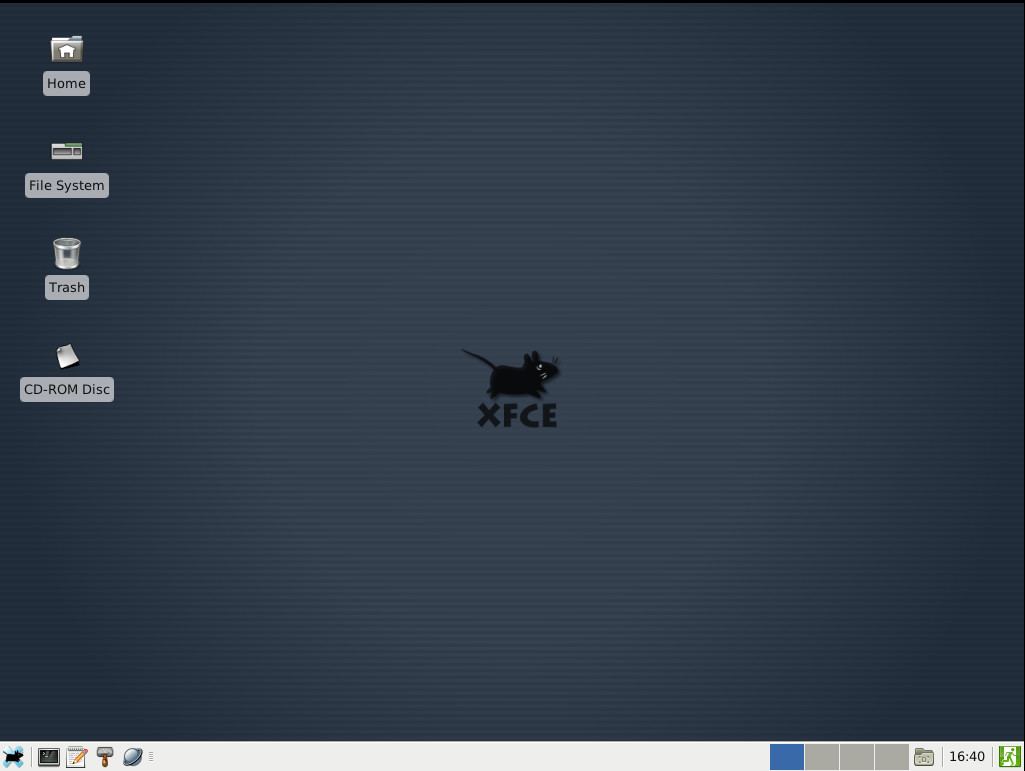
> startx   (note: be patient, it may take a minute to load)

xfce-01

8) Close XFCE to prepare for installation of software.
a) Click on the mouse icon in the lower left corner of the desktop and click Log Out.

xfce-02

b) Click Log Out to exit XFCE.

xfce-03

9) Install apps as desired. This step is optional but I’m sure you want at least a current browser. Enter Y when asked proceed ? [Y/n] for each app.
Browsers and plugins:
> pkgin install firefox
> pkgin install opera
> pkgin install icedtea-web
> pkgin install xpdf
Security tools:
> pkgin install wireshark
> pkgin install nmap
> pkgin install iftop
GUI ftp/scp client:
> pkgin install filezilla
Office Suite:
> pkgin install libreoffice*

Notes:
To launch firefox, enter the firefox command in an xterm.
To launch liberoffice, enter the soffice command in an xterm.
The list of all apps for NetBSD v6.1.2 are listed here:
http://ftp.netbsd.org/pub/pkgsrc/packages/NetBSD/amd64/6.1.2/All/

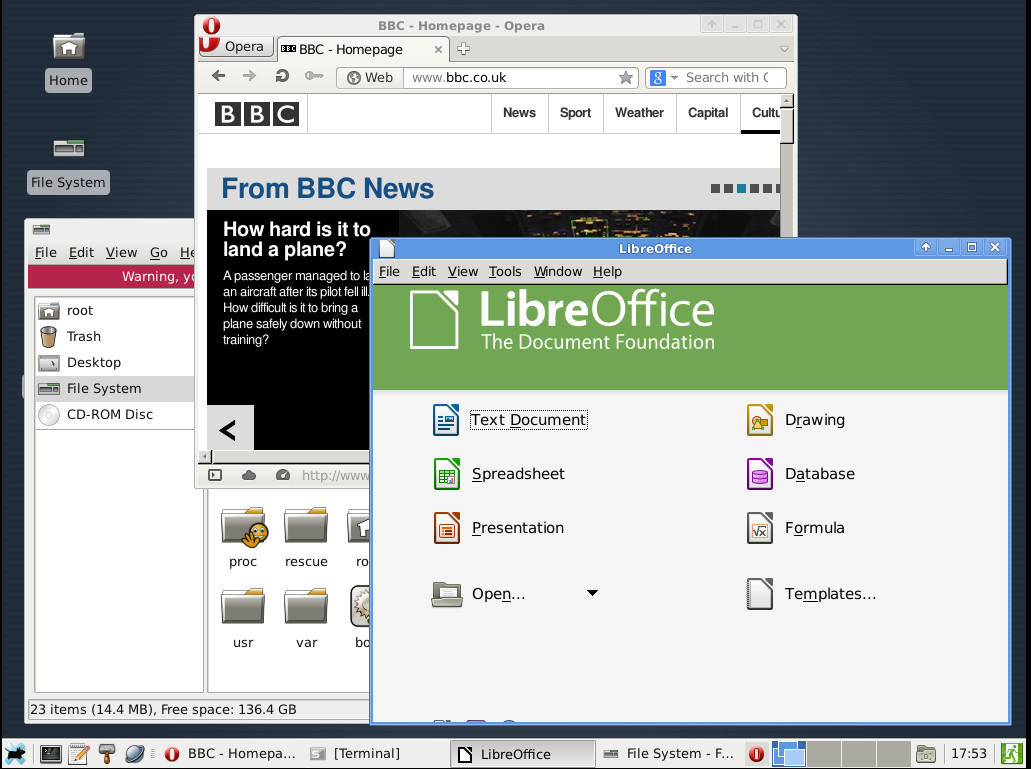
9) Now that your apps are installed, start your desktop.
> startx

xfce-04

NetApp releases new versions of 7-Mode Transition Tool, SnapManager, NFS VAAI Plugin, VSC, and two new Oracle tools.

10 Thursday Oct 2013

Posted by Slice2 in NetApp, Oracle

≈ Leave a comment

Tags

NetApp, Oracle

1) 7-Mode Transition Tool v1.1
The 7-Mode Transition Tool enables copy-based transitions of Data ONTAP 7G and 7-Mode FlexVol volumes and configurations to new hardware that is running clustered Data ONTAP 8.2, with minimum client disruption and retention of storage efficiency options. Attention: You can transition only network-attached storage (NAS) environments to clustered Data ONTAP 8.2 using the 7-Mode Transition Tool.
http://support.netapp.com/NOW/download/software/ntap_7mtt/1.1/

2) NetApp NFS Plug-in for VMware VAAI v1.0.20
http://support.netapp.com/NOW/download/software/nfs_plugin_vaai/1.0.20/

3) SnapManager for Exchange v7.0
http://support.netapp.com/NOW/download/software/snapmanager_e2k/7.0/

4) Single Mailbox Recovery for Exchange v7.0
http://support.netapp.com/NOW/download/software/smbr/7.0/

5) SnapManager for SharePoint v6.1.2, v7.1.1, and v8.0
SnapManager for Microsoft SharePoint is an enterprise-strength backup, recovery, and data management solution for Microsoft SharePoint 2013, 2010 and 2007.
http://support.netapp.com/NOW/download/software/snapmanager_sharepoint/8.0/
http://support.netapp.com/NOW/download/software/snapmanager_sharepoint/7.1.1/
http://support.netapp.com/NOW/download/software/snapmanager_sharepoint/6.1.2/

6) Virtual Storage Console v4.2.1
The Virtual Storage Console for VMware vSphere software is a vSphere client plug-in that provides end-to-end virtual machine lifecycle management for VMware virtual server and desktop environments running on NetApp storage.
http://support.netapp.com/NOW/download/software/vsc_win/4.2.1/

7) NetApp Storage System Plug-in for Oracle Enterprise Manager v12.1.0.2.0
The NetApp Storage System Plug-in for Oracle Enterprise Manager delivers comprehensive availability and performance information for NetApp storage systems. By combining NetApp storage system monitoring with comprehensive management of Oracle systems, Cloud Control significantly reduces the cost and complexity of managing applications that rely on NetApp storage and Oracle technologies.
http://support.netapp.com/NOW/download/tools/ntap_storage_plugin/

8) NetApp Cloning Plug-in for Oracle Database
NetApp and Oracle have collaborated to provide the ability to quickly clone a PDB database from the Oracle Database 12c SQL command line. This integration leverages NetApp FlexClone technology which allows you to develop and test applications faster by creating instant, space efficient clones of PDBs that shorten the design cycles and improve service levels.
http://support.netapp.com/NOW/download/tools/ntap_cloning_plugin/

← Older posts
Newer posts →

Follow Blog via Email

Enter your email address to follow this blog and receive notifications of new posts by email.

Recent Posts

  • Patch Alma Linux 8.7 on an Offline or Air-Gapped System
  • HOWTO Remove /home logical volume and add that space to the root partition
  • Patch Rocky Linux 8.6 on an Offline or Air-Gapped System
  • HOWTO Install the Splunk Universal Forwarder on FreeBSD
  • HOWTO install a Splunk Universal Forwarder on Solaris 11 SPARC and x64 Using pkg(p5p) and tar
  • HOWTO install a Splunk Universal Forwarder on Solaris 10 SPARC and x64 Using pkgadd and tar
  • Recover Files from a Windows NTFS partition using Linux based SystemRescue
  • Sysmon Event ID 1 Process Creation rules for Splunk Universal Forwarder and McAfee All Access
  • Upgrading CentOS 7.2003 to 7.2009 on an Offline or Air-Gapped System
  • HOWTO Easily Resize the Default LVM Volume on Ubuntu 18.04
  • Create a Docker Container for your Cisco ESA, SMA or WSA Offline Content Updates
  • Apply the Mozilla Firefox STIG to Firefox on Ubuntu Linux 18.04
  • Dynamically Resize Those Tiny BlackArch Linux Terminals and Add a Scrollbar
  • Kali Linux OVA for Air-Gapped Use Build Process
  • HOWTO install the XFCE 4 Desktop on NetBSD 8.1
  • Build a Kali Linux ISO with the latest OS patches and packages
  • HOWTO quickly STIG Firefox 59.01
  • HOWTO mount a Synology NAS SMB share on Linux with SMBv1 disabled
  • Howto safely delete the WSUS WID on Windows 2012R2
  • HOWTO quickly STIG Firefox 45.0.1
  • Completing the vSphere vCenter Appliance Hardening Process
  • HOWTO install the XFCE 4.12 Desktop on NetBSD 7
  • Enabling TLS 1.2 on the Splunk 6.2x Console and Forwarders using Openssl and self signed certs.
  • HOWTO enable SSH on a Cisco ASA running 9.1.x
  • Apply a Windows 2012 R2 Domain GPO to a standalone Windows 2012 R2 server
  • Enable legacy SSL and Java SSL support in your browser for those old, crusty websites
  • HOWTO update FreeBSD 10.1 to the latest 11-current release
  • HOWTO Secure iSCSI Luns Between FreeBSD 10.1 and NetApp Storage with Mutual CHAP
  • HOWTO install the XFCE 4 Desktop on NetBSD 6.1.5
  • HOWTO Secure iSCSI Luns Between Ubuntu Server 14.10 and NetApp Storage with Mutual CHAP

Categories

  • Cisco (2)
  • ESXi (4)
  • FreeBSD (2)
  • HP (5)
  • iSCSI (12)
  • Linux (31)
  • Nessus (3)
  • NetApp (31)
  • NetBSD (10)
  • Oracle (9)
  • Security (48)
  • Solaris (9)
  • Splunk (5)
  • VMware (19)
  • Windows (20)
  • Wireshark (4)
  • XFCE (3)

Archives

  • February 2023
  • August 2022
  • July 2022
  • April 2022
  • March 2022
  • February 2022
  • January 2022
  • November 2021
  • January 2021
  • December 2020
  • November 2020
  • August 2020
  • May 2020
  • September 2019
  • August 2019
  • March 2018
  • November 2016
  • March 2016
  • January 2016
  • November 2015
  • July 2015
  • June 2015
  • February 2015
  • January 2015
  • December 2014
  • November 2014
  • October 2014
  • September 2014
  • August 2014
  • July 2014
  • May 2014
  • April 2014
  • March 2014
  • February 2014
  • January 2014
  • December 2013
  • November 2013
  • October 2013
  • September 2013
  • August 2013
  • July 2013
  • June 2013
  • May 2013
  • April 2013
  • March 2013

Blogroll

  • Adobe Security Bulletins
  • CentOS Blog
  • Cisco Security Blog
  • CSO Magazine
  • DHS National Vulnerability Database
  • Eric Sloof's NTPRO
  • HT SSL Tests
  • Intel Corp Security Advisories
  • Internet Usage World Stats
  • Kali Linux Blog
  • Linux Mint Blog
  • Meltdown and Spectre
  • Microsoft Security Blog
  • Microsoft Security Intelligence Report
  • Microsoft Security Research & Defense
  • Microsoft Security Response Center
  • MITRE CVE Site
  • NetApp Blogs
  • NetBSD Blog
  • Oracle OTN Security
  • Oracle Security Blog
  • PacketStorm
  • Redhat Security Blog
  • SC Magazine
  • Shodan Search Engine
  • US-CERT Alerts
  • US-CERT Bulletins
  • US-CERT Vulnerability Notes KB
  • VMware Blogs
  • VMware Security Advisories

Category Cloud

Cisco ESXi FreeBSD HP iSCSI Linux Nessus NetApp NetBSD Oracle Security Solaris Splunk VMware Windows Wireshark XFCE

Follow Blog via Email

Enter your email address to follow this blog and receive notifications of new posts by email.

Join 41 other subscribers

Powered by WordPress.com.


Loading Comments...